Snapchat voice and video calls fail for a handful of repeatable reasons, and almost all of them are fixable in a couple of minutes. The usual culprits are a shaky connection, missing microphone or camera permissions, an outdated app, or a temporary glitch that a restart clears.
This guide walks through 12 fixes in order, from the fastest checks to the deeper ones. Start at the top and stop as soon as your calls work again.
Read more - How to Fix an Android Phone Not Making or Receiving Calls
Quick Reference Table
If you already know your symptom, jump straight to the fix that matches it.
| Symptom | Most likely fix |
|---|---|
| Call won't connect or says failed | Check your connection and toggle Airplane Mode (Fix 1) |
| Call never rings the other person | Confirm you are friends and not blocked (Fix 5) |
| Call drops immediately | Update Snapchat and clear the cache (Fix 2 and 7) |
| One-way or no audio | Check microphone permissions and Bluetooth (Fix 3) |
| Works on Wi-Fi but not data | Allow Snapchat to use mobile data (Fix 6) |
Check Your Internet Connection
A weak or unstable connection is the most common reason Snapchat calls fail. Snapchat itself recommends making sure both you and your friend have a good internet connection before anything else.
Switch between Wi-Fi and mobile data to see which one holds up better, since one network can be congested while the other is fine. If you are on Wi-Fi, move closer to the router or to a window, and restart your router or modem if it has been on for a while.
Test your connection with a speed-test app to rule out high latency or packet loss, which break real-time calls even when web pages load fine. If your signal is poor, that is the problem, not Snapchat.
Toggle Airplane Mode and Reset the Network
If your connection looks fine but calls still fail, your phone may be holding onto a stale network state. Turning Airplane Mode on for about 10 seconds and then off forces the phone to reconnect to the cell tower and Wi-Fi cleanly.
If that does not help, reset your network settings. On iPhone, go to Settings > General > Transfer or Reset iPhone > Reset > Reset Network Settings. This clears saved Wi-Fi passwords and network preferences but does not delete your photos or apps, so you will need to rejoin your Wi-Fi networks afterward.
On Android, the path varies by brand, but it is usually under Settings > System > Reset options > Reset Wi-Fi, mobile & Bluetooth. Like on iPhone, this only resets connections, not your data.
Update Snapchat and Your Phone
Outdated apps often carry bugs that affect calling, and Snapchat recommends both you and the person you are calling run the latest version. Calls can fail outright if one side is on an old build.
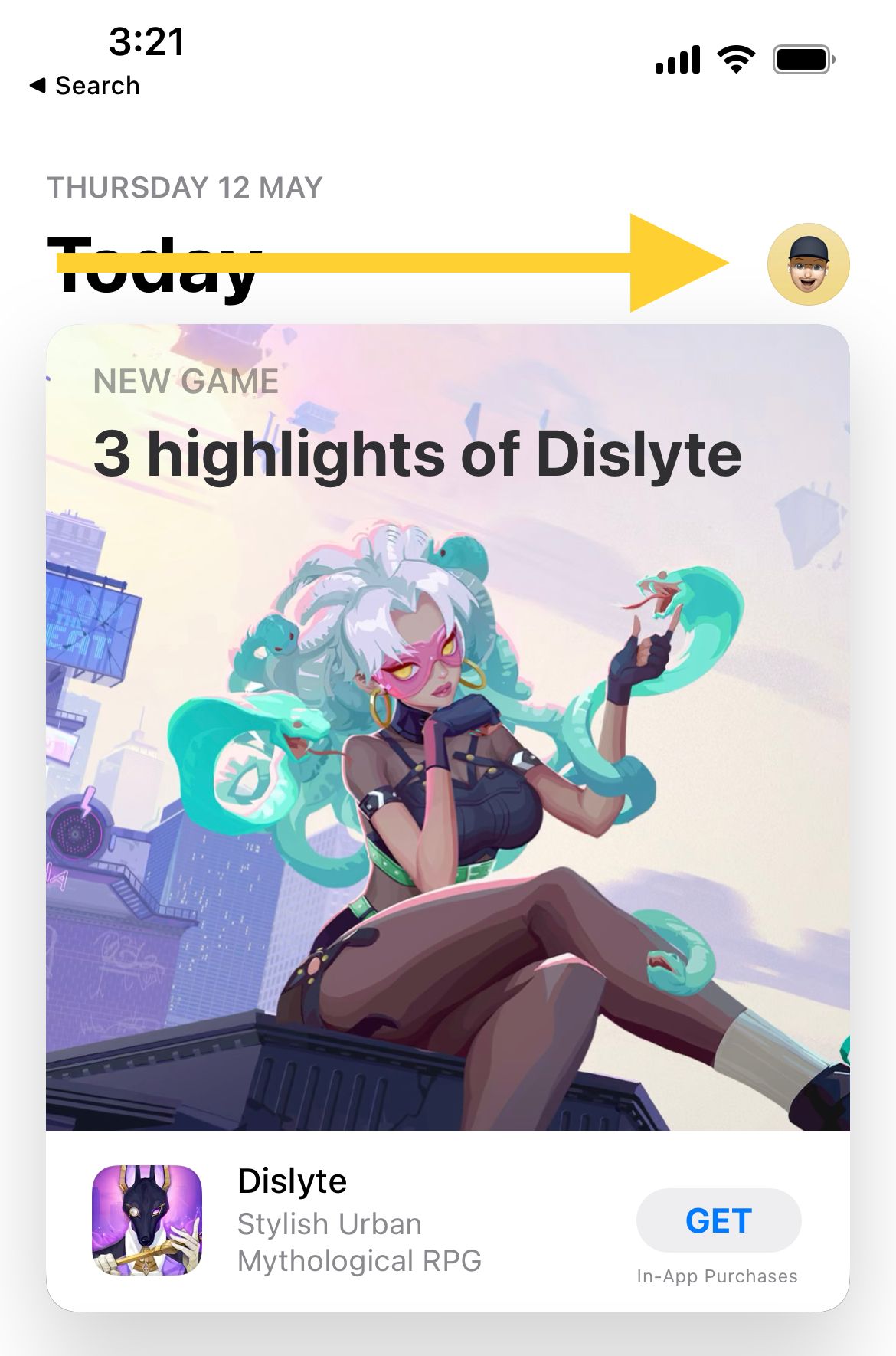
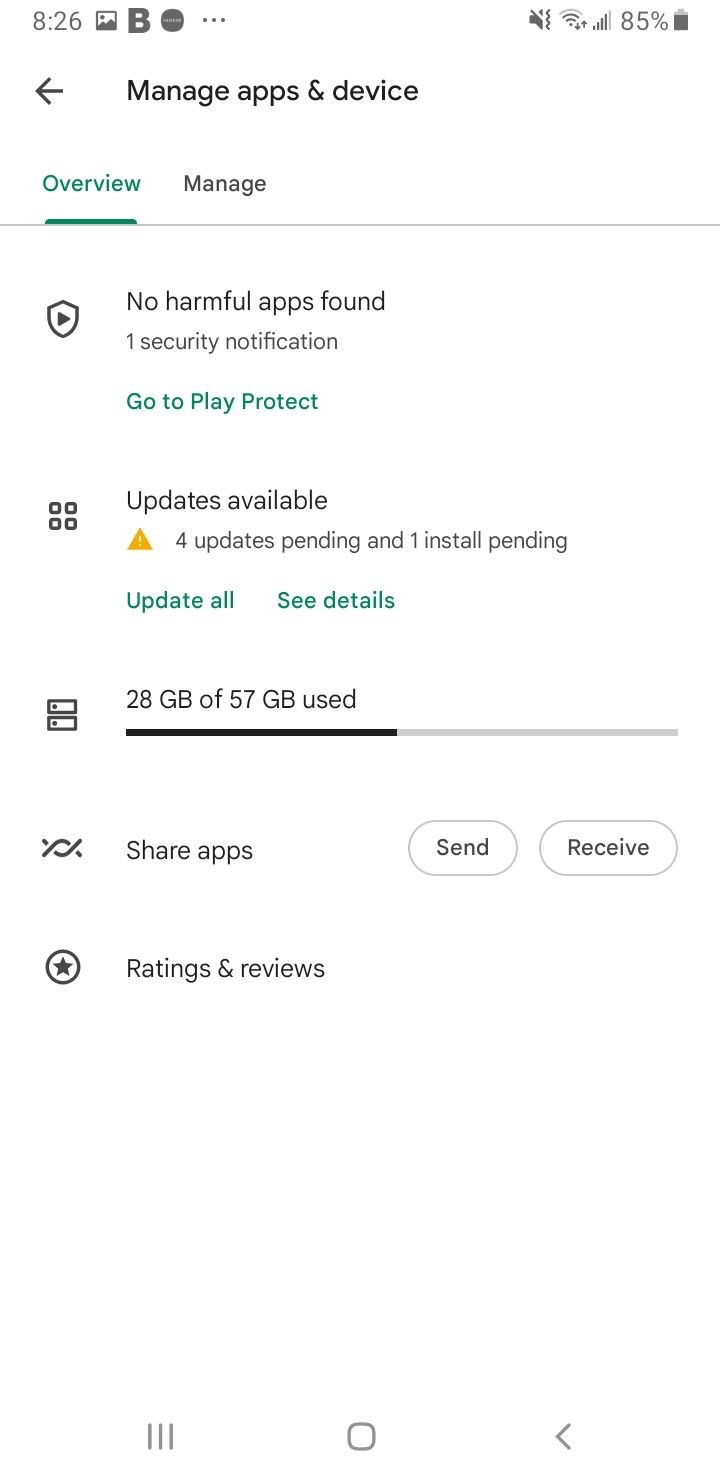
On iPhone, open the App Store, tap your profile icon at the top right, scroll to your list of apps, and tap Update next to Snapchat if an update is available. On Android, open the Google Play Store, tap your profile icon at the top right, choose Manage apps & devices, and tap Update under the Updates available list if Snapchat is shown.
While you are at it, install any pending operating system update. On iPhone that is Settings > General > Software Update, and on Android it is Settings > System > Software update or System update.
Read more - iPhone Call Failed? 13 Ways to Fix It
Check Microphone and Camera Permissions
If the call connects but the other person cannot hear or see you, Snapchat is probably missing microphone or camera permission. This is the single most common cause of one-way audio.
On iPhone, go to Settings > Privacy & Security > Microphone and make sure Snapchat is switched on, then do the same under Settings > Privacy & Security > Camera. On Android, open your phone's Settings, go to Apps > Snapchat > Permissions, and turn on both Camera and Microphone.
Also confirm your phone is not on silent and the volume is up. If you use Bluetooth earbuds or a headset, a low battery or weak Bluetooth link can mute or delay audio, so try disconnecting Bluetooth and using the phone directly.
Read more - iPhone Microphone Not Working - How to Fix It
Confirm You Are Friends and Not Blocked
Snapchat calls only work between friends, and the call will simply fail to ring if you are not connected on the app. The other person must have added you back, and neither of you can have blocked the other.
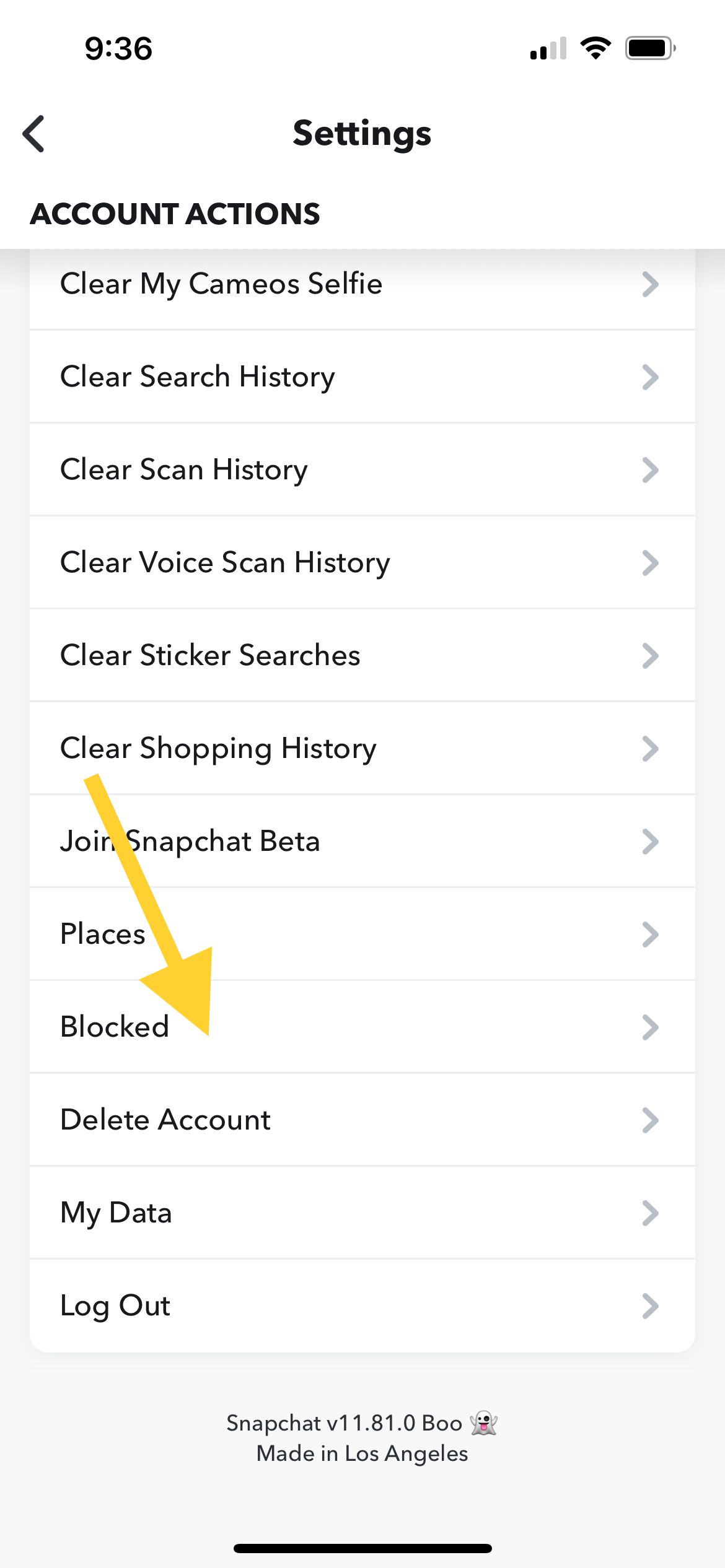
Open Snapchat, tap your profile icon, tap the gear icon for Settings, and check your Blocked list to make sure the person you are calling is not on it. If they are, unblock them and add them again before retrying.
If you recently added each other, ask the other person to confirm they accepted your friend request. A pending or one-sided friendship is enough to stop calls from going through.
Allow Snapchat to Use Mobile Data
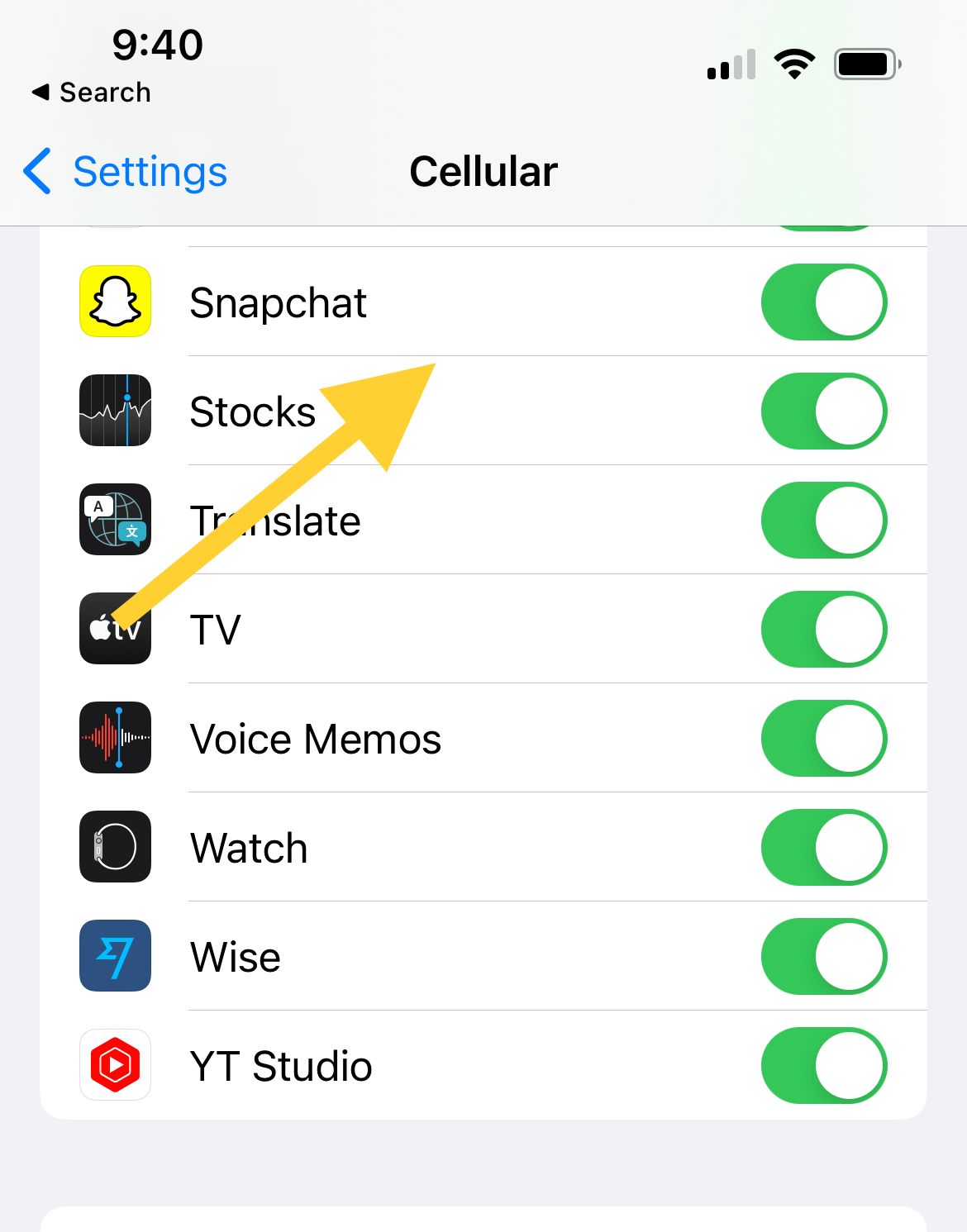
If calls work on Wi-Fi but fail on cellular, Snapchat may be blocked from using mobile data. On iPhone, go to Settings > Cellular, scroll to Snapchat, and make sure its toggle is on.
On Android, go to Settings > Apps > Snapchat > Mobile data & Wi-Fi and confirm both Mobile data and Background data are allowed. If you have a data saver or low data mode enabled system-wide, add Snapchat as an exception so it is not throttled.
Inside Snapchat, also check Data Saver. Open Settings, tap My Privacy & Data under App & Privacy, then under Manage My Data tap Data Saver and turn it off while you test, since it limits what loads over mobile data.
Clear the Snapchat Cache
Corrupted cache files can make Snapchat features misbehave, including calls. Clearing the cache is safe and does not delete your Memories, Snaps, or Chats.
Open Snapchat, tap your profile icon, then the gear icon for Settings. Scroll to App & Privacy, tap My Privacy & Data, then under Manage My Data tap Clear Cache and confirm. Snapchat will rebuild the cache the next time you use it.
On Android you can also clear it from the system side at Settings > Apps > Snapchat > Storage > Clear Cache, which leaves your login and app data intact.
Read more - How to Clear an App's Cache on Your Samsung Device
Free Up Storage Space
Very low storage can stop apps from running calling features reliably. If your phone is nearly full, free up a few gigabytes and try again.
Check your space on iPhone at Settings > General > iPhone Storage, and on Android at Settings > Storage. Delete apps you no longer use, clear out large downloads, and offload old photos or videos to the cloud.
Aim to keep at least a couple of gigabytes free so the app has room to work. Tight storage causes a long list of odd glitches beyond just calls.
Restart the App and Your Phone
A simple restart clears most temporary glitches, and Snapchat lists it as a first-line fix for chat and call problems. Fully close Snapchat by swiping it away from your recent apps, then reopen it.
If that does not work, restart your phone. Power it off, wait about 30 seconds, then turn it back on so the system network stack and background services start fresh.
You can also sign out and back into Snapchat to reset your session. Just make sure you know your password or have access to your recovery email and phone number first.
Disable VPN and Check Date and Time
A VPN can route your traffic through a slow or restricted server that breaks real-time calls. If you use one, turn it off and try the call again on your normal connection.
An incorrect date or time can also cause secure connections to fail, which interferes with Snapchat. On iPhone, go to Settings > General > Date & Time and turn on Set Automatically, and on Android go to Settings > System > Date & time and enable the automatic options.
After changing either setting, fully close and reopen Snapchat before testing a call again.
Check for a Snapchat Outage
Sometimes the problem is on Snapchat's end, not yours. During an outage, calls can fail for everyone no matter what you do.
Third-party status trackers and Snapchat's own support channels can show whether calling or other features are being reported as down. It is worth a quick look before you spend time on deeper fixes.
If an outage is confirmed, there is nothing to fix locally. Wait for Snapchat to resolve it, then try your call again.
Reinstall Snapchat
If nothing above works, uninstall and reinstall Snapchat for a clean copy free of corrupted files. This is the strongest reset short of contacting support.
Delete the app, then download it again from the App Store or Google Play and log back in. Make sure you remember your password and have access to your recovery email or phone number, because you will need to sign in from scratch.
If calls still fail after a fresh install, report the problem to Snapchat from Settings, then Support & Safety, then Bugs and Suggestions, then Report a Bug, so the team can investigate.
Frequently Asked Questions
Why does my Snapchat call say failed to connect?
A failed to connect message almost always points to your network. Toggle Airplane Mode off and on, switch between Wi-Fi and mobile data, and confirm Snapchat is allowed to use mobile data. If the connection is fine, update the app on both phones and clear the cache.
Why can't I hear or be heard on Snapchat calls?
One-way or missing audio usually means a permission or audio routing issue. Confirm Snapchat has microphone access in your phone's settings, make sure you are not muted in the call, and disconnect any Bluetooth device with a weak connection or low battery, then test using the phone directly.
Do both people need the latest version of Snapchat to call?
Yes. Snapchat recommends that both you and the person you are calling run the latest version, because calls can fail when one side is on an outdated build. Update Snapchat from the App Store or Google Play on both devices.
Why does my Snapchat call never ring the other person?
Calls only work between friends, so if the call never rings, you may not be friends or one of you is blocked. Check that the other person accepted your friend request and that neither of you is on the other's blocked list.
Does clearing the Snapchat cache delete my Snaps or chats?
No. Clearing the cache only removes temporary files and frees up space. Your Memories, Snaps, and Chats are not affected, and Snapchat rebuilds the cache automatically the next time you open the app.
Why do Snapchat calls work on Wi-Fi but not mobile data?
That points to a data restriction. Make sure Snapchat is allowed to use cellular data in your phone's settings, turn off any system-wide data saver or add Snapchat as an exception, and disable Snapchat's in-app Data Saver while you test the call.
First published October 17, 2025. Last updated June 4, 2026.