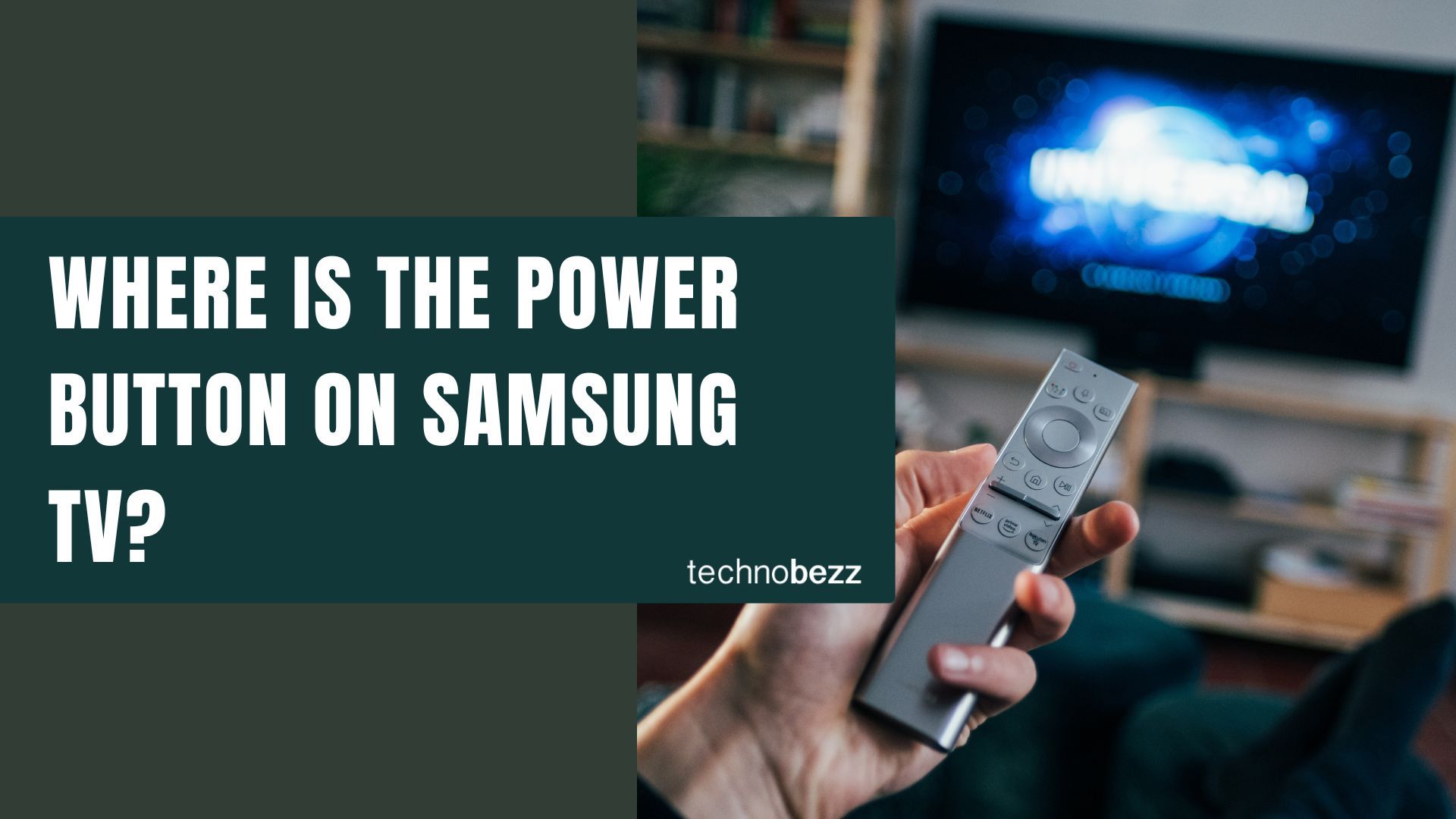
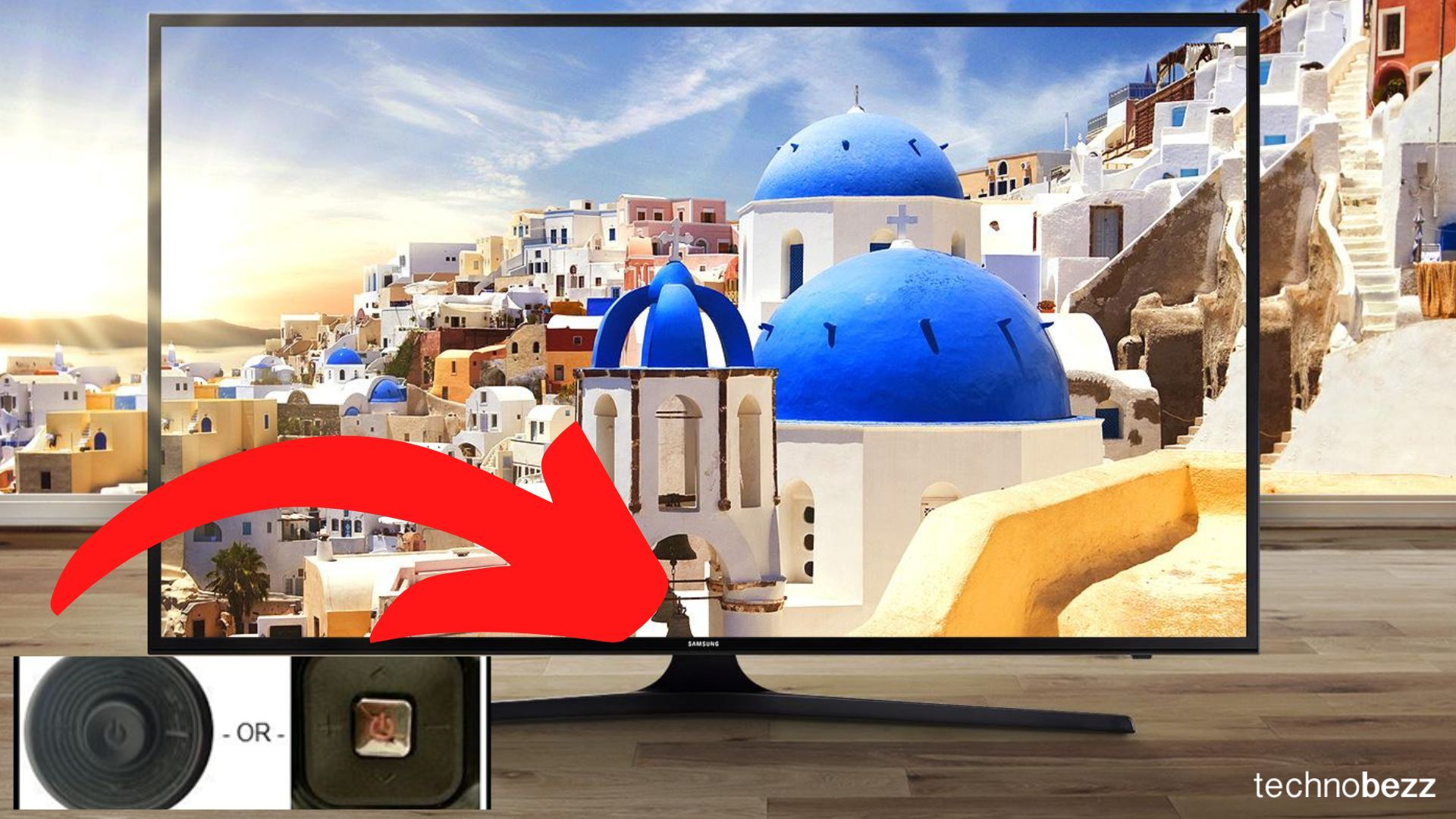
If you just want the quick answer, look on the back of the TV near the bottom-right corner. On most Samsung models made from 2020 onward, the power button is a single joystick-style control tucked behind the bottom-right edge of the panel, not on the front where you expect it.
Reach around the right side and feel for a small toggle or recessed button. It is almost always within a couple of inches of the small standby light that glows when the TV is in standby.
Samsung calls this control the TV Controller or Jog Controller, and it is a single button that handles everything, including power, volume, and source. Below we map all five common locations to your TV series so you can find it fast.
Read more - Samsung TV Remote Not Working Troubleshooting Tips
5 Places to Find the Power Button
Samsung does not put the button in the same spot on every model. The position changed over the years and varies by series, so check these five locations in order.
- 1.Back panel, bottom-right corner - The most common spot on Crystal UHD, QLED, Neo QLED, and 2020-and-newer models. Reach behind the right side near the bottom edge and feel for a small joystick or button.
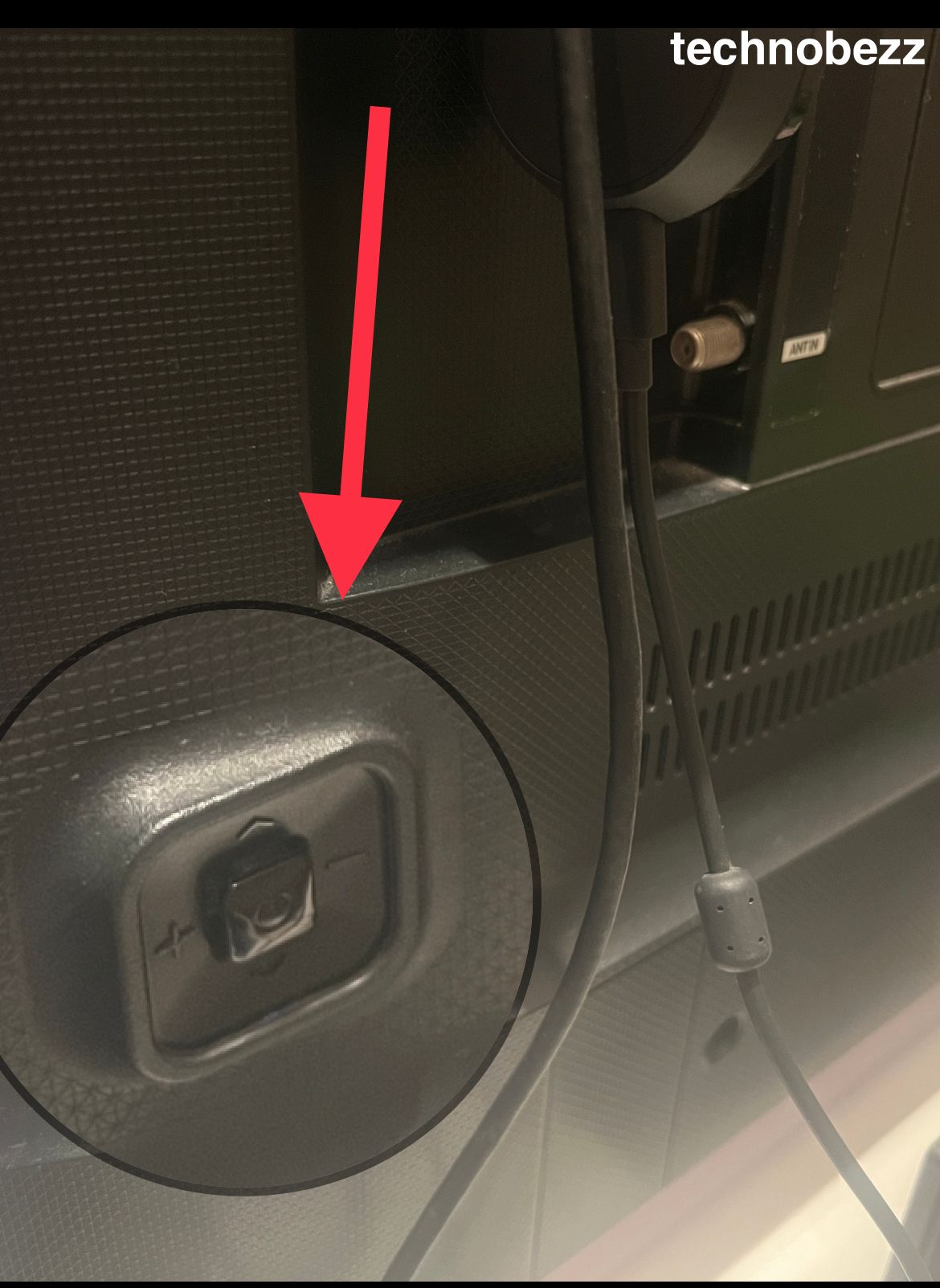
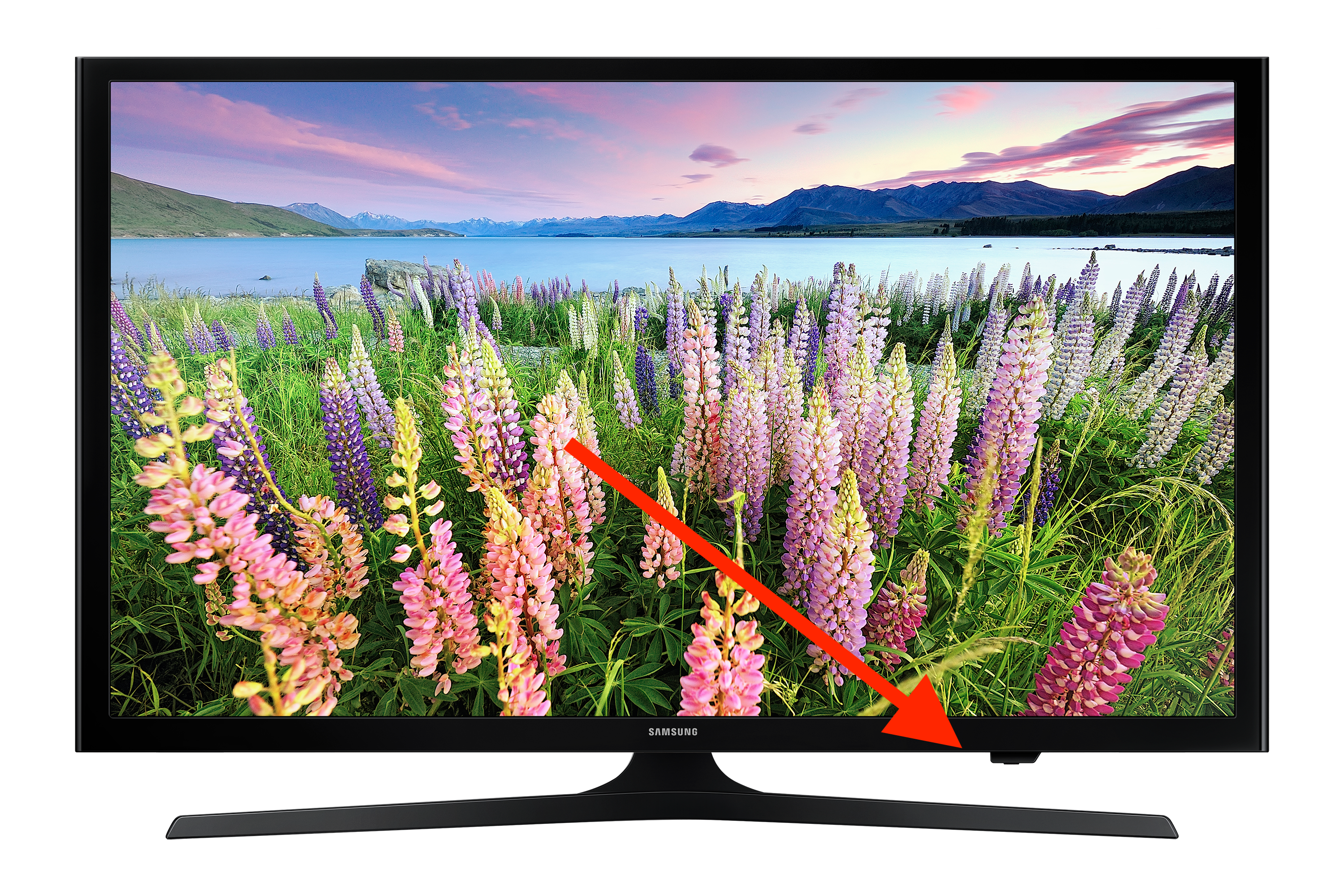
- 1.Underside, bottom-right - Some sets place the controller under the bottom bezel toward the right-hand corner. Slide a finger along the underside from the right until you feel the toggle.
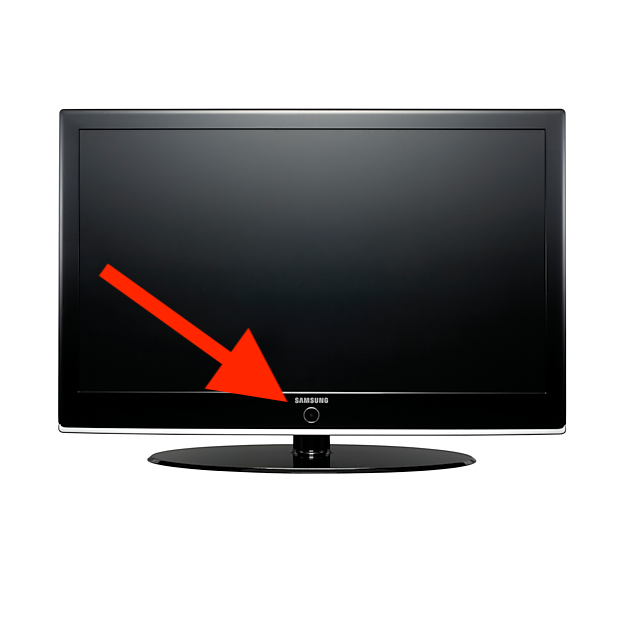
- 1.Center below the Samsung logo - Many TVs from roughly 2016 to 2019 put the button on the front lower bezel, directly beneath the Samsung logo in the center.
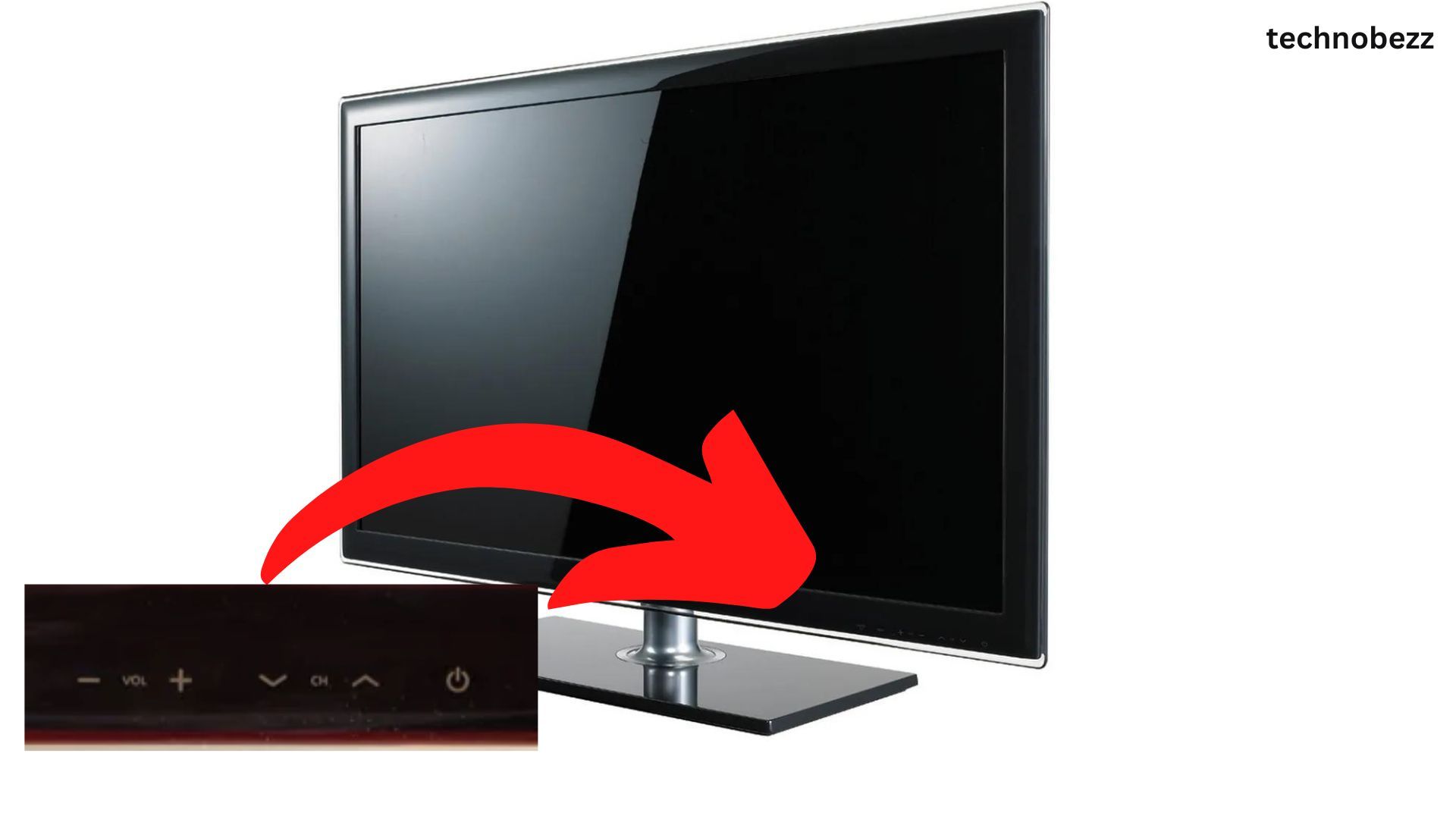
- 1.Front side edge, left or right - Certain models use a touch-sensitive or physical button along the lower-left or lower-right of the front bezel. Look for a tiny power icon etched into the surface.
- 1.Hidden center jog under the panel - On some single-button designs the control sits in the center but is not visible from the front. You feel for it under the panel and press it firmly.
Quick Reference by TV Series
Use this table to jump straight to the most likely location for your model. The exact spot can still vary slightly by year, so check the closest match first.
| TV series | Button location | Side |
|---|---|---|
| Neo QLED and QLED (2020 and newer) | Back panel | Bottom-right corner |
| Crystal UHD (2020 and newer) | Back panel or underside | Bottom-right |
| The Frame | Back panel, center or right | Bottom-center to right |
| Flat-panel models (2016 to 2019) | Front lower bezel | Center below logo |
| Touch-control models | Front bezel edge | Lower-left or lower-right |
How to Press the Single Button
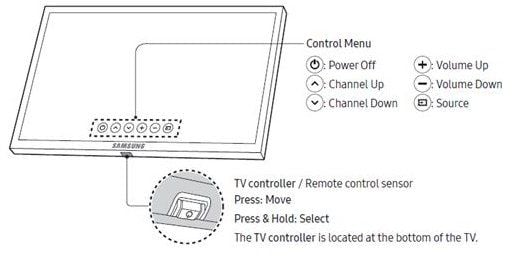
Newer Samsung TVs use one multi-function button instead of a row of buttons, so a single press does something different from a long press. Knowing the difference saves a lot of guesswork.
To turn the TV on, press the button once. When the TV is already on, a single press opens the Control menu at the bottom of the screen, and continued presses move through the options like Volume, Channel, Source, and Power off.
To turn the TV off, press the button to bring up the menu, move to Power off, then press and hold the button to confirm. Press and hold also selects whatever menu item you have highlighted.
How to Spot the Button
If you have run your hand along the back and still cannot feel it, slow down and look for a few clear signs. The button is small and easy to miss on a thin panel.
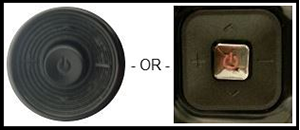
Look for a tiny power symbol, usually a circle with a line through the top. Check for a recessed toggle or joystick rather than a flat clicky button, since most modern Samsung sets use a jog control.
The standby indicator light is your best landmark. The button sits very close to that light, so once you find the light you are within reach of the control.
Find Your Exact Model Number
If you want the precise location for your set, identify the model number and look it up. Samsung keeps the number in the menu and on a label on the back of the TV.
On the TV, go to Settings > Support > About This TV, where the model code is listed. You can also read it from the sticker on the rear panel near the connections.
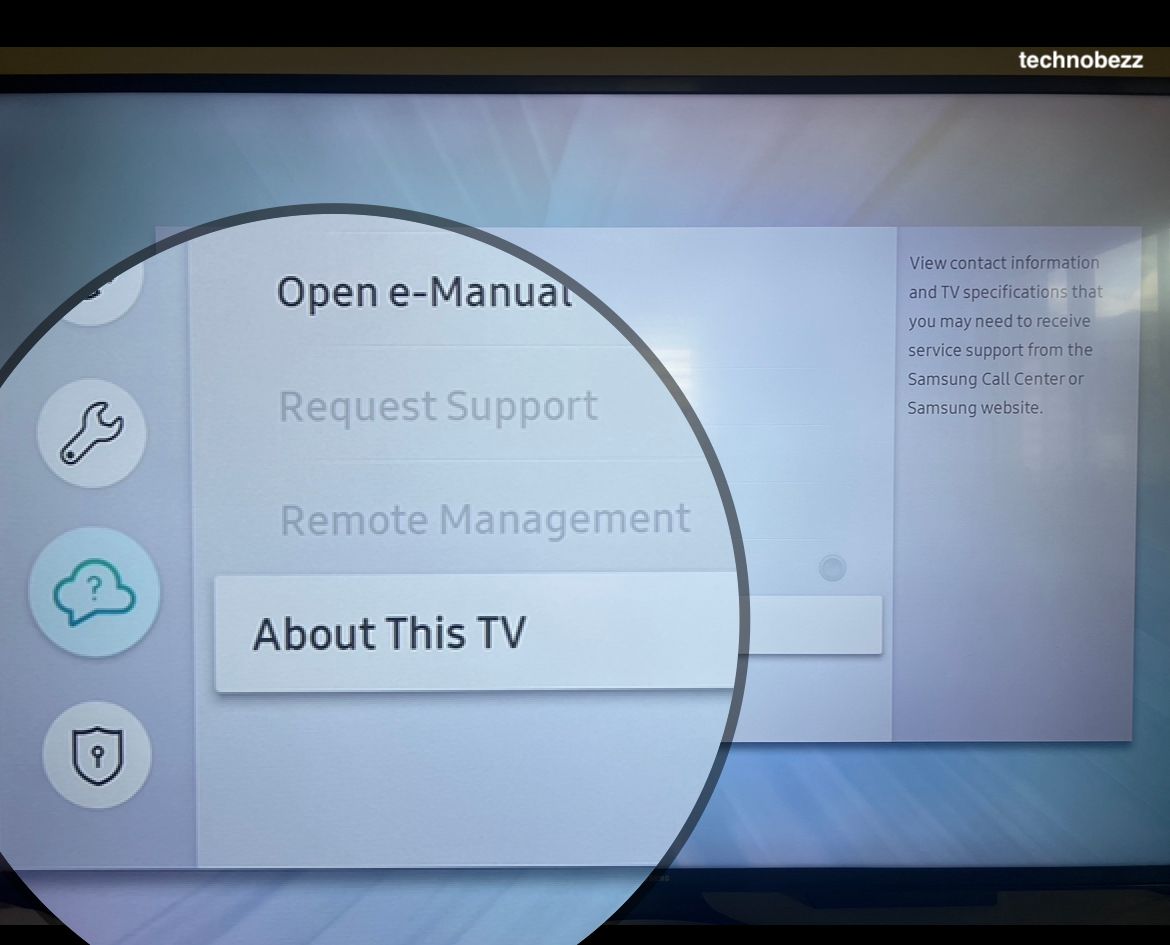
With the model number in hand, search Samsung's support site for your set to see the controller position confirmed for that year. The first few characters of the code identify the series and size.
Turn On a Samsung TV Without the Remote
You do not need the physical button at all if your remote is lost or dead. Samsung gives you a few software options that work over your home network or by voice.
The SmartThings app is the most reliable. Open SmartThings, tap Add or the plus icon, choose Device, tap By brand, select Samsung, choose TV, and follow the prompts to connect. Newer TVs ask you to enter a PIN shown on the screen during setup.
Once connected, the app gives you on and off control, a full on-screen remote, app launching, and volume and channel controls from your phone on the same Wi-Fi network.
Use Voice to Power On the TV
Samsung TVs from 2019 through 2025 support voice through Bixby and can connect to Amazon Alexa. Voice is handy when both the button and the remote are out of reach.
For Bixby, you can say Hi Bixby to wake it without pressing the microphone button. To enable hands-free voice, go to Settings > General > Voice, choose Voice assistant, select Bixby, then set Voice Wake-Up.
For Alexa, connect the TV to SmartThings, then enable the SmartThings skill in the Alexa app under Skills and Games and run Discover Devices. Alexa then handles basic commands like turning the TV on and changing channels.
Frequently Asked Questions
Why does my Samsung TV have no visible power button?
Modern Samsung TVs use a single jog-style controller hidden behind the bottom-right edge or underside of the panel instead of a front button. It is there, just not where older TVs kept it. Feel along the back near the standby light to find it.
Where is the power button on The Frame TV?
On The Frame, the controller is on the back of the panel, around the bottom-center to the right side. Reach behind and feel for the small joystick. A single press opens the menu and a press-and-hold makes selections, including power.
Can I turn on my Samsung TV without the remote or the button?
Yes. Set up the SmartThings app on your phone, connect it to your TV, and use the on and off control from the app over Wi-Fi. You can also turn it on by voice with Bixby Voice Wake-Up or with Alexa once SmartThings is linked.
What does pressing the single button do?
A single press turns the TV on, and once it is on a single press opens the Control menu. Continued presses move through options, and press and hold selects an item or turns the TV off when Power off is highlighted.
What if the power button does not work?
Unplug the TV for about a minute, then plug it back in and try again to clear a temporary fault. If the button still does nothing, control the TV through SmartThings or check that the standby light comes on, which tells you the TV is receiving power.
How do I find the exact button spot for my model?
Open Settings > Support > About This TV to read the model number, or check the label on the rear panel. Then look up that model on Samsung's support site to confirm the controller location for your specific year and series.
First published October 15, 2025. Last updated June 4, 2026.