You settle in for movie night, ready to enjoy your favorite show, and then your Samsung TV switches off on its own. A few seconds later it powers back on, only to repeat the cycle. It is unsettling, but in most cases the cause is a setting or a connected device sending stray signals, not a dead TV.
This guide walks through 12 fixes in the order a technician would try them, starting with the fastest and safest. Most people stop the power cycling within the first few steps, and the deeper fixes cover the rarer hardware causes.
Read also - Samsung TV Turns On But No Picture How to Fix It
Match Your Symptom to the Likely Cause
The pattern your TV follows is the biggest clue to what is wrong. Use the table below to jump straight to the most likely fix instead of working through every step.
| What you see | Most likely cause | Try fix |
|---|---|---|
| TV turns on by itself when you turn on a console, soundbar, or streaming stick | Anynet+ (HDMI-CEC) | Fix 2 |
| TV shuts off at the same time every day | Sleep Timer or Off Timer | Fix 3 |
| TV powers down after a long stretch of no input | Auto Power Off or Screen Saver | Fix 4 |
| Rapid on-off loop right after powering up | Power supply or power board | Fix 6, Fix 11 |
| Random restarts, freezes, or glitches | Outdated firmware or temporary glitch | Fix 1, Fix 7 |
| Cycling started after a storm or surge | Electrical damage | Fix 6, Fix 12 |
| Buzzing, clicking, or burning smell with the cycling | Failing internal components | Fix 12 |
If you are not sure which pattern fits, start with Fix 1 and work down the list.
1. Power Cycle the TV to Clear a Glitch
A full power cycle clears the temporary memory and discharges residual power, which fixes most random restarts and short-lived software glitches. This is different from simply turning the TV off and on.
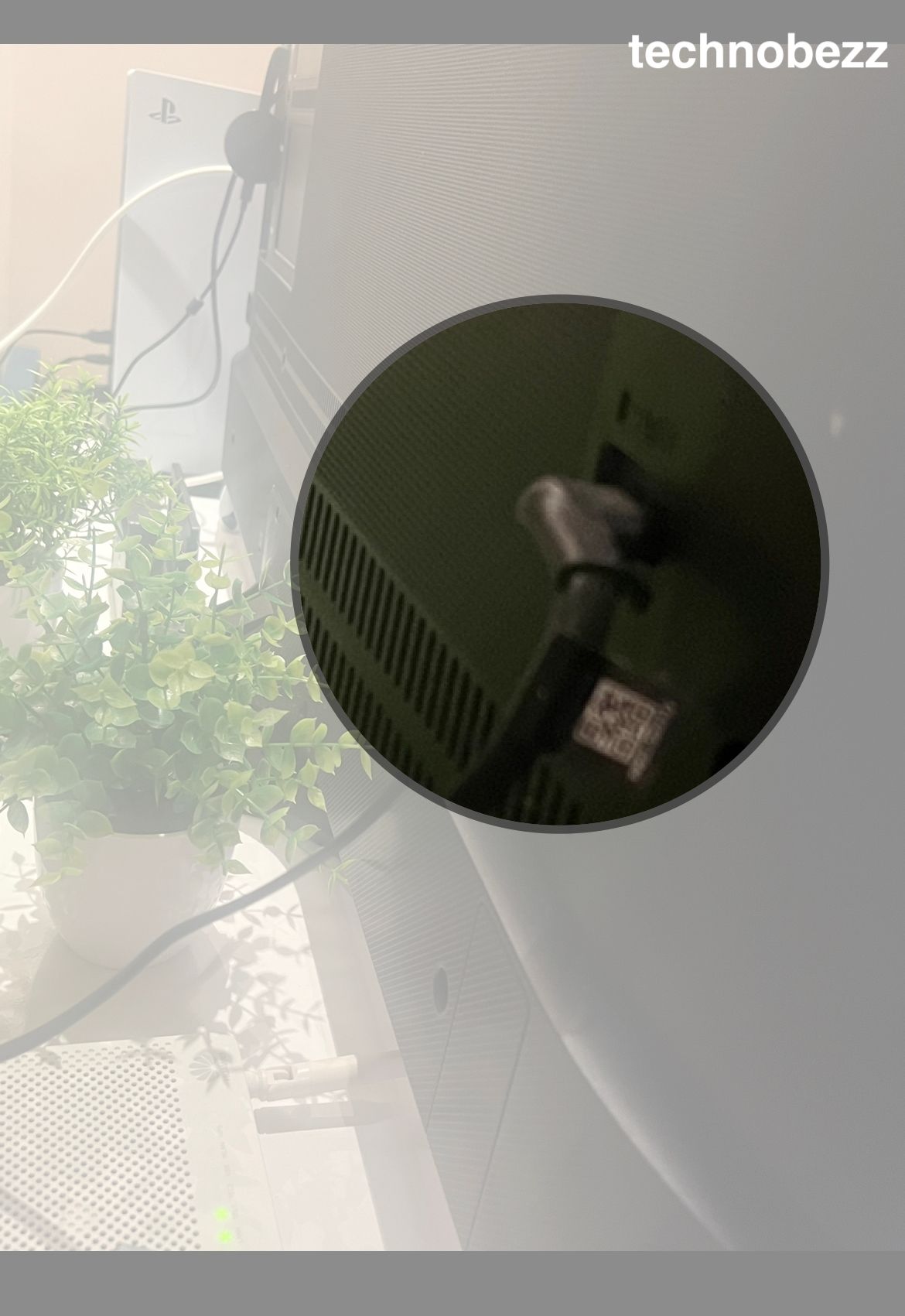
- 1.Turn off the TV and unplug the power cord from the wall outlet.
- 2.Press and hold the power button on the TV itself for about 30 seconds.
- 3.Wait at least one minute with the TV still unplugged.
- 4.Plug the cord back in and turn the TV on.
If the cycling stops, a temporary glitch was the cause. If it returns, move on to the next fix.
2. Turn Off Anynet Plus HDMI-CEC
This is the single most common reason a Samsung TV turns on or off by itself. Anynet+ is Samsung's name for HDMI-CEC, which lets connected devices send power and source commands over the HDMI cable. A console, soundbar, or streaming stick can wake your TV or push it into an on-off loop with a single stray signal.
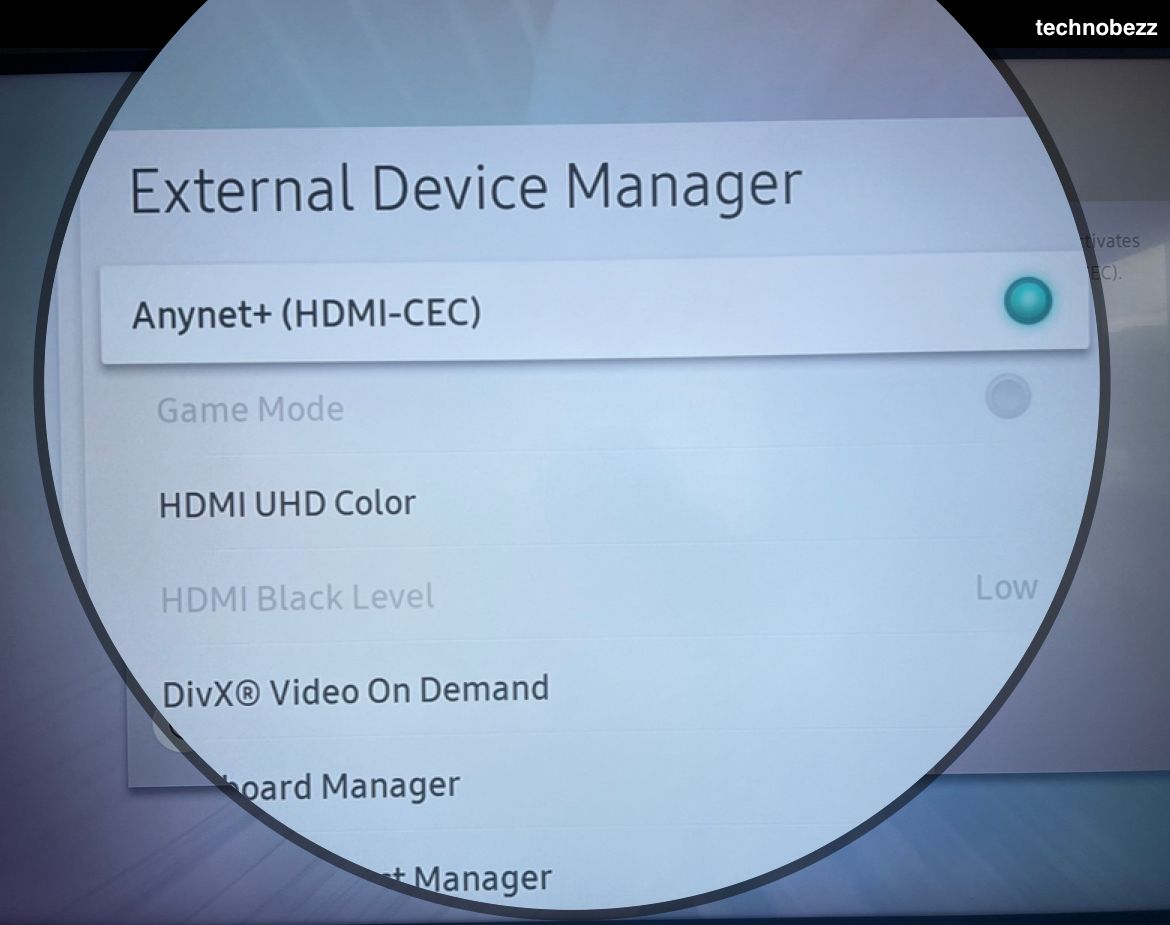
On most current models, go to Settings > General > External Device Manager > Anynet+ (HDMI-CEC) and switch it off. The path varies a little by model year, so look under Connection on some sets or under General & Privacy on the newest One UI Tizen menus.
Turning Anynet+ off means your Samsung remote will no longer control connected devices. If you want to keep that convenience, disable HDMI-CEC on the problem device instead. On a PlayStation 5 turn off HDMI Device Link, on an Xbox set HDMI-CEC to off, and on a Fire TV Stick turn off HDMI CEC Device Control.
3. Turn Off the Sleep Timer and Off Timer
The Sleep Timer powers the TV down after a set number of minutes, and the Off Timer shuts it off at a fixed time each day. Either one is easy to enable by accident, and an Off Timer is the usual reason a TV switches off at the same moment every evening.
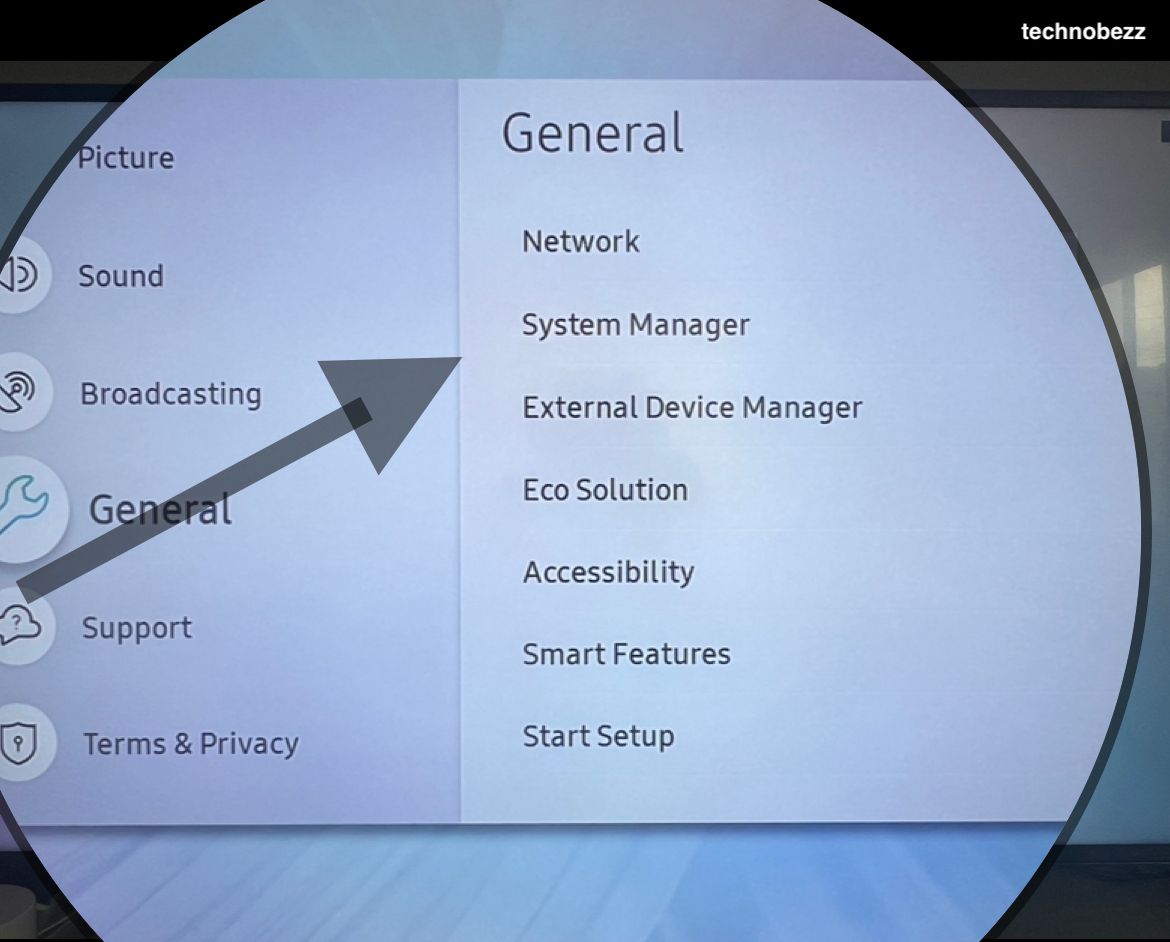
Open Settings > General > System Manager > Time > Sleep Timer and set it to off. On newer One UI Tizen models the Time menu sits under General & Privacy. Check the Off Timer in the same Time menu and turn that off as well.
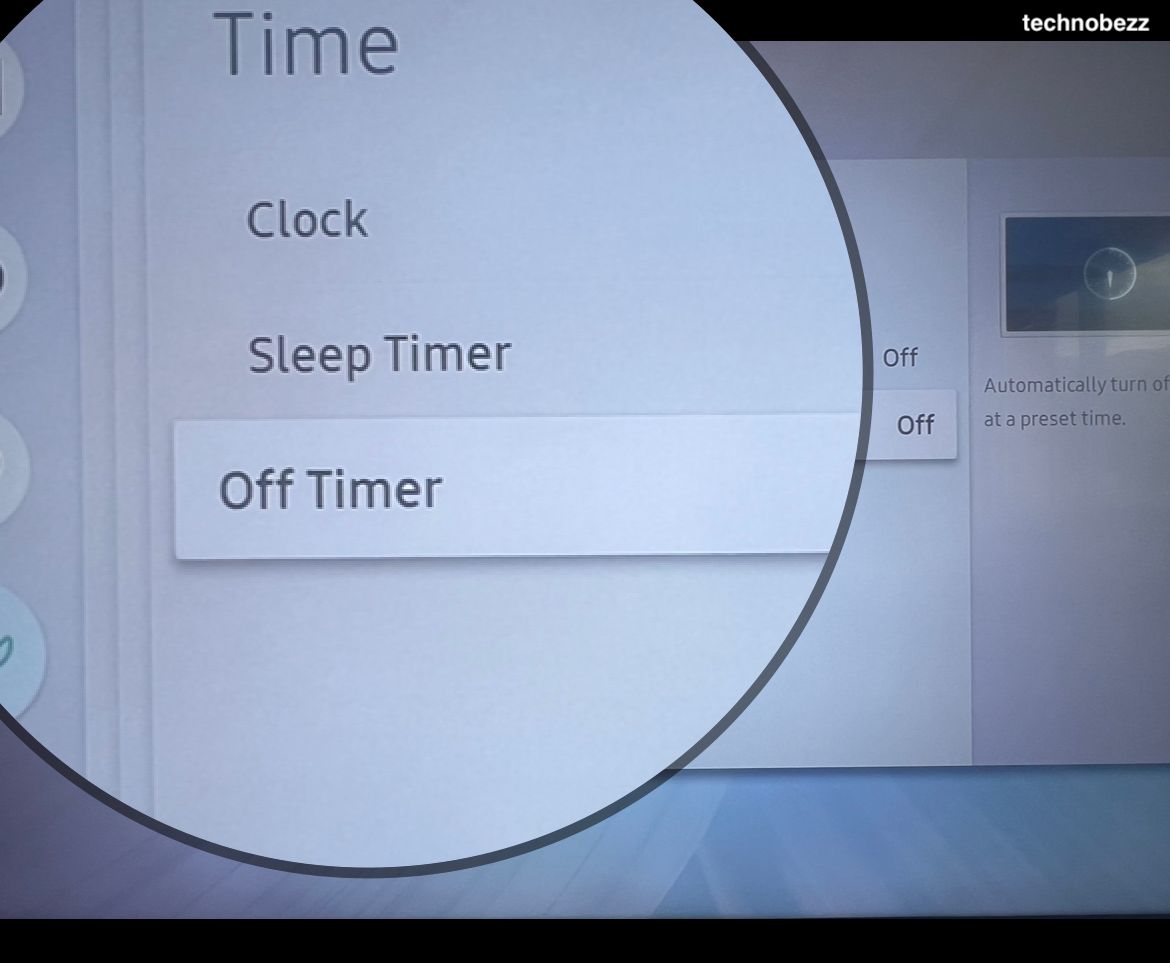
The On Timer and Off Timer only work once the TV clock is set, so if these options look grayed out you can leave them as is.
4. Disable Auto Power Off and Screen Saver
Samsung TVs include an energy-saving option that powers the set down after a long period with no signal or no remote activity. If your TV shuts off during quiet stretches, this is a likely cause.
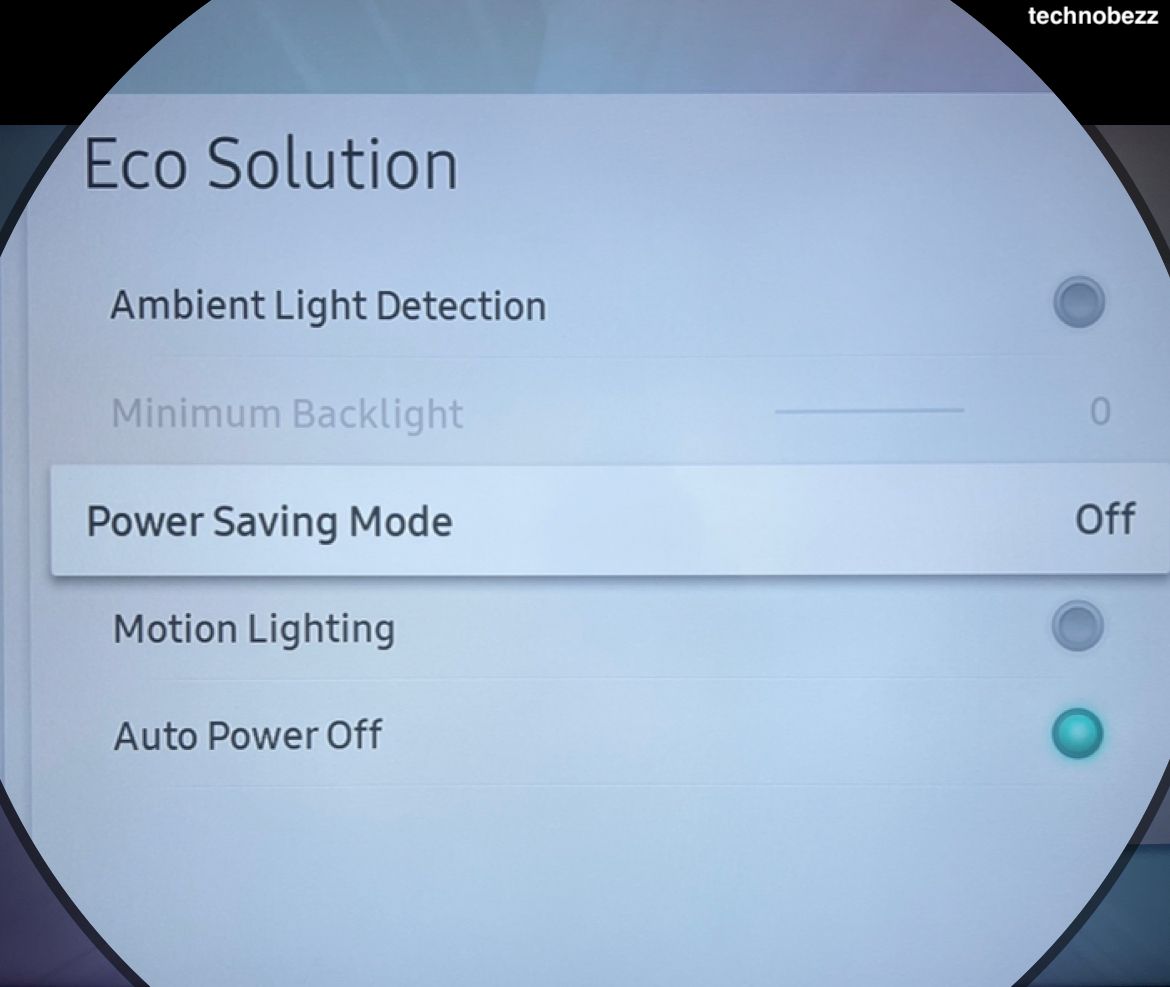
On current models go to Settings > General > Power and Energy Saving and turn off Auto Power Off. On older models the same control lives under Settings > General > Eco Solution > Auto Power Off. While you are there, check the Screen Saver setting, since an aggressive screen saver can look like the TV shutting itself down.
5. Read the Event Logs to Find the Trigger
Samsung TVs made in 2019 or later keep a diagnostic log that records exactly why the TV powered on or off each time. This takes the guesswork out of the whole process.
Go to Settings > Support > About This TV > Event Logs. Look for entries labeled Power-on Reason and Power-off Reason with timestamps.
A CEC Command entry points to a connected HDMI device, so apply Fix 2. A Timer entry points to a Sleep or Off Timer, so apply Fix 3. A SmartThings or remote app entry means an automation or phone is sending the command, which leads to the next fix.
6. Check the Power Cable Outlet and Surge Strip
When a TV powers on it briefly draws more current than during normal use. If the outlet, cord, or power strip cannot deliver stable power, the set may shut down to protect itself and then retry, creating a loop.
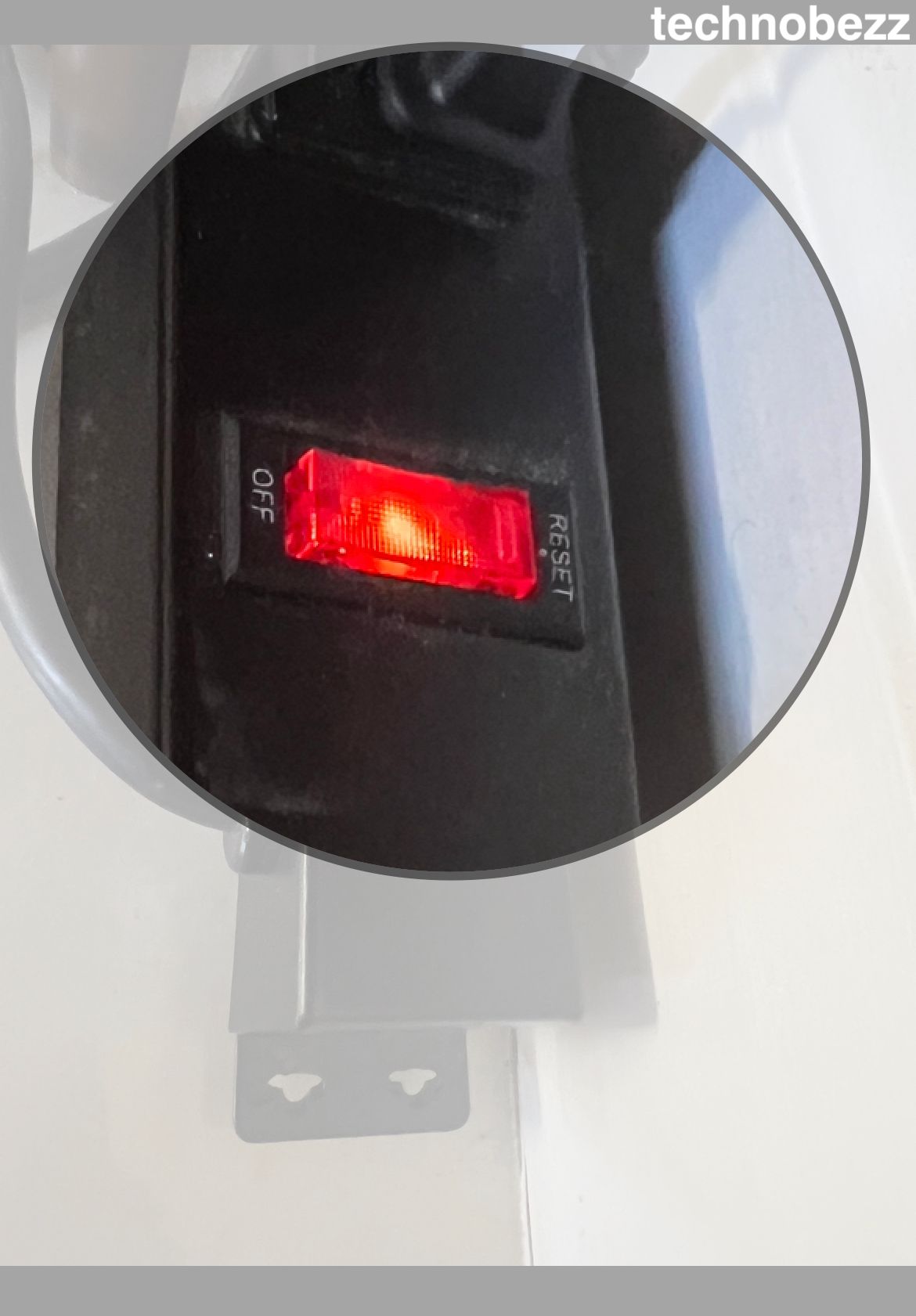
- Plug the TV directly into a wall outlet rather than a power strip or surge protector to rule out a weak strip.
- Inspect the power cord for kinks, fraying, or a loose fit at the TV and the wall.
- Avoid extension cords and avoid sharing a circuit with high-draw appliances that cause voltage dips.
- If your TV uses a One Connect Box, reseat the cable between the box and the panel.
Read more - How to Fix a Samsung TV That Won't Turn On
7. Update the TV Firmware
Outdated firmware causes a long list of odd behavior, including random restarts and power cycling. Samsung pushes regular updates that patch these bugs, so an out-of-date TV is worth checking early.
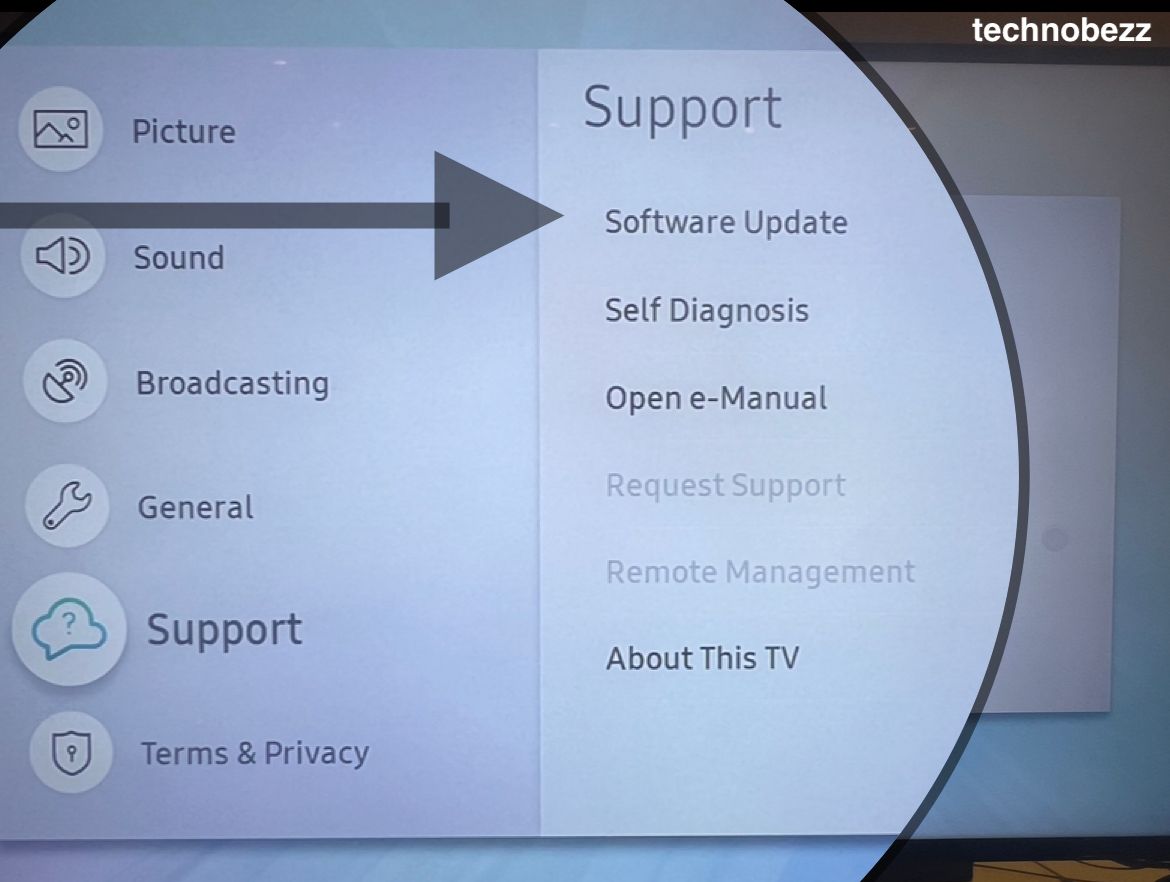
Go to Settings > All Settings > Support > Software Update > Update Now and let the TV download and install any available version. Do not unplug the set while it works, and it will restart on its own when finished.
Turn on Auto Update in the same menu so future fixes install on their own. If your TV cannot stay on long enough to update over the internet, you can download the firmware from Samsung's Download Center onto a FAT32 USB drive and install it through the same Software Update menu.
8. Inspect the Remote for Stuck Buttons
A remote with a stuck or sticky power button sends repeated commands that switch the TV on and off. Spilled liquid, trapped crumbs, or a worn button are the usual culprits.
Run your finger over every button and feel for one that does not spring back. Clean around the buttons, pop out and reseat the batteries, and if you suspect the remote, set it aside and operate the TV with the physical button for a day to see if the cycling stops.
9. Disconnect Phone Apps and SmartThings Automations
The SmartThings app, a connected phone, or a voice assistant can wake or power down your TV through automations and routines. A schedule you set up months ago, or one created by accident, can look exactly like the TV acting on its own.
Open the SmartThings app and review any routines or schedules tied to the TV, then disable or delete the ones you do not need. If an Event Log entry pointed to a remote app or SmartThings, this is the fix that matches it.
10. Run a Security Scan on the TV
In rare cases a misbehaving app or a problem from a connected device can make the system unstable. A built-in scan is a quick, harmless check before you move to heavier steps.
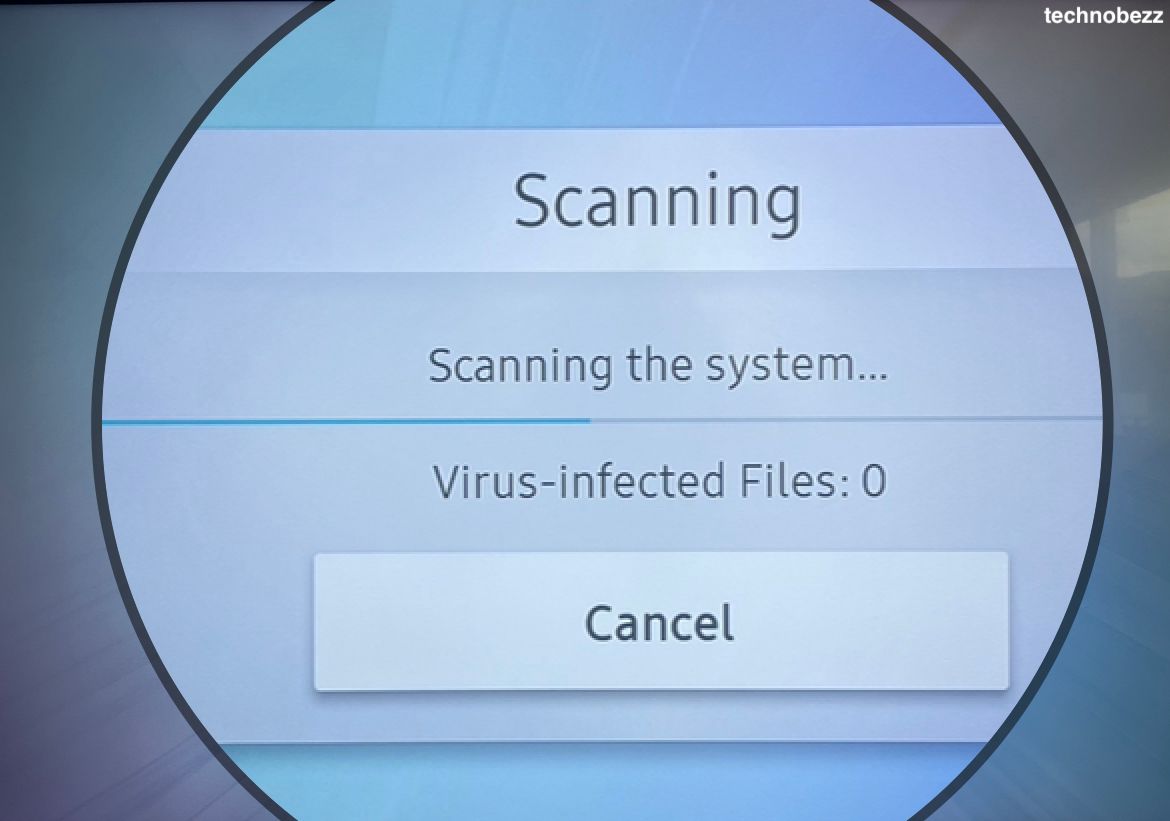
Go to Settings > General > System Manager > Smart Security > Scan and let it finish, then address anything it flags. If nothing turns up, you can rule this cause out and move on.
11. Factory Reset the TV
If a setting you cannot pin down is causing the loop, a factory reset returns everything to its original state and clears any corrupted configuration. This erases your apps, accounts, and preferences, so treat it as a near-last resort.
Go to Settings > General > Reset and enter your PIN, which is 0000 by default. On newer models the Reset option sits under General & Privacy. After the TV restarts, set it up again and leave Anynet+ off during testing so you can confirm the cycling is gone before reconnecting devices.
12. Look for Power Board Failure and Contact Samsung
If the TV still cycles after every step above, the cause is likely hardware, most often failing capacitors on the power supply board. Swollen or leaking capacitors are a known reason for a fast on-off loop and an inability to hold power.
Stop using the TV and contact Samsung support or a qualified technician if any of these signs appear.
- The cycling continues after all software and connection fixes.
- You hear buzzing or clicking, or notice a burning smell.
- The standby light flashes in a repeating pattern.
- The problem began right after a power surge or electrical storm.
A power board repair is usually far cheaper than a new TV, and a technician can confirm the diagnosis before you spend anything.
Frequently Asked Questions
Why does my Samsung TV turn off and back on by itself?
The most common causes are Anynet+ (HDMI-CEC) signals from a connected device, an active Sleep or Off Timer, the Auto Power Off energy setting, outdated firmware, or unstable power from the outlet or strip. Check the Event Logs under Settings > Support > About This TV to see the exact trigger.
Is it the HDMI-CEC setting causing this?
Often yes, especially if the TV powers on whenever you turn on a console, soundbar, or streaming stick. Turn off Anynet+ at Settings > General > External Device Manager > Anynet+ (HDMI-CEC), or disable HDMI-CEC on the connected device to keep one-remote control.
Can a firmware update fix a Samsung TV that keeps restarting?
Yes. Many random restarts come from software bugs that Samsung patches in updates. Go to Settings > All Settings > Support > Software Update > Update Now, install the latest version, and turn on Auto Update so future fixes arrive automatically.
How do I stop the sleep timer on my Samsung TV?
Open Settings > General > System Manager > Time > Sleep Timer and set it to off. On newer One UI Tizen models the Time menu is under General & Privacy. Check the Off Timer in the same menu and turn it off too.
Is my Samsung TV power board failing?
Possibly, if the TV still cycles after every software and connection fix, especially with a rapid on-off loop, buzzing or clicking, or a burning smell. Failing capacitors on the power supply board are a common cause and need a technician, but the repair is usually cheaper than replacing the TV.
Why does my Samsung TV turn on by itself at the same time every day?
That pattern almost always points to an On Timer, Off Timer, or a SmartThings automation. Check the Time menu under Settings and review any routines in the SmartThings app, then disable the schedule you do not need.
First published October 15, 2025. Last updated June 4, 2026.