When a photo, video, or group text refuses to leave your Android or Samsung phone, the culprit is almost always mobile data, your messaging app, or your carrier's MMS configuration. Unlike a plain SMS, an MMS rides on your cellular data connection, so a single wrong setting can stop every picture message in its tracks.
The fixes below are ordered from fastest to deepest, so start at the top and stop as soon as your message goes through. Each step works on Google Messages and Samsung Messages, with Samsung specific menu paths called out where they differ. If your problem is the opposite direction, see MMS Not Downloading on Android or Samsung.
Quick Diagnosis Table
Match what you are seeing to the most likely cause and the fix to try first. Use this to skip straight to the relevant step instead of working through every fix.
| Symptom | Likely cause | Go to fix |
|---|---|---|
| Message stuck on Sending, even on Wi-Fi | Mobile data is off | Fix 1 |
| Only large photos or videos fail | Attachment over the size limit | Fix 2 |
| Nothing sends after good signal | Temporary app or network glitch | Fix 3 |
| MMS fails on new SIM or carrier | Wrong APN or MMSC value | Fix 6 |
| Group texts fail but single texts work | Group messaging disabled | Fix 7 |
| Fails only when Data Saver is on | Background data blocked | Fix 8 |
Turn On Mobile Data
MMS needs an active mobile data connection to send pictures, videos, and group messages, even when you are connected to Wi-Fi. If mobile data is off, your message will sit on Sending and eventually fail.
Open Settings > Connections > Mobile networks and make sure Mobile data is on. On stock Android the path is Settings > Network & internet > Mobile network.
If your signal is weak, move to a spot with better reception and try again. A poor connection is enough to block an MMS even when calls and SMS still work. For deeper connection problems, see How to Fix Mobile Network Not Available on Android.
Shrink Large Attachments
Carriers cap how large an MMS can be, and oversized files are quietly rejected. Many networks limit a single MMS to roughly 1 MB, so a high resolution video or a burst of photos can easily exceed it.
Send one item at a time and keep large videos small. If a clip is too long, trim it in your gallery first or share it through a link instead.
For higher quality media without size headaches, send over RCS or a chat app where both people are on the same platform, since RCS handles much larger files than MMS.
Restart Your Phone
A quick reboot clears the temporary software glitches that often stall outgoing messages. It is the single fastest fix after checking mobile data.
Press and hold the Power button, or the Power and Volume down buttons together on newer Samsung phones, then tap Restart. Let the phone boot fully and try sending again.
Clear the Messages App Cache
Corrupted temporary files inside your messaging app can block sending without any obvious sign. Clearing the cache is safe and does not delete your conversations.
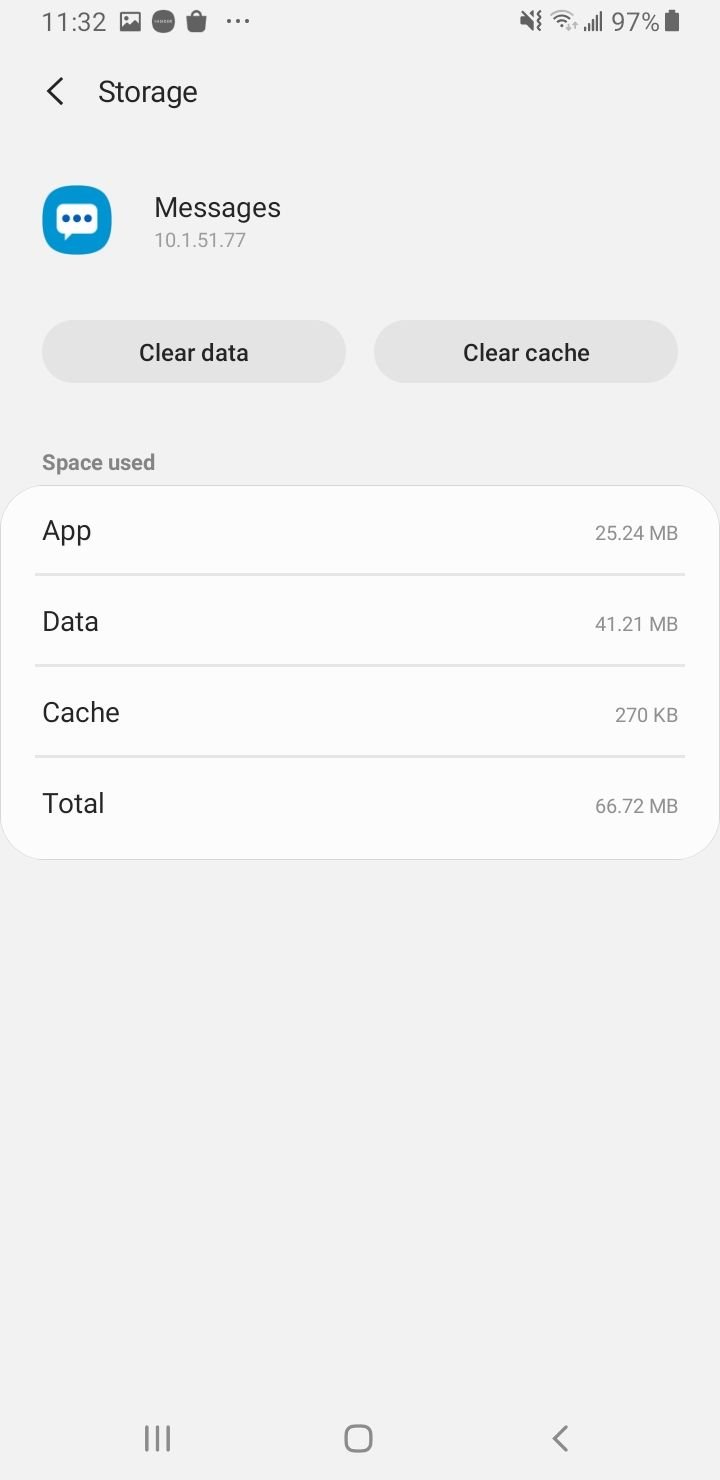
Go to Settings > Apps, select your messaging app, tap Storage, and choose Clear cache. Reopen the app and try sending again.
If the problem continues, you can tap Clear data as a stronger reset, but be aware this deletes your message history, so back up anything important first.
Clear the Messaging Service Data
Some phones run a separate system level messaging service that handles delivery behind the scenes. Clearing its cache can help when resetting the app alone does not.
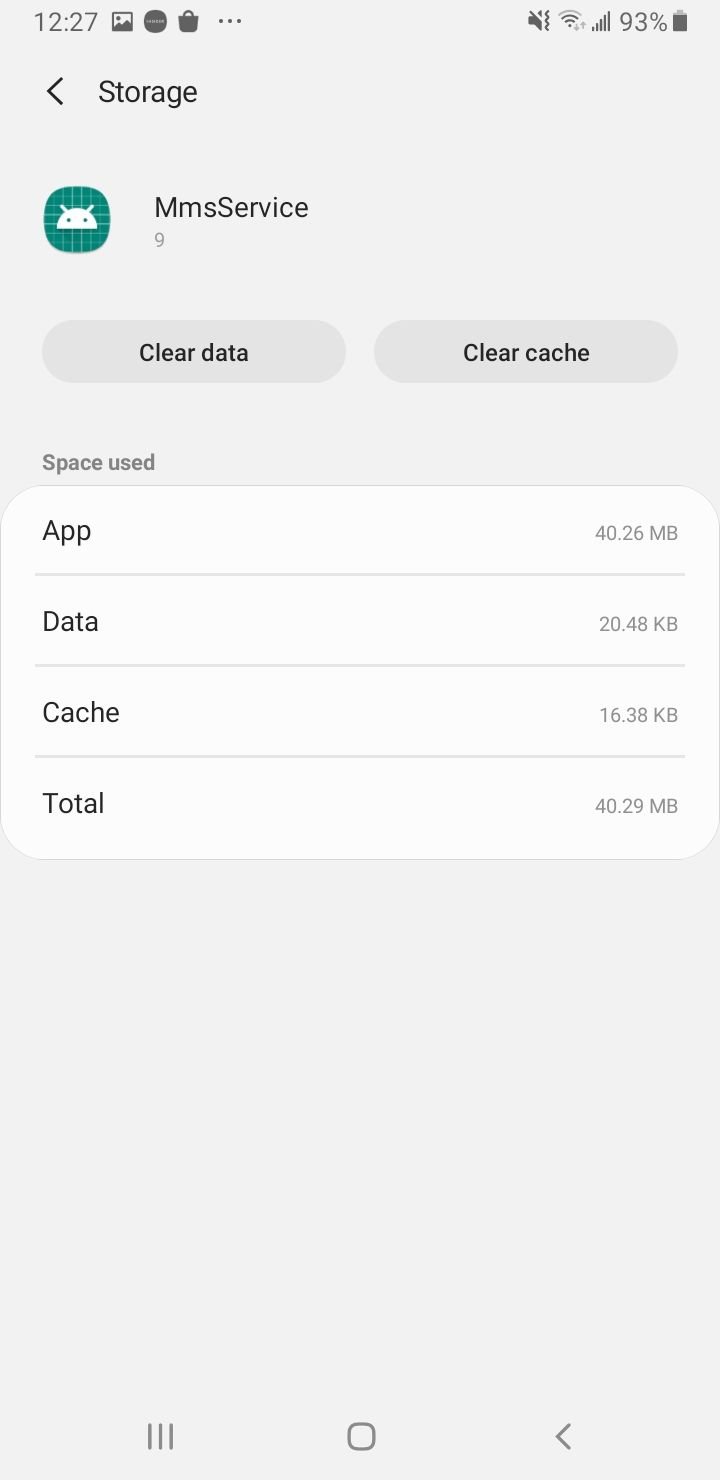
Go to Settings > Apps, tap the menu and choose Show system apps, then look for an entry such as IMS Service, MMS Service, or Messaging Service.
Open Storage and tap Clear cache. Only use Clear data here if it is available and you are comfortable resetting that service.
Check Your APN Settings
Access Point Name settings tell your phone how to reach your carrier's multimedia service, and a wrong or missing value is one of the most common reasons MMS will not send. The MMSC address is the field that matters most.
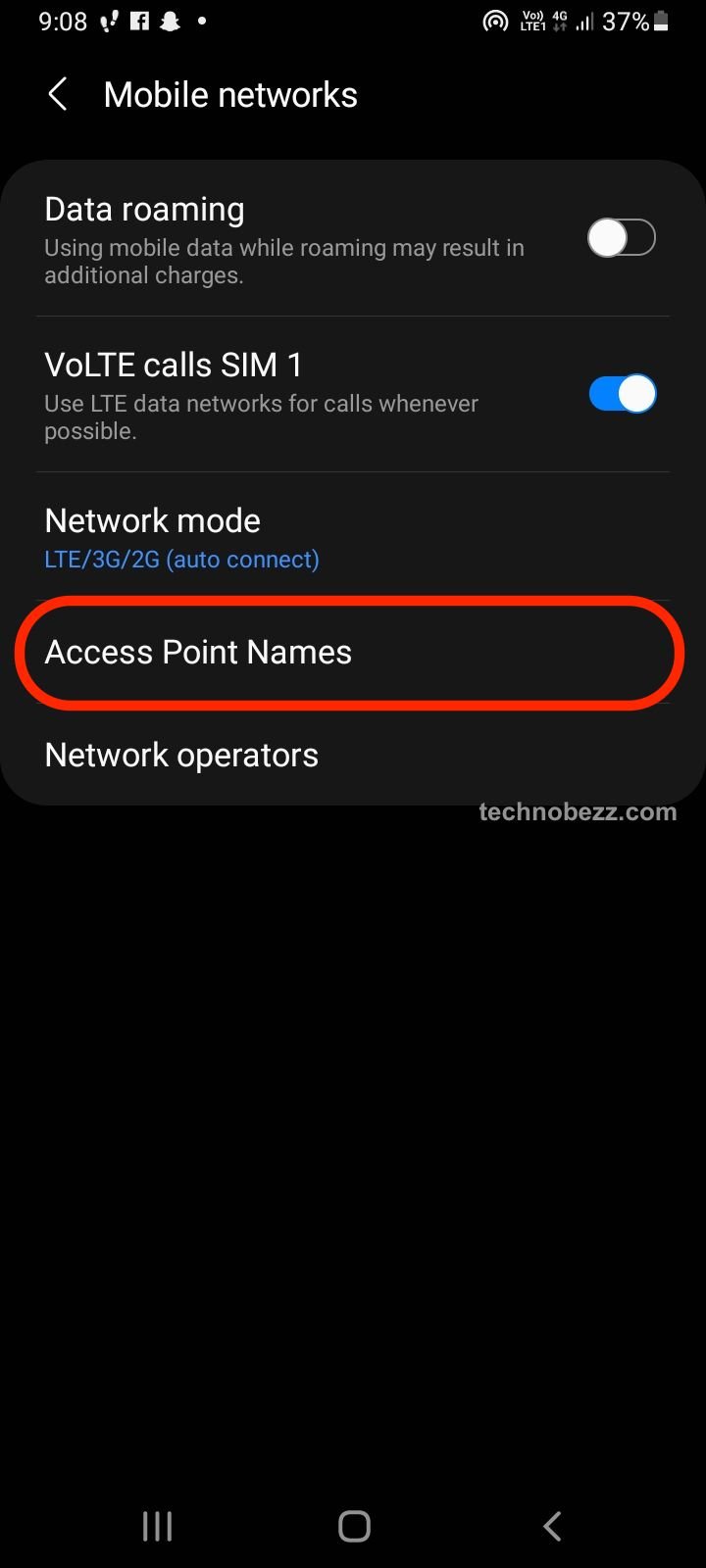
Go to Settings > Connections > Mobile networks > Access Point Names and open your active APN. Confirm the MMSC and MMS proxy fields match the values your carrier publishes.
If anything looks blank or wrong, tap the menu and choose Reset to default, or enter the exact settings from your carrier. See Updated APN Settings for AT&T Verizon T-Mobile and Other US Carriers for the correct values.
Enable Group Messaging
If single picture messages send fine but group texts fail, the issue is usually a group messaging setting rather than your data. Group texts with media are sent as MMS, so the right toggle has to be on.
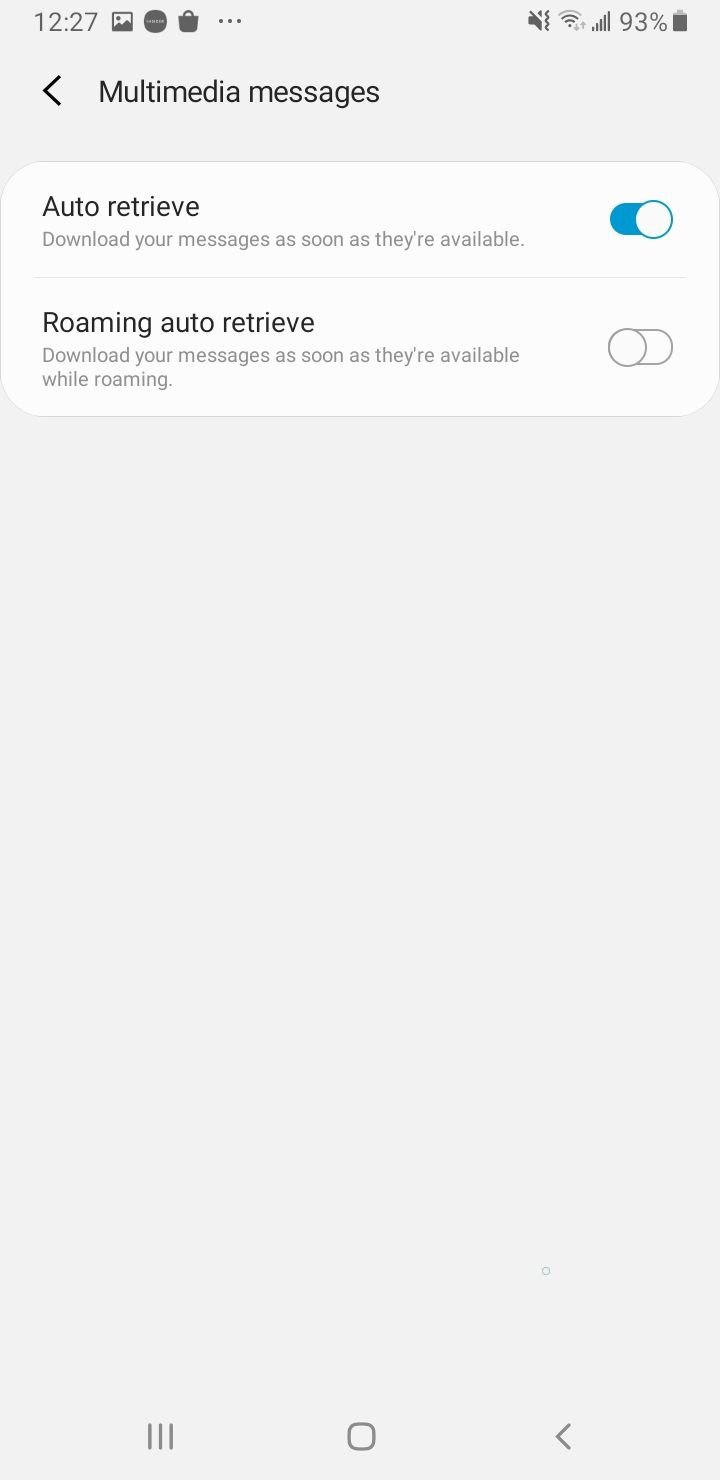
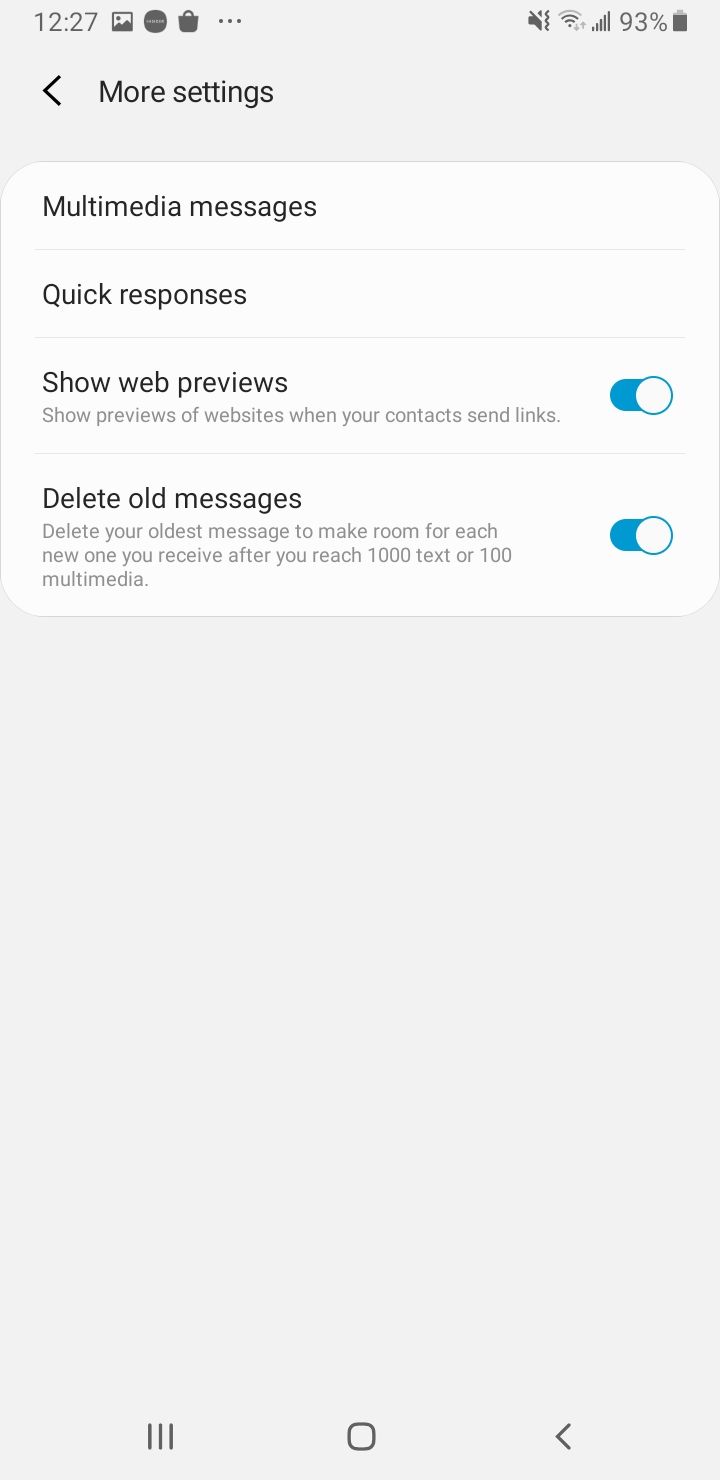
In Google Messages, tap your profile icon, then Settings > Advanced > Group messaging and choose Group MMS so a single message goes to everyone. In Samsung Messages, open Settings > More settings > Multimedia messages and confirm group conversation is enabled.
After changing this, start a fresh group thread to test rather than retrying the failed one.
Turn Off Data Saver
Data Saver limits background data, and that restriction can quietly block the data session an MMS needs. This is a frequent and easily missed cause on Samsung phones.
Swipe down twice to open the quick settings panel and tap the Data Saver tile to turn it off. You can also go to Settings > Connections > Data usage > Data saver to confirm it is disabled.
While you are there, open your messaging app's details and make sure background data and unrestricted data usage are allowed.
Update Your Phone Software
Outdated system software can cause compatibility problems with carrier messaging services. Installing the latest update often clears bugs that affect MMS.
Go to Settings > Software update and tap Download and install. Apply any available update, then restart your phone and test again.
Reset Network Settings
When data, Wi-Fi, and APN values may all be slightly off, a network reset returns them to defaults in one move. It does not delete your photos or messages, but it clears saved Wi-Fi passwords and Bluetooth pairings.
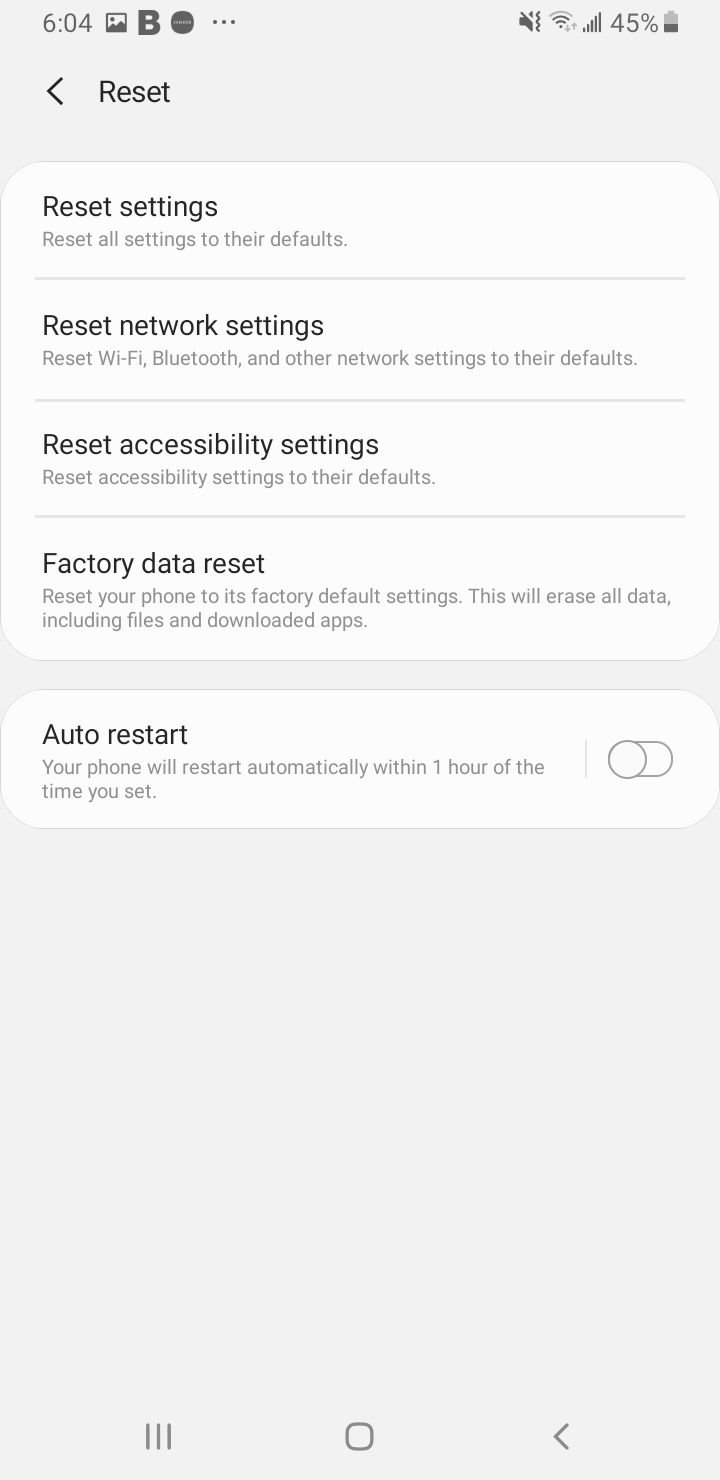
Go to Settings > General management > Reset > Reset network settings and confirm. On stock Android the path is Settings > System > Reset options > Reset Wi-Fi, mobile & Bluetooth.
The phone restarts, after which you reconnect to Wi-Fi and test MMS over mobile data.
Reseat Your SIM Card
A loose or dirty SIM can break the data link MMS depends on, even while calls still connect. Reseating it restores a clean contact.
Power off the phone, eject the SIM tray with the supplied pin, and check the card for dust or damage. Wipe it gently, set it back in place, and power the phone on.
If you use an eSIM, contact your carrier to confirm the line is provisioned for MMS rather than removing any physical card.
Confirm Carrier MMS Support
MMS only works if your plan and line are provisioned for it on the carrier side. A new SIM, a recently ported number, or a prepaid plan can ship without messaging fully activated.
Contact your carrier and ask them to confirm MMS is enabled on your account and that you have the current APN values. They can also reprovision the line remotely if something is missing.
It is also worth asking about RCS, since some carrier and device combinations have shifted features around that can affect how messages are delivered.
Free Up Storage Space
A nearly full phone can fail to compose or save the outgoing message, which blocks sending. Freeing space gives the messaging service room to work.
Delete old threads with large attachments, clear files you no longer need, and remove unused apps. Aim to keep at least a few hundred megabytes free.
Test in Safe Mode or Switch Apps
If nothing above works, a third party app or your current messaging app may be the cause. Safe mode loads the phone with only built in apps so you can isolate the problem.
Press and hold Power, then touch and hold Power off until Safe mode appears and tap it. If MMS sends in safe mode, a downloaded app is interfering, so remove recently installed apps after restarting normally.
You can also switch messaging apps. Install Google Messages from the Play Store, then set it as default through Settings > Apps > Choose default apps > SMS app and test sending again.
Frequently Asked Questions
Why won't my MMS send on Android?
The most common reason is that mobile data is turned off, because MMS needs a cellular data connection even when you are on Wi-Fi. Wrong APN settings, an oversized attachment, Data Saver, or a temporary glitch can also stop it. Work through the fixes above starting with mobile data.
How do I fix my MMS settings?
Open your messaging app settings and confirm auto download is on, then check Settings > Connections > Mobile networks > Access Point Names to verify your carrier's MMSC value is correct. If the APN looks wrong, reset it to default or enter the exact values from your carrier.
Does Wi-Fi block MMS?
Many Wi-Fi networks do not pass MMS traffic, and MMS relies on mobile data regardless. If a message is stuck while you are on Wi-Fi, make sure mobile data is on, or turn Wi-Fi off briefly so the message sends over cellular.
Why do my group texts fail to send?
Group texts with media are sent as MMS, so they fail if group messaging or MMS is misconfigured. Enable group messaging in your app settings, confirm mobile data is on, and keep attachments small, then start a new group thread to test.
What is the MMS size limit on Android?
Carriers commonly cap a single MMS at around 1 MB, though the exact limit varies by network. Keeping attachments small avoids silent failures, and larger files send more reliably over RCS or a chat app.
What is the difference between RCS and MMS?
MMS is the older standard that works on almost any phone but has small size limits and basic features. RCS is the modern upgrade that supports much larger files, bigger group chats, typing indicators, and read receipts, but both people and their carriers must support it.
First published October 17, 2025. Last updated June 4, 2026.