If your Samsung TV screen looks too dark, you are not alone. The picture can appear dim even in a normally lit room, dropping shadow detail and making movies and games hard to watch. In most cases this is not a hardware fault. It is an automatic energy or brightness feature working against you, and you can fix it in a few minutes.
The single most common cause is auto brightness. Samsung TVs use a light sensor to dim the screen when the room is dark and brighten it when the room is bright, which often leaves the picture darker than you want. The fixes below start with that sensor and move through picture mode, brightness, and the advanced settings that quietly hold brightness down.
Start Here If Your TV Dims By Itself
Before changing anything else, work out when the dimming happens. If the screen fades darker after a few seconds, or only looks dark in a dim room, an automatic feature is the cause and you can stop it with the first few steps below.
Use this quick guide to jump to the fix that matches your symptom.
| Symptom | Most likely cause | Fix to try first |
|---|---|---|
| Screen dims on its own, brighter in a bright room | Auto brightness sensor | Fix 1 and Fix 2 |
| Picture always dim, even at full brightness | Wrong picture mode | Fix 3 |
| Dark only in a dark or evening room | EyeComfort Mode or Brightness Reduction | Fix 2 and Fix 5 |
| Dark only in movies or HDR content | Filmmaker Mode or low brightness | Fix 3 and Fix 4 |
| Dark only from a console, cable box, or streamer | HDMI Black Level set to Low | Fix 8 |
| Dark after a software update | Reset settings or update again | Fix 10 and Fix 11 |
Turn Off Adaptive Picture and Intelligent Mode
Adaptive Picture is the headline auto brightness feature on recent QLED and OLED models. It reads the light sensor and changes screen brightness based on the room and the content, which is the most frequent reason a Samsung TV looks too dark. Turning it off gives you back manual control.
On 2024 and newer models, go to:
Settings > All Settings > General & Privacy > Intelligent Mode Settings
Turn off Adaptive Picture. You can switch off Intelligent Mode entirely from the same screen if you prefer, which also disables the related auto sound features.
Disable EyeComfort Mode
EyeComfort Mode syncs with local sunrise and sunset and warms and dims the screen in the evening to reduce eye strain. If your TV looks fine during the day but darker and more yellow at night, this is usually why.
Find it in the same menu:
Settings > All Settings > General & Privacy > Intelligent Mode Settings
Toggle EyeComfort Mode off. Note that some of the manual power saving controls in the next steps are unavailable while Adaptive Picture is switched on, so turn that off first.
Set the Right Picture Mode
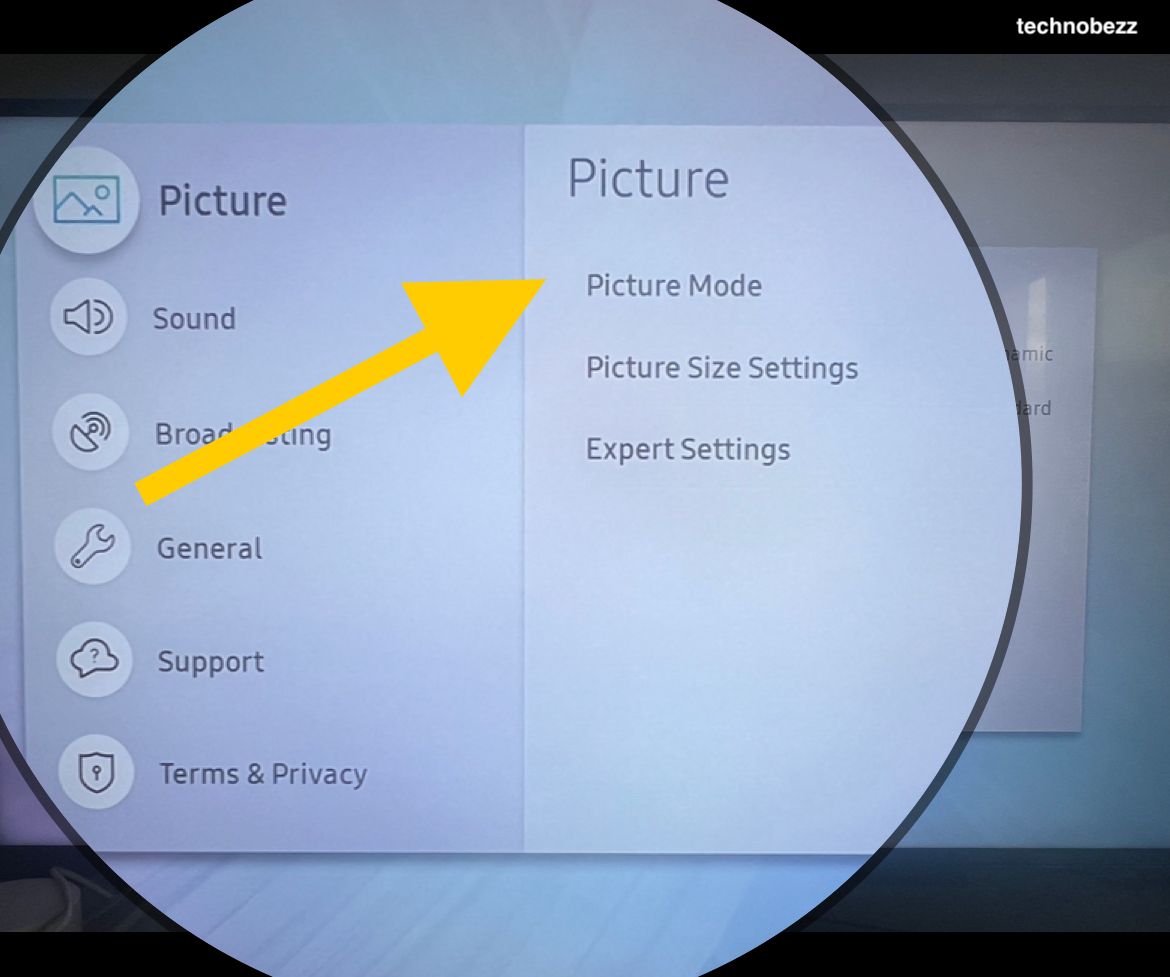
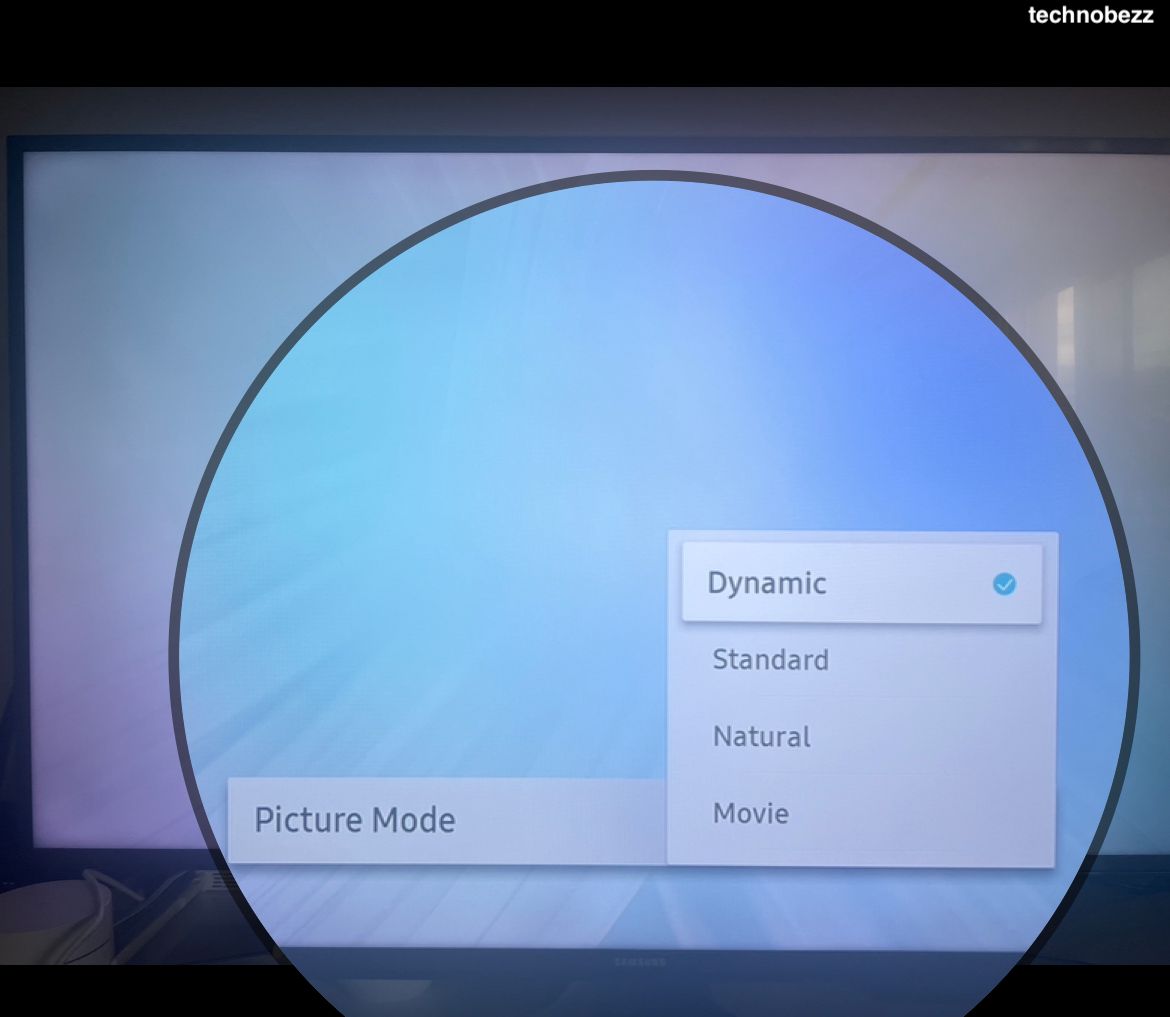
Picture mode has a large effect on brightness. Movie and Filmmaker Mode are tuned for dark rooms and deliberately look dimmer, while Filmmaker Mode also turns off extra processing to preserve the creator's intent. For a brighter image in a normal room, choose a brighter mode.
Change it here:
Settings > All Settings > Picture > Picture Mode
Select Dynamic for the brightest picture, or Standard for a balanced look that is still bright. If you only notice dimming during films or HDR, switching out of Filmmaker Mode usually solves it.
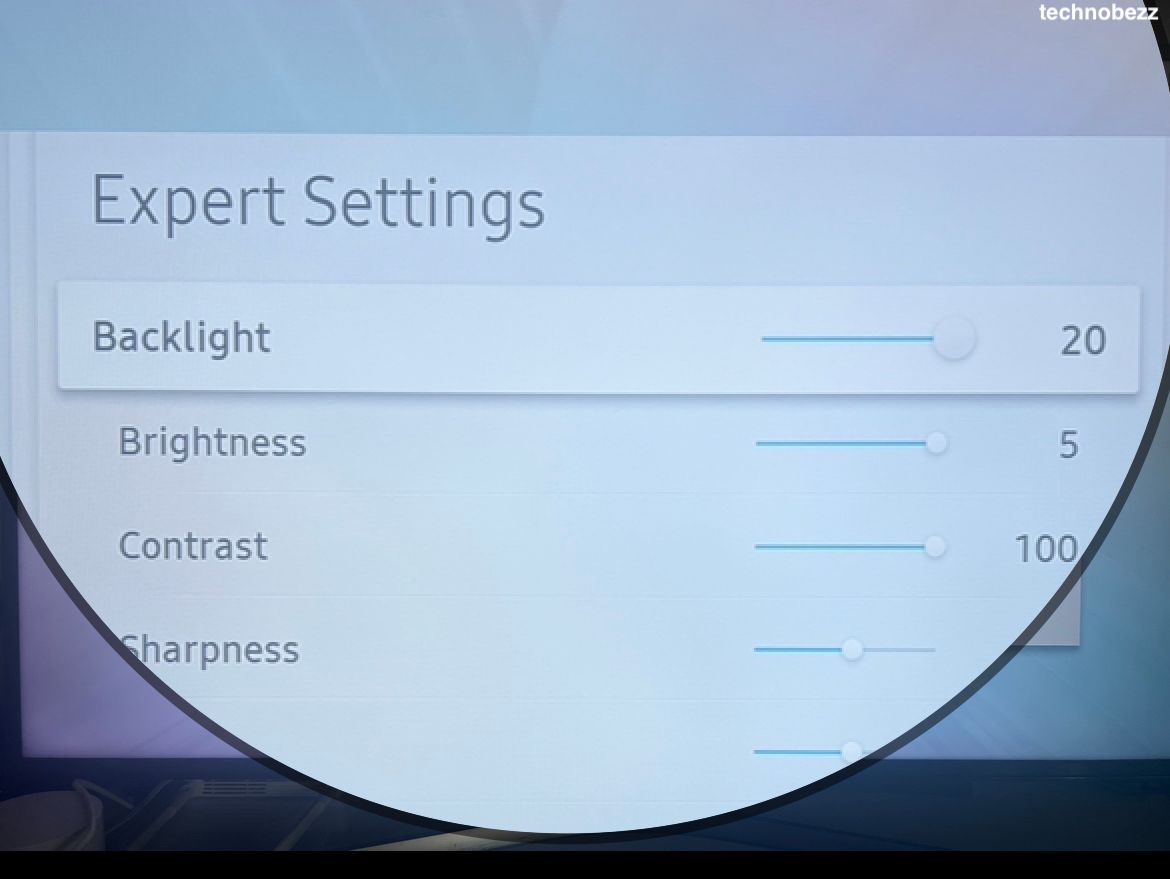
Raise Brightness and Backlight
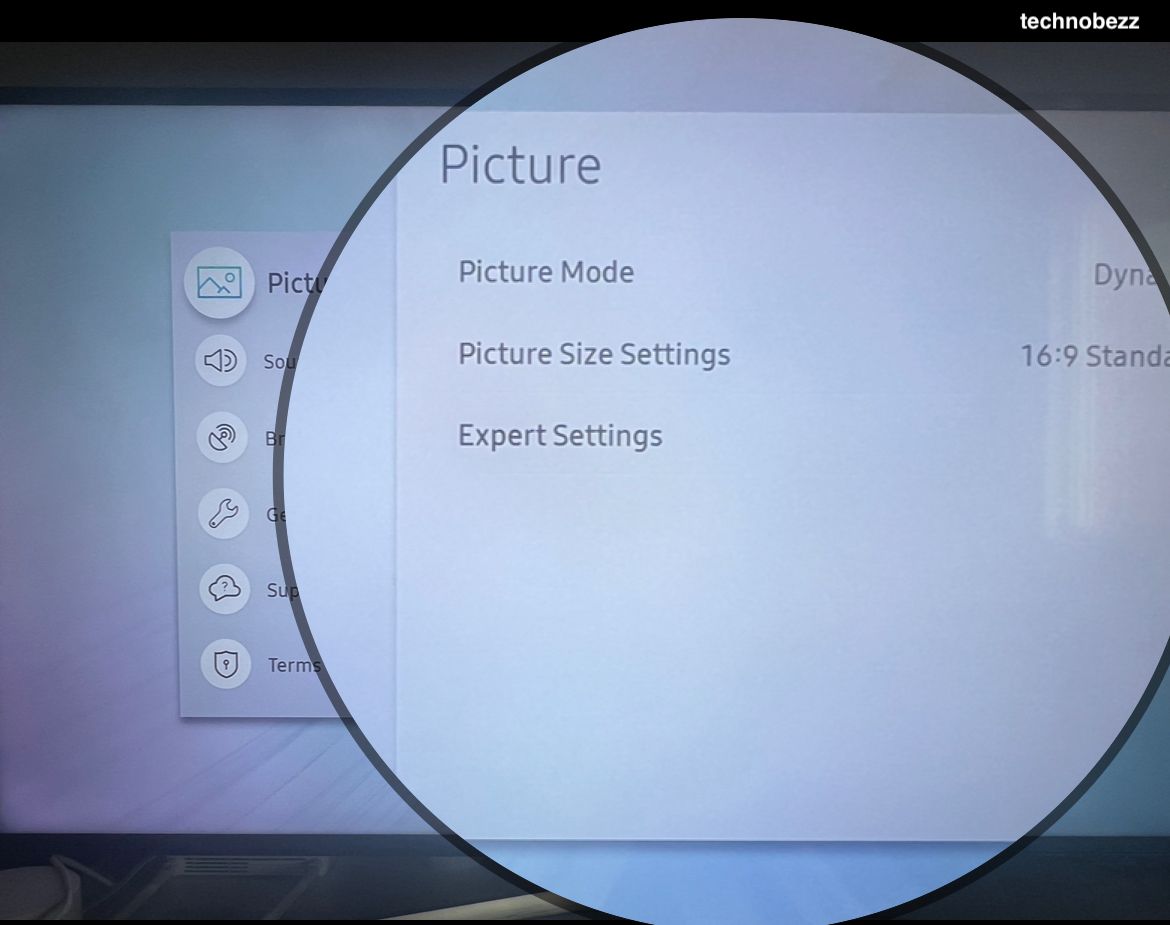
The main light output control sits in Expert Settings. On 2022 and newer Tizen models it is labeled Brightness, while many older models call the same light output control Backlight. Raising it is the most direct way to make a dim panel brighter.
Open the picture controls:
Settings > All Settings > Picture > Expert Settings
Raise Brightness, or Backlight on older models, toward its maximum for a bright room, and push it higher when watching HDR so highlights can reach full brightness. If shadows still look crushed, adjust the remaining tone controls in the steps below.
Turn Off Power and Energy Saving Features
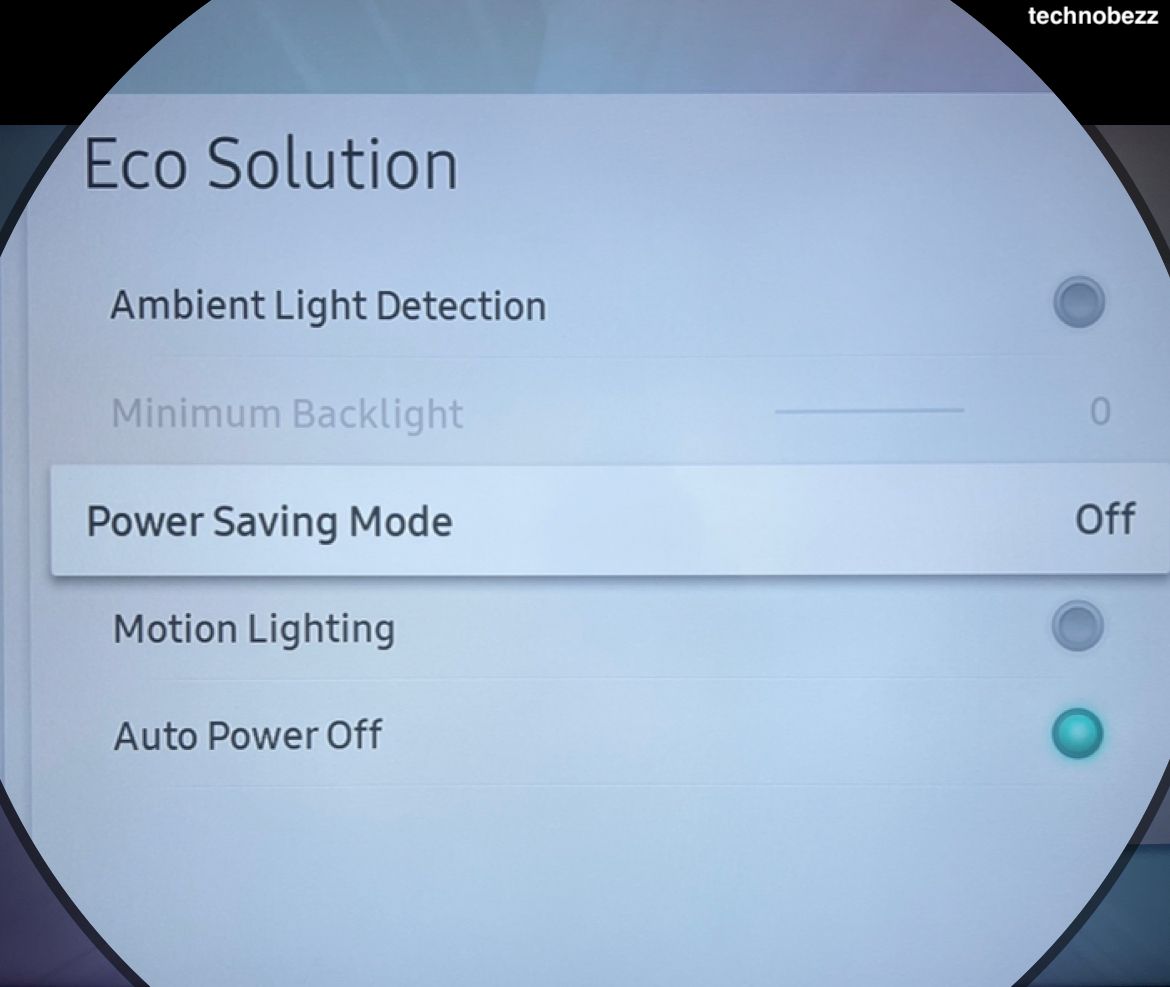
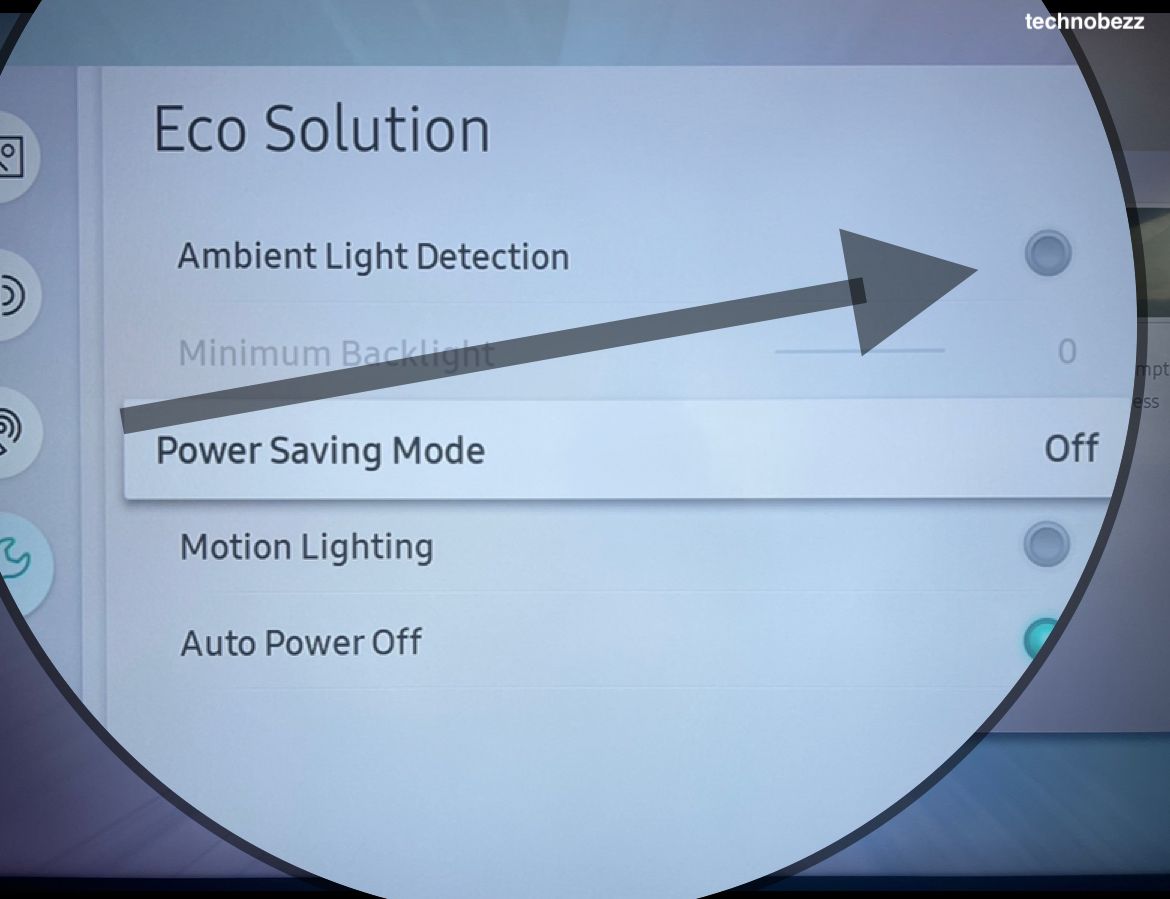
Several energy features dim the screen automatically to cut power use. Brightness Reduction lowers brightness to save power, Brightness Optimization adjusts to room light, and Motion Lighting dims during on-screen movement, all of which can leave the picture darker than expected.
Switch them off here:
Settings > All Settings > General & Privacy > Power and Energy Saving
Disable Brightness Optimization, Brightness Reduction, and Motion Lighting. If you cannot see or change these, turn off Adaptive Picture first, since it takes over these controls and greys them out.
Adjust Contrast Enhancer and Shadow Detail
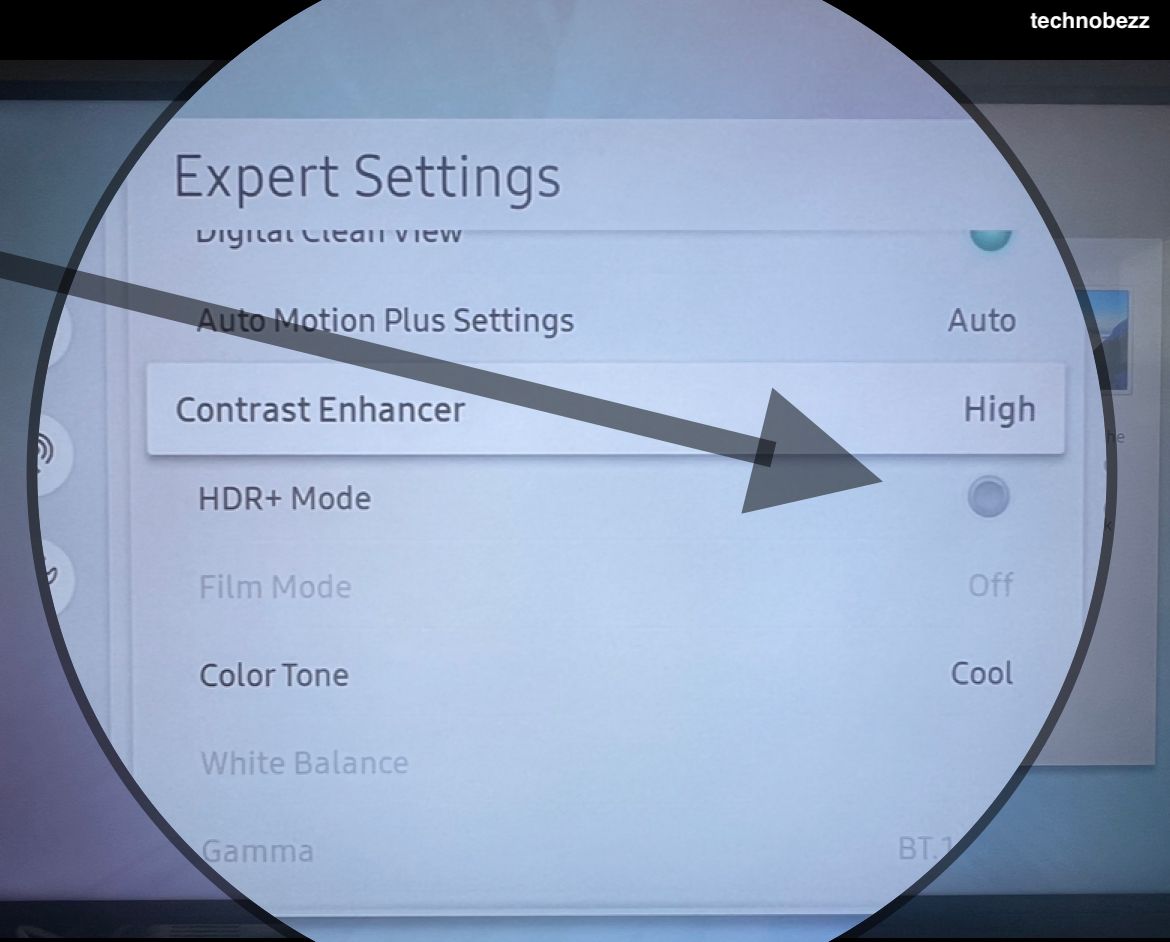
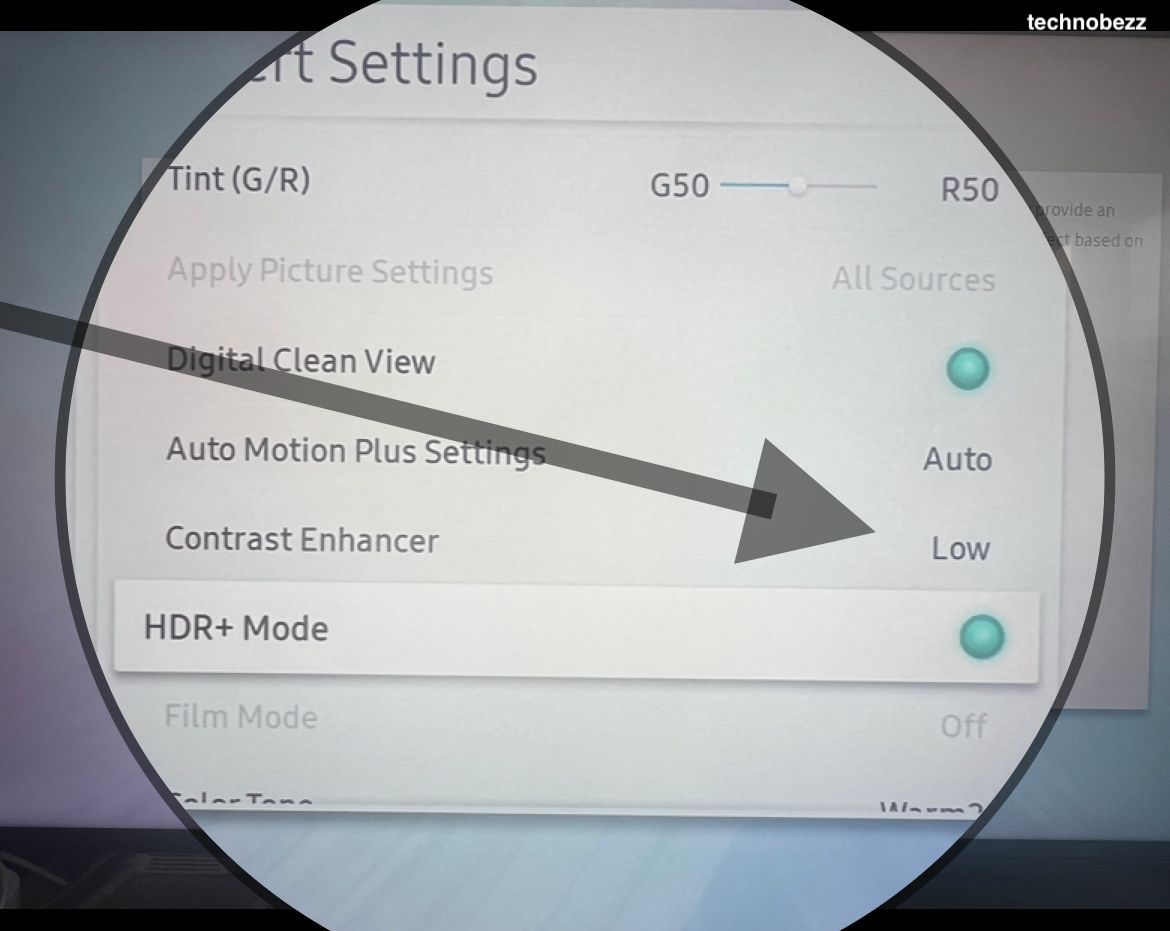
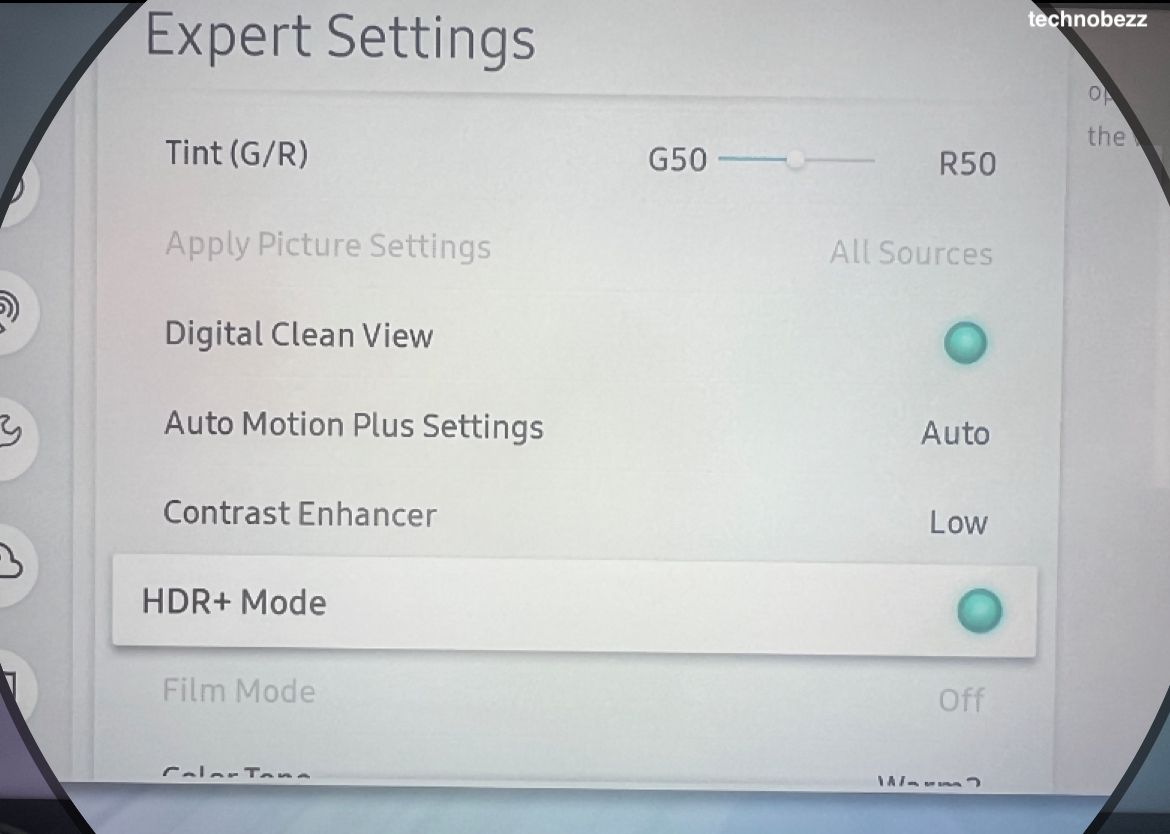
Contrast Enhancer changes contrast dynamically and can make some scenes look darker than the source. Shadow Detail does the opposite, lifting the visibility of detail in the darkest parts of the picture, which helps when night scenes disappear into black.
Both live in Expert Settings:
Settings > All Settings > Picture > Expert Settings
Try setting Contrast Enhancer to Low or Off if the image looks heavy. If dark scenes still hide detail, raise Shadow Detail a step or two to brighten those areas without washing out the rest of the image.
Set Local Dimming Correctly
On models with a backlight that dims in zones, Local Dimming deepens blacks by reducing light behind dark areas. Set too aggressively, it can pull brightness out of mixed scenes and make the overall picture feel dim.
Find it in Expert Settings:
Settings > All Settings > Picture > Expert Settings
Standard gives the best balance of contrast and brightness for most viewing. Use High only if you want the deepest blacks and can accept some glow around bright objects, and lower it if the picture looks too dark.
Fix HDMI Black Level for Consoles and Streamers
If only one input looks dark, such as a game console, cable box, or streaming stick, the problem is often HDMI Black Level. Setting it to Low when the source sends a full range signal crushes the blacks and makes everything look murky.
Check it under External Device Manager with that input active:
Settings > All Settings > General & Privacy > External Device Manager > HDMI Black Level
Set it to Normal, or Auto if your model offers it, so the TV matches the source instead of darkening it. This setting only appears for devices connected through HDMI, and on some models it lives under a Connection menu instead.
Power Cycle the TV
A quick power cycle clears temporary glitches that can leave the screen stuck dim after an input change or a long viewing session. It is a safe first step before resetting anything.
Turn the TV off, then unplug it from the wall for about a minute. Plug it back in and turn it on, then check whether the brightness has returned to normal.
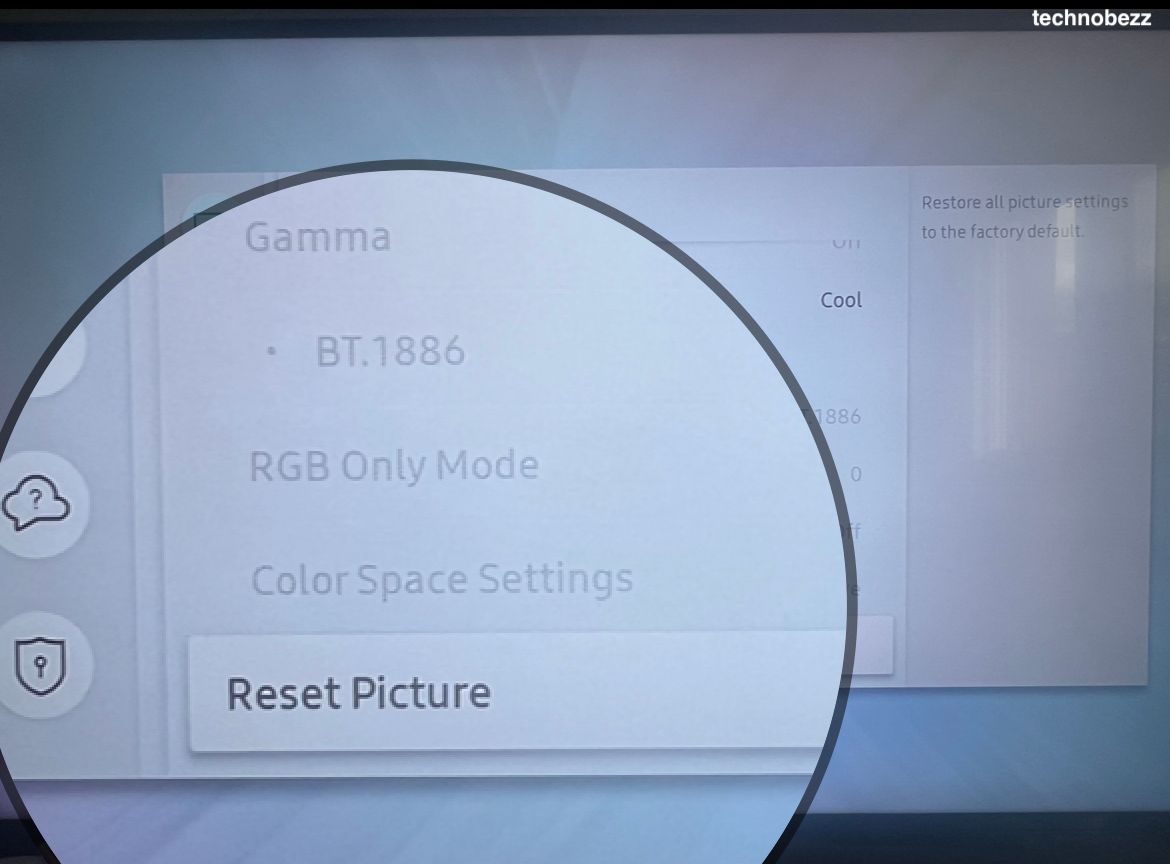
Reset Picture Settings
If you have changed many settings and the picture is still dark, resetting gives you a clean baseline to start from. This only resets the picture menu, not your apps or network.
Reset from Expert Settings:
Settings > All Settings > Picture > Expert Settings > Reset Picture
Select Yes to confirm, then set your picture mode and brightness again from a known starting point. If the Reset Picture option is greyed out, close any app running in the background and try again.
Update the TV Software
An out of date software version can introduce picture bugs, and a missing update can leave a known dimming issue unfixed. Installing the latest version often clears odd brightness behavior that appeared after a previous update.
Run the update here:
Settings > All Settings > Support > Software Update > Update Now
Let the TV download and install any available update, then power cycle it and check the picture. You can also enable Auto Update on the same screen so future fixes arrive on their own.
Check the Ambient Light Sensor and Surroundings
If brightness still changes on its own with the automatic features off, make sure nothing is covering the light sensor on the front of the TV. A sticker, a soundbar, or a shadow falling across the sensor can trick the TV into thinking the room is darker than it is.
Wipe the front bezel where the sensor sits and remove anything blocking it, then watch the picture for a minute. If the screen is still dark after every software fix and the panel looks dim even on a bright menu screen, the backlight hardware may be failing and the TV should be checked by Samsung support.
Frequently Asked Questions
Why does my Samsung TV get darker on its own? The most common reason is an automatic feature reacting to the room. Adaptive Picture, EyeComfort Mode, and the Power and Energy Saving options all read the light sensor and dim the screen, so turning them off usually stops the self dimming.
Which picture mode is the brightest on a Samsung TV? Dynamic mode produces the brightest image, while Standard is a balanced option that is still bright. Movie and Filmmaker Mode are the dimmest because they are tuned for dark rooms and accurate color.
Why is only one HDMI input dark on my Samsung TV? That points to HDMI Black Level being set to Low for that source. Set it to Normal, or Auto if available, under External Device Manager while the device is connected and switched on.
My TV got dark after a software update, what should I do? First reset the picture settings to a clean baseline, then check for a newer update and install it. If the issue started right after an update, a follow up update or a reset usually resolves it.
How do I know if my Samsung TV backlight is failing? If the picture stays dim after you turn off every automatic feature, max out Brightness, and reset the picture menu, and the screen looks dark even on bright menus, the backlight hardware may be the problem. At that point contact Samsung support for service.
First published October 16, 2025. Last updated June 4, 2026.