Telegram login problems usually fall into two buckets. Either the verification code never arrives, or you reach the password and account access screens and get stuck. Most issues are temporary and fixable in a few minutes once you know which screen you are on.
This guide walks through 15 fixes ordered by how often they solve the problem, starting with the verification code and account access steps that block the most people. Each fix maps to a specific error so you can jump straight to yours.
Quick Fix Summary
Use this table to match your symptom to the most likely cause and the first thing to try. The detailed steps follow below.
| Symptom | Likely cause | First thing to try |
|---|---|---|
| No code arrives | Code sent in Telegram, not by SMS | Check the Telegram app on another logged-in device |
| SMS never comes | Carrier filtering or network issue | Tap the resend option and choose SMS or a call |
| Too many attempts | Temporary rate limit | Stop retrying and wait, then try once |
| Asks for a password | Two-step verification is on | Enter your cloud password or tap Forgot Password |
| Phone number not recognized | Wrong number or format | Re-enter with the correct country code |
| QR code login fails | No signed-in device to scan it | Switch to phone number and code login |
Check Your Other Devices First
If you have used Telegram recently on a phone, tablet, or computer, Telegram often sends the login code inside the app instead of by SMS. The code arrives as a message from the official Telegram service chat, not to your text messages.
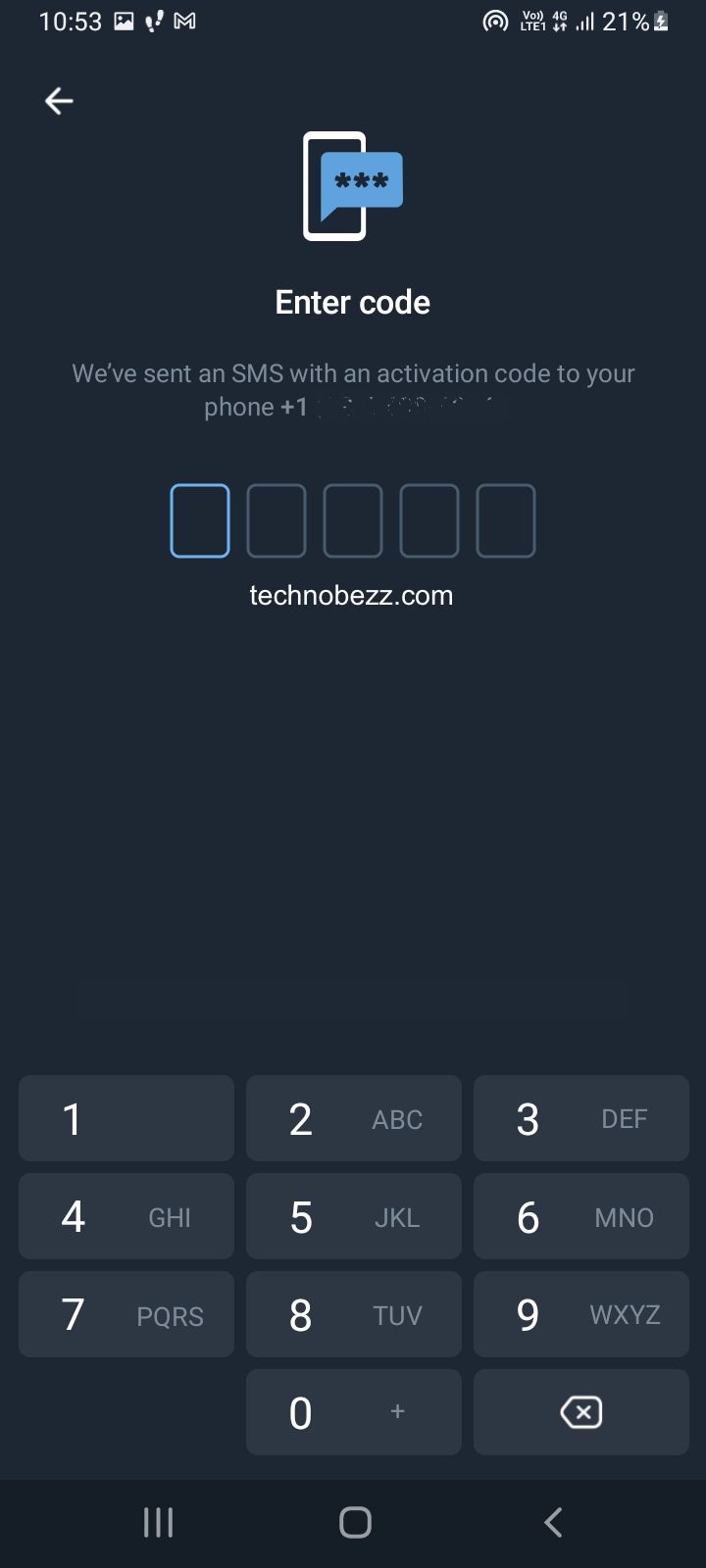
Open Telegram on any device where you are still signed in and look for a recent message from Telegram containing your code. This is the single most common reason people think the code never came, so check here before anything else.
Force The Code By SMS Or Phone Call
When no signed-in device exists, Telegram falls back to SMS. If the text does not arrive within a couple of minutes, look for the resend option on the code screen. It usually reads as a way to get the code by SMS or to have Telegram call you.
Tap the option to receive the code as a phone call. Telegram's automated system rings your number and reads the digits aloud, which often works when SMS is being filtered or delayed.
Wait the full countdown before requesting another code. Hammering the resend button can trigger a cooldown and slow things down further.
Rule Out Carrier And Spam Filtering
Some carriers and phones filter short-code or international SMS, which can silently block Telegram's code. On Android, open your Messages app and check the spam or blocked folder for a message from Telegram.
If you find the code there, unblock the sender and request a fresh one. If the folder is empty and codes still never arrive, contact your mobile carrier and ask whether verification or short-code messages are being blocked on your line.
Check Whether Telegram Is Down
If codes and logins fail for everyone at once, the problem may be on Telegram's side rather than yours. A short server outage can stop verification messages from going out.
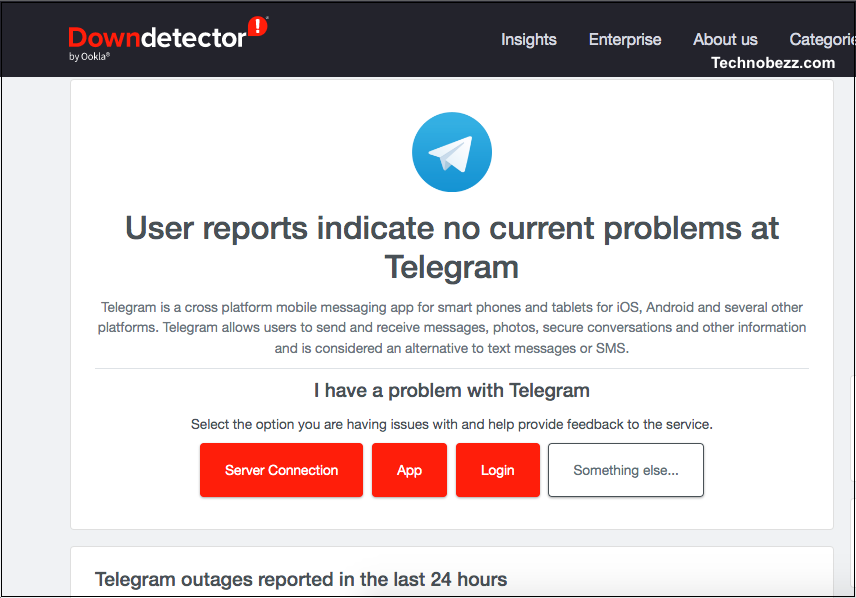
Check a status site such as Downdetector for a spike in reports. If Telegram is having a widespread outage, the only fix is to wait a few minutes and try again.
Fix Your Network Connection
A weak or restricted connection can stop both the verification step and the final login from completing. This is easy to overlook because the app still opens.
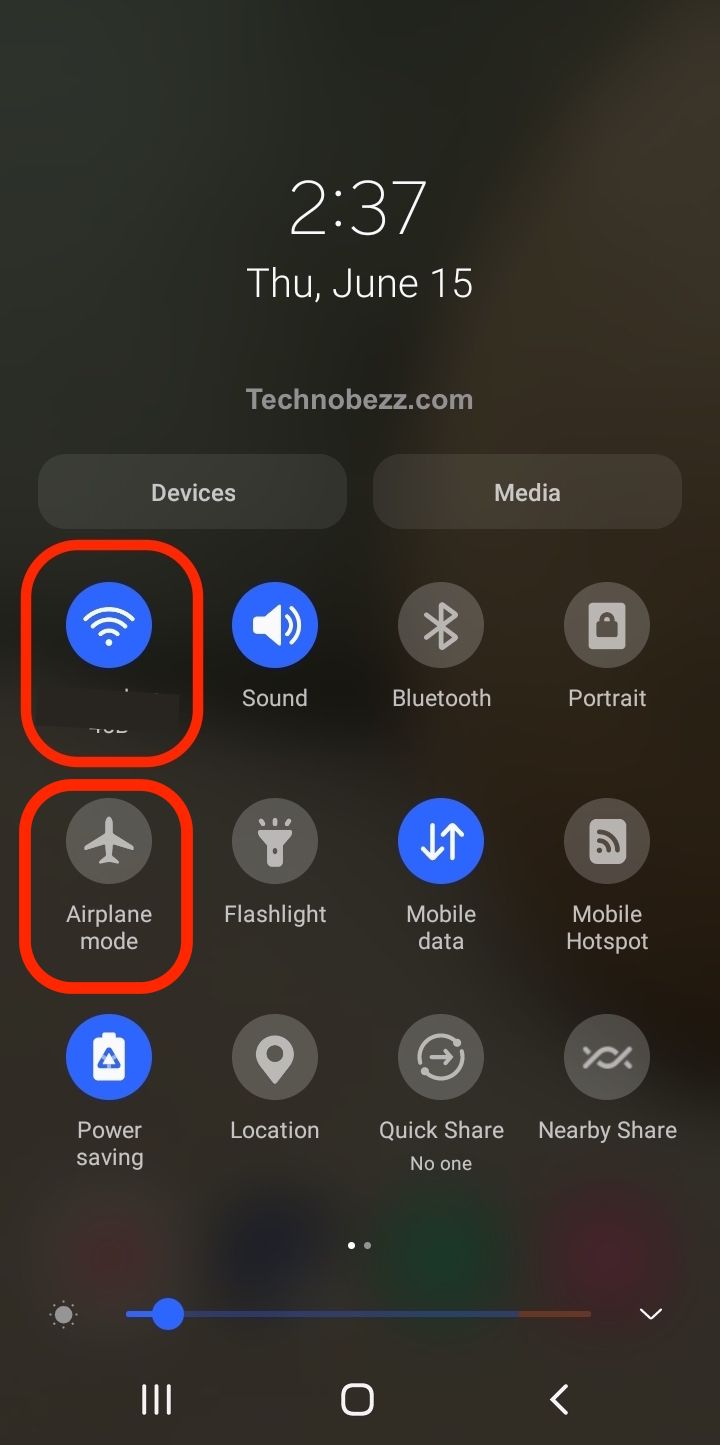
Try these network fixes in order until login goes through.
- Switch between Wi-Fi and mobile data to rule out one network
- Toggle airplane mode on for about 30 seconds, then off
- Restart your router or move closer to it
- Try a different location or network if one is heavily restricted
Wait Out The Too Many Attempts Error
The message Too many attempts, please try again later means your number or IP has hit a temporary limit after several failed codes or rapid retries. It is a short safety block, not a permanent ban.
Stop trying immediately, because each new attempt can reset and extend the timer. Most blocks clear within a few hours, and longer ones lift within about 24 hours.
To see exactly how long is left, open web.telegram.org, start the login, and look for the technical data. A FLOOD_WAIT value shows the remaining wait in seconds.
Enter Or Reset Your Two-Step Password
If login asks for a password after the code, two-step verification is enabled on your account. This cloud password is separate from your phone code, and Telegram support cannot bypass it for you.
If you remember it, type it in to finish signing in. If you do not, tap Forgot Password on that screen to begin recovery.
With a recovery email set up, Telegram sends a reset code to that address so you can set a new password right away. Check the spam folder if it does not appear within a minute.
Reset 2FA With No Email Access
If you cannot reach your recovery email, or never added one, tap the no access to email option and confirm the reset. Telegram then starts a waiting period before it lets you in.
When the reset only clears the password, your account and all chats stay intact after a 7-day wait. Return to the login screen after the period ends to set a new password and finish signing in.
If there is no recovery email and no active session anywhere, your only options are to remember the password or reset the entire account. A full account reset permanently deletes your chats, media, and contacts, so treat it as a last resort.
Re-Enter Your Phone Number Correctly
An error saying the number is not registered or not recognized usually means a typo or the wrong format. Telegram needs the number in full international form.
Select your country from the list so the correct dialing code fills in automatically, then enter the rest of the number without a leading zero. Double-check that this is the exact number tied to your account, since each Telegram account is linked to one number.
Fix Login On Android
Outdated app versions, full storage, and aggressive battery settings all cause login failures on Android. Work through the basics before anything drastic.
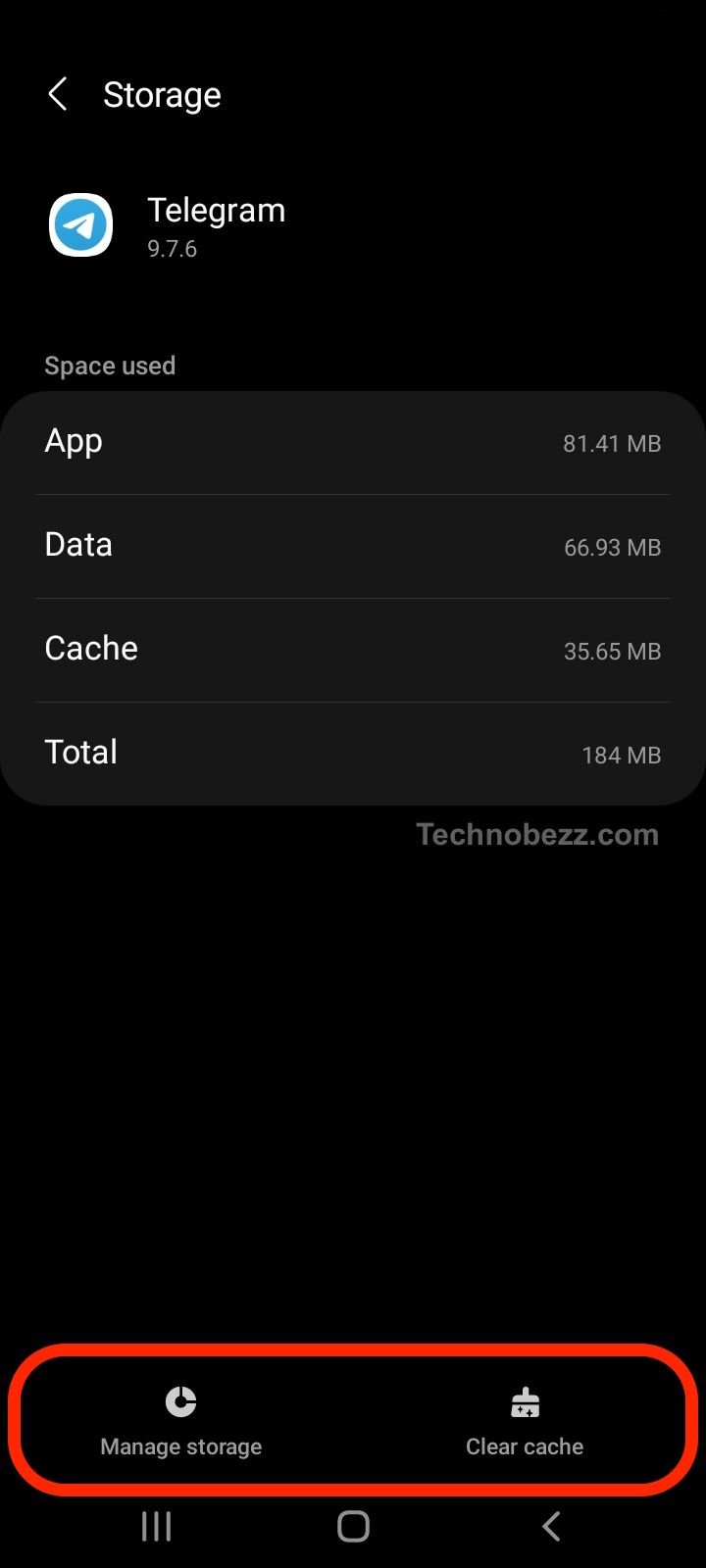
- Update the Telegram app from the Play Store and update Android if a system update is pending
- Free up storage if your device is nearly full
- Clear the cache at Settings > Apps > Telegram > Storage > Clear Cache
- Turn off battery optimization for Telegram so it can finish login in the background
- Restart the phone and try again
Fix Login On iPhone And iPad
On iOS, login issues often come down to a stale app, blocked background activity, or a connection that needs a reset. The steps are quick.

- Update Telegram from the App Store and install any pending iOS update
- Confirm you have free storage at Settings > General > iPhone Storage
- Enable background activity at Settings > General > Background App Refresh
- Allow notifications at Settings > Notifications > Telegram so codes are not missed
- Restart the device and try logging in again
Fix Telegram Web And Desktop Login
The desktop and web clients fail to log in for slightly different reasons than mobile, often tied to the browser or local app version. Start by making sure you are on a current build.
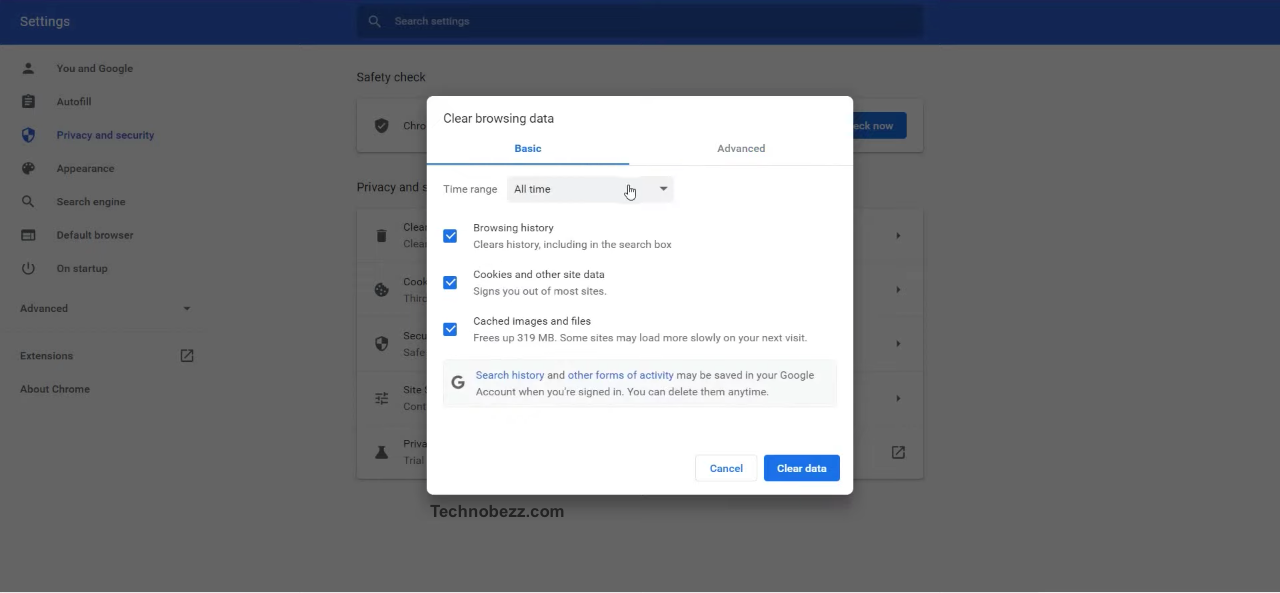
- Update the desktop app, or hard refresh the browser tab for Telegram Web
- Clear your browser cache and cookies, then reload web.telegram.org
- Disable extensions or try a different browser to rule out interference
- Check that a firewall or antivirus is not blocking Telegram
Sign In With A QR Code On Desktop
QR code login is the fastest way onto desktop or web, but it only works when you already have a signed-in phone. The computer shows a QR code that your phone scans to approve the session.
On your phone, go to Settings > Devices > Link Desktop Device and point the camera at the code on screen. If the scan fails or the code expires, refresh it on the computer and scan again.
If you are logged out everywhere, QR login cannot work because nothing exists to approve the scan. Switch to the phone number and verification code method instead.
Reinstall Telegram
When basic steps fail, a corrupted install can be the cause. Reinstalling gives the app a clean state without touching your cloud chats, which live on Telegram's servers.
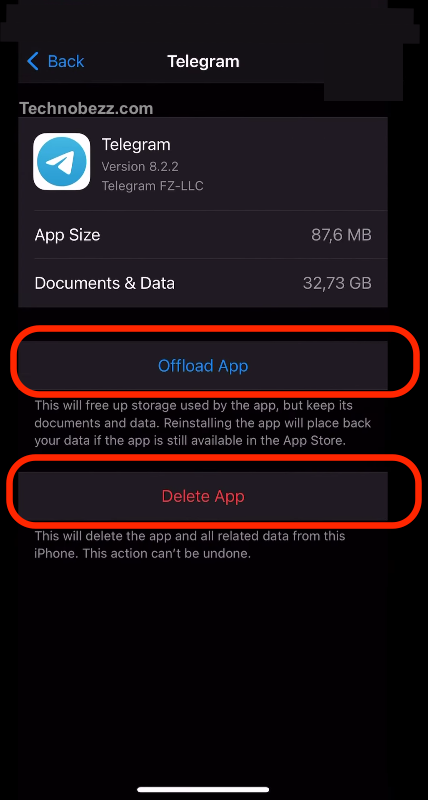
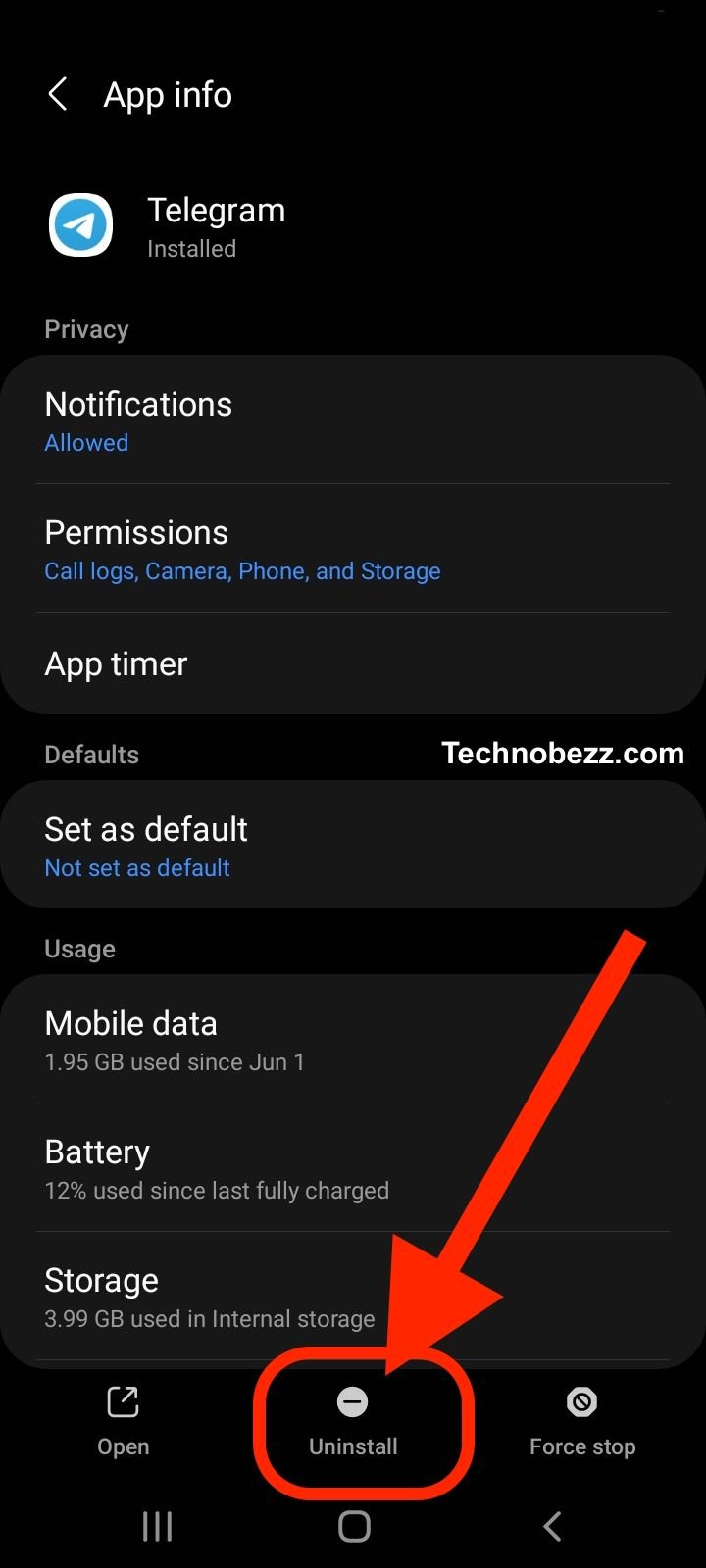
- 1.Uninstall Telegram from your device
- 2.Restart the device
- 3.Download the latest version from the official app store or telegram.org
- 4.Open it and log in again
Use A VPN Where Telegram Is Restricted
In regions where Telegram is blocked, the app can fail to reach servers and the code will never arrive. A VPN routes your connection through a country where access is open.
Install a reputable VPN, connect to a server in a region where Telegram works, then open the app and log in. Once you are signed in you can usually disconnect the VPN and keep using the app normally.
Secure Your Account After You Get Back In
Once you regain access, lock the account down so the next login is smoother and safer. A few minutes here prevents future lockouts.
Add a recovery email to two-step verification so you can always reset a forgotten cloud password without a 7-day wait. Then open Settings > Devices (called Active Sessions in some versions) and terminate any session you do not recognize.
If you remember your password, you may also need to wait up to 24 hours before a freshly added device can end older sessions, which is a normal security delay rather than a fault. For deeper help on the password itself, see our guide on how to change your Telegram password if forgotten.
Frequently Asked Questions
Why is Telegram not sending the login code?
The most common reason is that Telegram sent the code inside the app to another device you are signed in on, rather than by SMS. Check the Telegram service chat on any logged-in device first. If no device exists, your carrier may be filtering the SMS, so use the resend option to request a call instead.
How do I recover my Telegram account without the code?
If you cannot receive the SMS or in-app code, there is no way to bypass it, since the code proves you control the number. Try the phone call option, check other signed-in devices, and ask your carrier about blocked messages. As a last resort you can wait for the SMS service to recover or contact Telegram support through their official support form.
What does too many attempts mean on Telegram?
It is a temporary rate limit triggered by repeated failed codes or rapid retries, not a permanent ban. Stop trying, since each attempt can extend the timer. Most blocks clear within a few hours, and you can check the exact remaining time as a FLOOD_WAIT value on web.telegram.org.
How do I reset my Telegram 2FA password?
On the password screen, tap Forgot Password. If you have a recovery email, Telegram sends a reset code there so you can set a new password immediately. Without email access, choose the no access to email option, which resets only the password after a 7-day wait while keeping all your chats.
Why does Telegram say my phone number is not registered?
This usually means the number was entered incorrectly or in the wrong format. Select your country so the correct code fills in, then enter the number without a leading zero. Make sure it is the exact number tied to your account, as each account is linked to a single phone number.
Can I log in to Telegram with just an email address?
No. Telegram login is based on your phone number plus a verification code, and an email only serves as a recovery option for your two-step password. You cannot sign in with an email alone in place of the phone number.
First published October 13, 2025. Last updated June 4, 2026.