You hit Play, the Rockstar Games Launcher flickers for a second, and then nothing happens. No window, no Los Santos, just your desktop staring back at you. A game that refuses to start is one of the most frustrating problems in PC gaming, but it is almost always fixable.
This guide focuses on PC and covers both the original Legacy version and the Enhanced Edition that arrived on PC in March 2025. The fixes are ordered from quickest to most involved, so start at the top and work down. Where Legacy and Enhanced need different steps, we call it out clearly. For a second take on the same problem, our companion guide on the GTA 5 not starting issue walks through the core launch fixes from another angle.
Match Your Symptom to a Fix
Before you start, find the line that matches what you are seeing. The table points you to the fix most likely to help so you do not waste time on steps that do not apply.
| What happens | Most likely fix |
|---|---|
| Click Play, nothing happens at all | Run as administrator, reinstall launcher |
| Launcher closes instantly with an error | Reinstall the Rockstar Games Launcher |
| Enhanced Edition refuses to open | Check DirectX 12 support, switch to Legacy |
| Black screen then crash to desktop | Update GPU drivers, disable overlays |
| Crash with ERR_GFX_STATE | Update drivers, remove overclock, clear settings |
| Stuck on the loading screen forever | Verify game files, clear the cache |
| Won't open after a game update | Update GPU drivers, verify game files |
| Missing Visual C++ or DirectX error | Reinstall the bundled runtimes |
Run GTA 5 as Administrator
This is the single most effective first step. Windows 11 is strict about permissions, and GTA 5 sometimes needs elevated access to write its files and start cleanly. Many launch failures clear up the moment the game runs with admin rights.
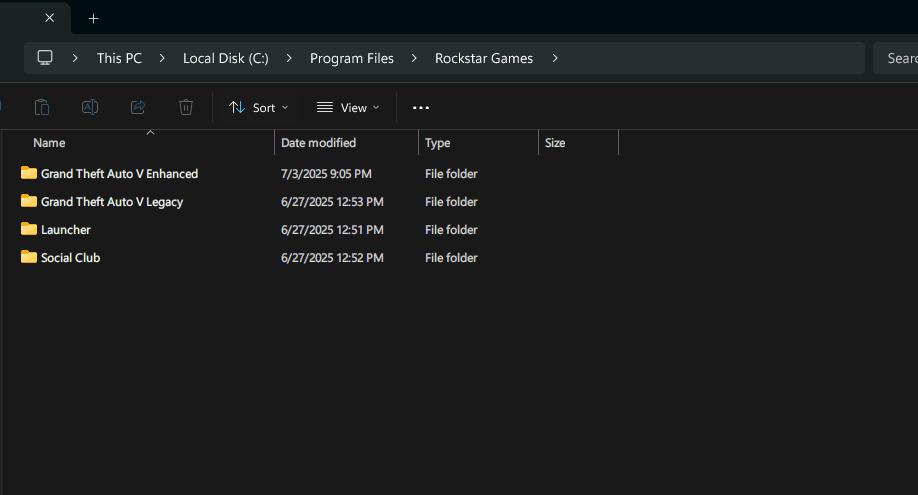
Open your GTA 5 install folder. Steam users will usually find it at C:\Program Files (x86)\Steam\steamapps\common\Grand Theft Auto V. The standard Rockstar install lives at C:\Program Files\Rockstar Games\Grand Theft Auto V.
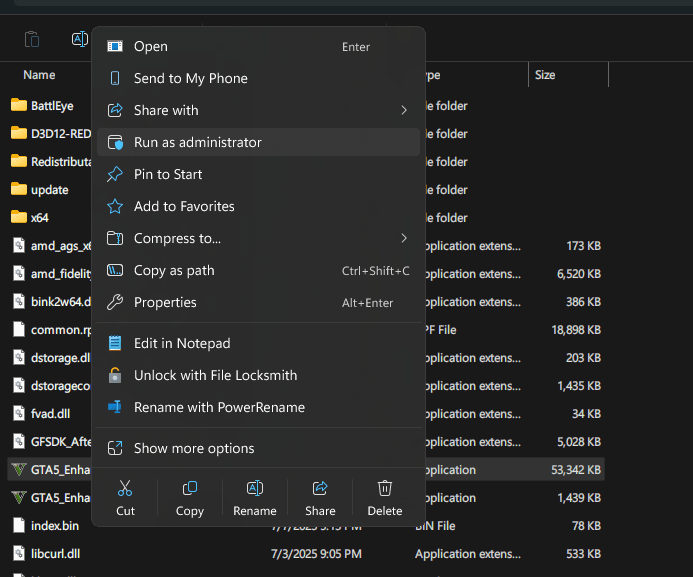
Right-click PlayGTAV.exe and choose Run as administrator. If that gets you in, make it permanent so you do not have to repeat it every time.
Right-click PlayGTAV.exe > Properties > Compatibility > Run this program as an administrator
Check DirectX 12 Support for the Enhanced Edition
If only the Enhanced Edition fails to start, this is the most common reason. Enhanced requires DirectX 12, and some older GPUs that predate DirectX 12 cannot run it at all. When the requirement is not met, the game often refuses to launch or crashes with a D3D error such as ERR_GFX_D3D_NOD3D12.
To check your GPU, press Win + R, type dxdiag, and press Enter. Open the Display tab and look at the Feature Levels row. If DirectX 12 is not listed there, your card cannot run Enhanced.
You do not have to miss out on the game, though. In the Rockstar Games Launcher you can pick the Legacy version instead of Enhanced. It is the same game without the newer graphical upgrades, and it runs on DirectX 11 hardware. Make sure Windows and your GPU drivers are fully updated first, since a current driver sometimes exposes DirectX 12 support that the game needs.
Update Your Graphics Drivers
Outdated GPU drivers cause a large share of GTA 5 launch failures, especially right after Rockstar pushes a game update. A fresh driver is one of the highest-value fixes you can apply.
NVIDIA users can install the latest driver through the NVIDIA app or the NVIDIA driver page. AMD users should use AMD Software, and Intel Arc users can grab drivers from the Intel website.
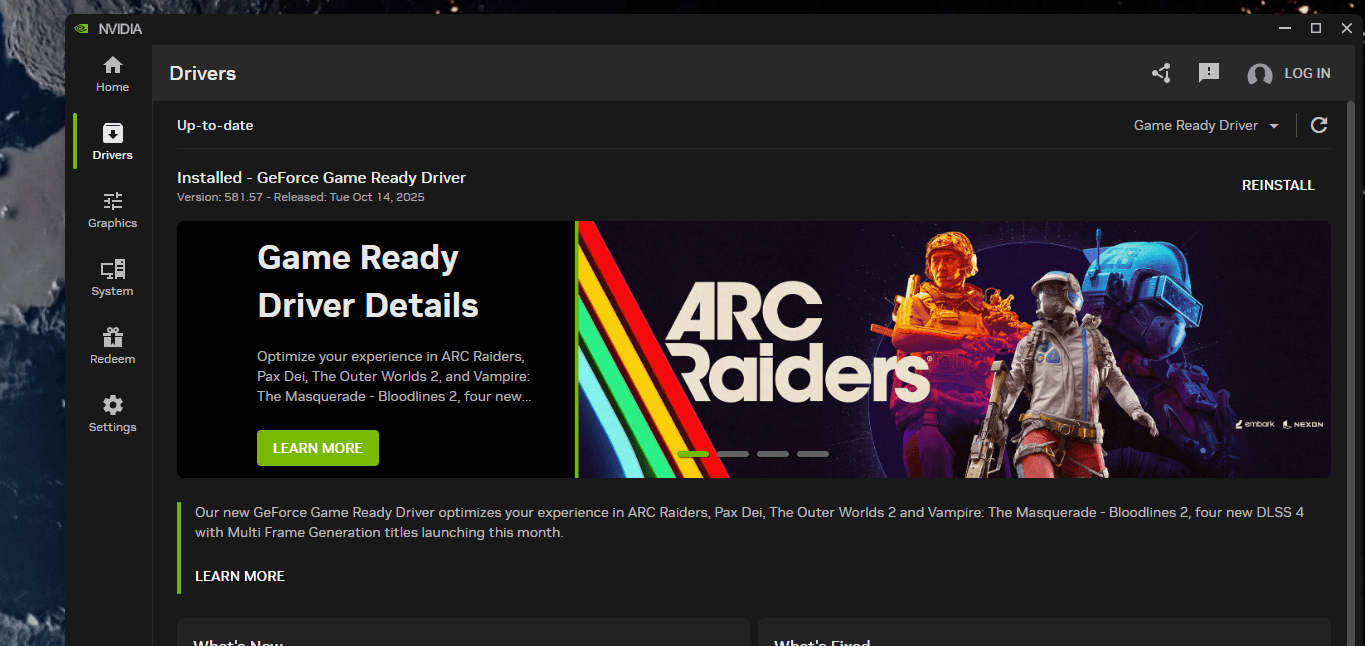
For the cleanest result, choose the clean install option in the driver installer, or use Display Driver Uninstaller (DDU) to fully remove the old driver before installing the new one. A clean driver install matters most if you recently changed GPUs or switched between AMD and NVIDIA.
Close Conflicting Overlays
In-game overlays inject themselves into the game at launch, and more than one running at once can stop GTA 5 from ever drawing its first frame. This is a frequent and easily missed cause of the silent no-launch.
Turn the common ones off and try again.
- Discord: User Settings > Game Overlay > turn off Enable in-game overlay
- Steam: Settings > In Game > uncheck Enable the Steam Overlay while in-game
- NVIDIA: open the NVIDIA app, go to Settings, and switch off the NVIDIA Overlay
Also close GPU tuning tools like MSI Afterburner and RivaTuner while you test, since they hook the game in the same way. Once the game launches, you can re-enable overlays one at a time to find the one that was causing the conflict.
Add GTA 5 to Your Antivirus Exclusions
Windows Defender and third-party antivirus tools have flagged GTA 5 files for years, and it still happens in 2026. An overzealous scanner can quarantine a file or block the launcher before the game opens.
Temporarily disable your antivirus and launch the game. If it starts, the antivirus was the problem. Add the whole GTA 5 install folder, along with the Rockstar Games Launcher folder, to your antivirus exclusion list so the game runs without being blocked.
Turn your protection back on as soon as you have added the exclusions. Leaving real-time protection off is not a long-term fix.
Verify Your Game Files
Corrupted or missing files are a classic reason GTA 5 will not launch or hangs on the loading screen. Both Steam and the Rockstar Games Launcher can scan the install and replace anything that is broken.
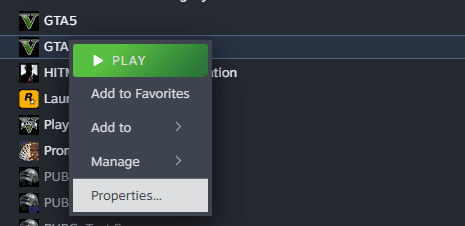
On Steam:
- 1.Open your Library and right-click Grand Theft Auto V
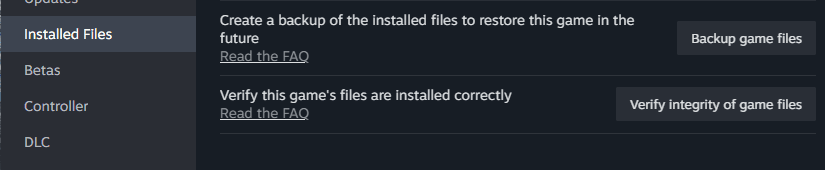
- 2.Select Properties, then Local Files
- 3.Click Verify integrity of game files
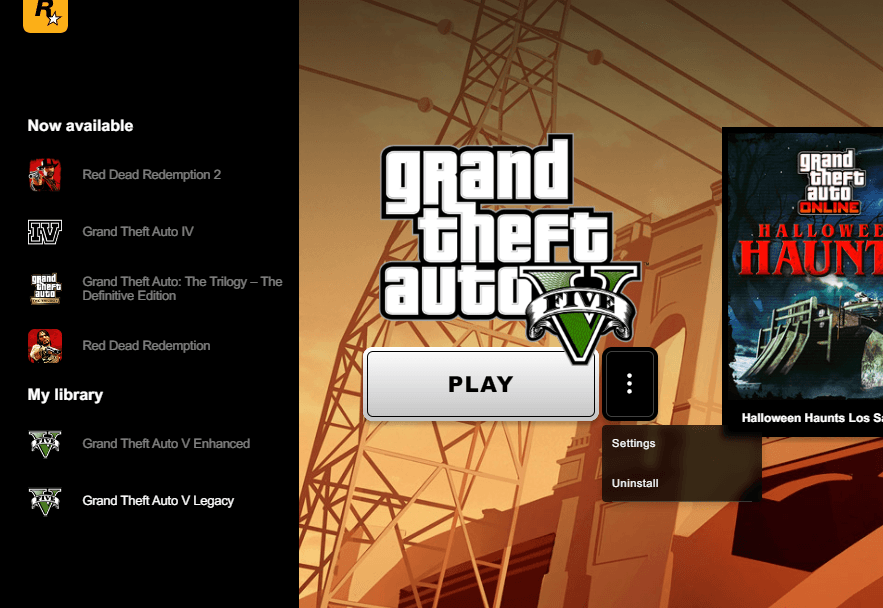
On the Rockstar Games Launcher:
- 1.Open Settings and go to My Installed Games
- 2.Select Grand Theft Auto V
- 3.Click Verify Integrity
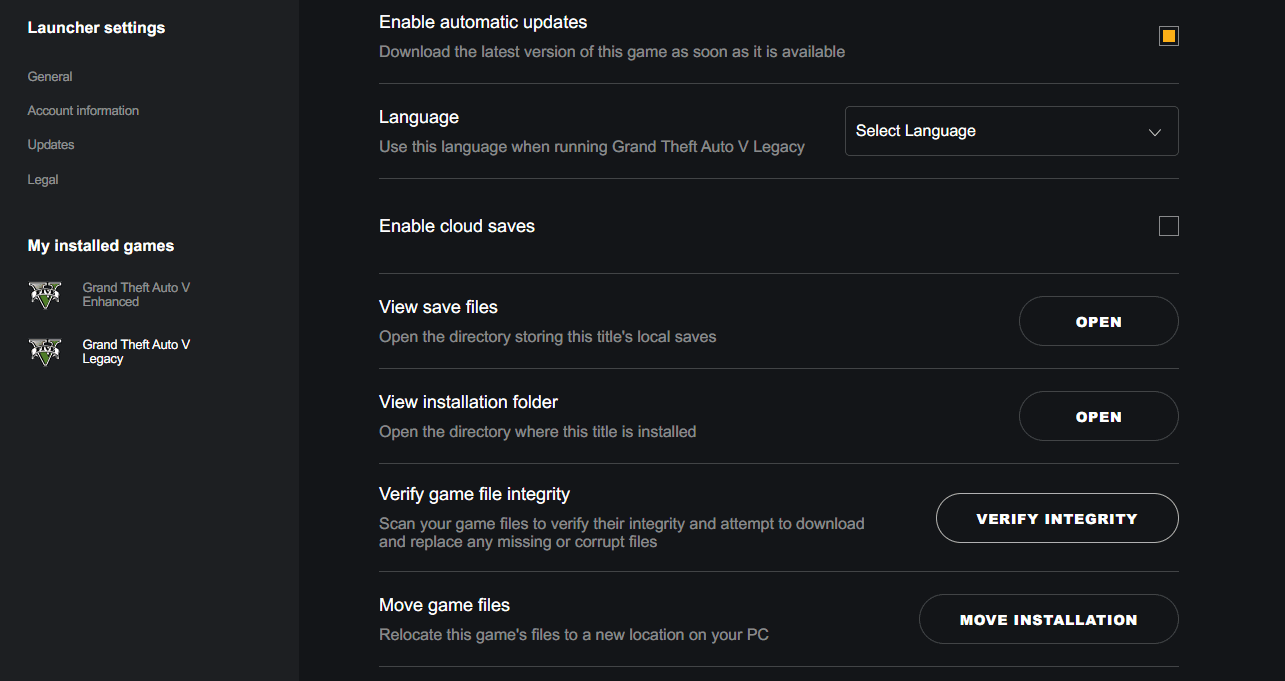
Reinstall the Bundled Visual C++ and DirectX Runtimes
GTA 5 relies on Microsoft Visual C++ and DirectX components that install alongside the game. If one of those is damaged you may see a Visual C++ Redistributable or DirectX error, or the game may simply fail to start with no message at all.
Rockstar bundles the installers inside the game folder so you can repair them without a download. Open the Redistributables folder in your install directory.
C:\Program Files\Rockstar Games\Grand Theft Auto V\Redistributables
Run the Visual C++ and DirectX installers found there, then restart your PC and try the game again. This rebuilds the exact runtime versions the game expects rather than whatever is currently on your system.
Clear the GTA 5 Cache and Settings
Old cache and settings files can break launches in ways that look random. Clearing them forces the game and launcher to rebuild a clean configuration. This also resolves many ERR_GFX_STATE crashes that are caused by a bad saved graphics setting.
Press Win + R, type %public%\Documents, and delete the Steam folder if one is present. Then open your user Documents and go to Documents\Rockstar Games\GTA V. Delete settings.xml so the game regenerates default graphics settings on the next launch.
For the Enhanced Edition specifically, also clear the shader cache. Open %localappdata%\Rockstar Games\GTA V and delete its contents, then restart your PC before trying again.
Set the Game to Windowed Mode on Launch
A black screen on startup is often a display mode mismatch where the game tries a fullscreen resolution your monitor cannot handle. Forcing windowed mode lets the game open so you can fix the resolution from inside the settings.
On Steam, right-click Grand Theft Auto V, choose Properties, and under Launch Options on the General tab enter -windowed -borderless.
For the Rockstar or Epic versions, create a text file named commandline.txt in the game's root install folder and add a single line reading -windowed -borderless. Once the game opens, set your correct resolution and display mode, then remove the option if you prefer fullscreen.
Reinstall the Rockstar Games Launcher
The launcher itself is often the real culprit, particularly when it flashes an error and closes instantly. A clean reinstall replaces the broken launcher without touching your game install.
Go to Windows Settings > Apps and uninstall the Rockstar Games Launcher. After it is gone, manually delete any leftover folders so the reinstall starts clean.
C:\Program Files\Rockstar Games\LauncherC:\Program Files\Rockstar Games\Social ClubC:\Users\YourName\Documents\Rockstar Games\Launcher
Download the latest Rockstar Games Launcher from the official Rockstar site and install it fresh, then run it as administrator the first time.
Reinstall GTA 5
If nothing else has worked, a full reinstall is the last resort that clears out any deep file corruption. Uninstall through Steam or the Rockstar Games Launcher, restart your PC, then download and install the game again.
Before reinstalling, delete any leftover GTA 5 folders from Documents\Rockstar Games\GTA V and from your Steam Documents folder so no old config carries over. A truly clean install means nothing stale is left to break the new one.
Make sure you have the disk space first. The Enhanced Edition needs roughly 105 GB of free space on an SSD, and the Legacy version takes up even more, so confirm your drive has room before you start the download.
Frequently Asked Questions
Why does GTA 5 say Play but nothing happens?
This is usually a permissions or launcher problem. Run the game as administrator first, then close any in-game overlays such as Discord, Steam, or the NVIDIA overlay. If it still does nothing, reinstall the Rockstar Games Launcher and make sure your antivirus is not silently blocking the game in the background.
What is the difference between GTA 5 Legacy and Enhanced on PC?
Enhanced arrived on PC in March 2025 with upgraded graphics and DirectX 12 support, while Legacy is the original DirectX 11 version. If your GPU does not support DirectX 12, you need to use Legacy. Both versions appear in the Rockstar Games Launcher, so you can switch between them at any time.
How do I fix the ERR_GFX_STATE crash in GTA 5 Enhanced?
Start by updating your graphics drivers and removing any GPU overclock, since this error is tied to the graphics card. If it continues, delete the settings.xml file in Documents\Rockstar Games\GTA V to reset your graphics settings, then relaunch and turn demanding options like ray tracing down before you raise them again.
Can I still play GTA Online if GTA 5 won't launch?
No, GTA Online runs inside GTA 5, so the base game has to start first. Fix the launch problem with the steps above and GTA Online will load once the game opens. Keep both the game and the launcher fully updated, since Rockstar still patches GTA Online regularly.
Does GTA 5 work on Windows 11?
Yes, both Legacy and Enhanced run on Windows 11. The tighter security defaults can occasionally interfere with the launch, so running as administrator and adding GTA 5 to your antivirus exclusions are the two fixes that help most Windows 11 users.
Why won't GTA 5 open after a game update?
New game updates frequently require a newer GPU driver, so update your graphics driver first. If that does not help, verify your game files through Steam or the Rockstar Games Launcher, since an interrupted update can leave a file corrupted and stop the game from starting.
First published October 17, 2025. Last updated June 4, 2026.