A live wallpaper turns a flat lock screen into something that moves the moment you pick up your phone. On a Samsung Galaxy, you can use a video from your Gallery, a downloaded animated pack, or even a TikTok clip as your background.
This guide walks through every working method in One UI, what each one can and cannot do, and how to keep the effect from draining your battery. Every step below uses the exact menu names you will see on your phone.
What Counts as a Live Wallpaper on Galaxy
On Samsung devices, "live wallpaper" usually means one of three things. The first is a video clip set as your background. The second is a dynamic pack that swaps in a new image each time the screen wakes. The third is an animated wallpaper created in Samsung's Good Lock app.
It helps to know one limitation up front. Video wallpapers are designed mainly for the lock screen, and some Galaxy models only allow them there. Static images and certain dynamic packs work on both the lock and home screens.
The exact menu names can shift across One UI versions. Current versions group these controls under Wallpaper and style. If your screen looks different, you are likely on a different One UI version, but the overall flow is the same.
Set a Video Wallpaper on the Lock Screen
Using a video from your Gallery is the most reliable way to get true motion on your lock screen. Touch and hold your lock screen, then enter your PIN, pattern, or password when prompted.
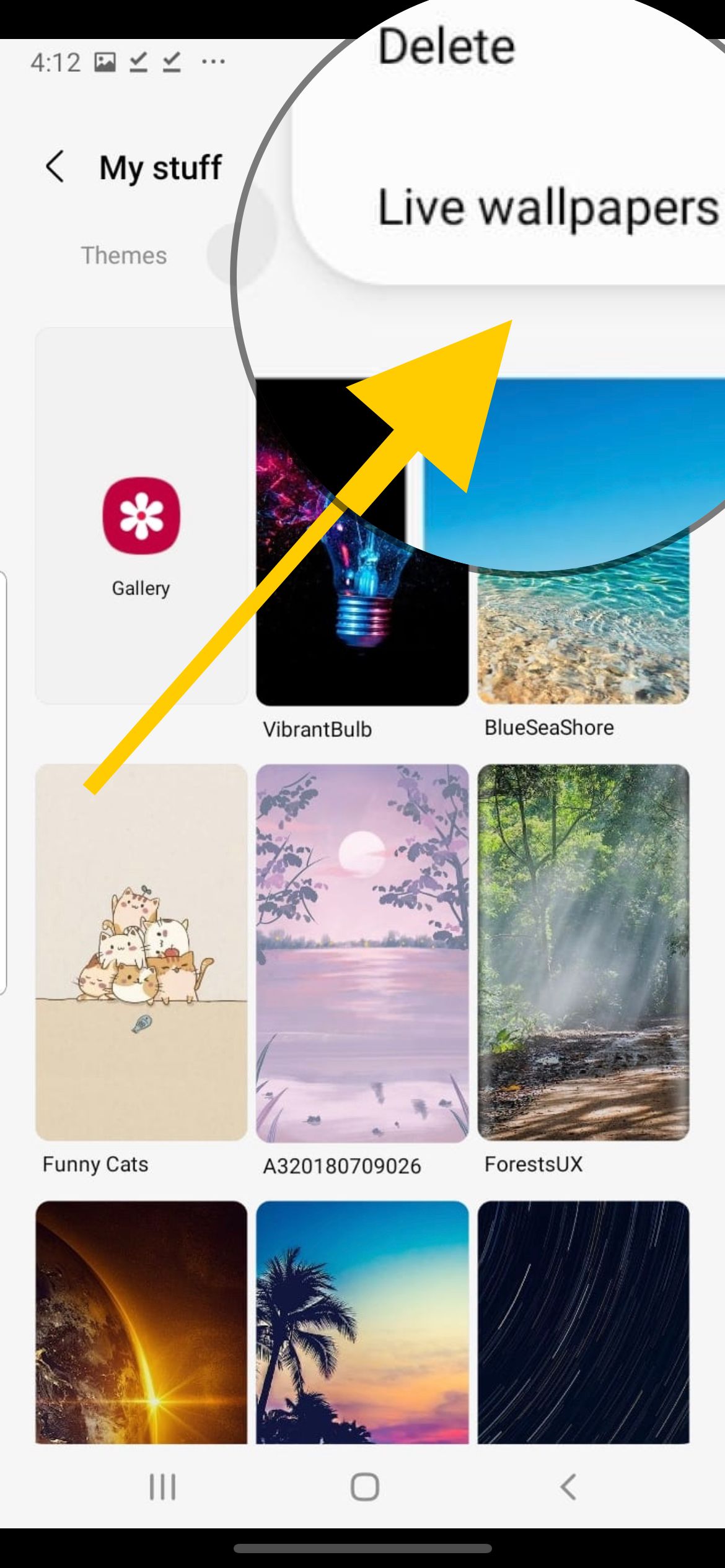
Tap Wallpapers in the top left corner, then tap Gallery and select the video you want. Tap Done to open the preview.
In the preview you can drag the clip to reposition it and pinch to zoom. Tap Trim to shorten the clip with the slider, since lock screen videos must be 15 seconds or less. When you are happy, tap Done in the top right to apply it.
Lock screen > touch and hold > Wallpapers > Gallery > Done
Set a Wallpaper on the Home Screen
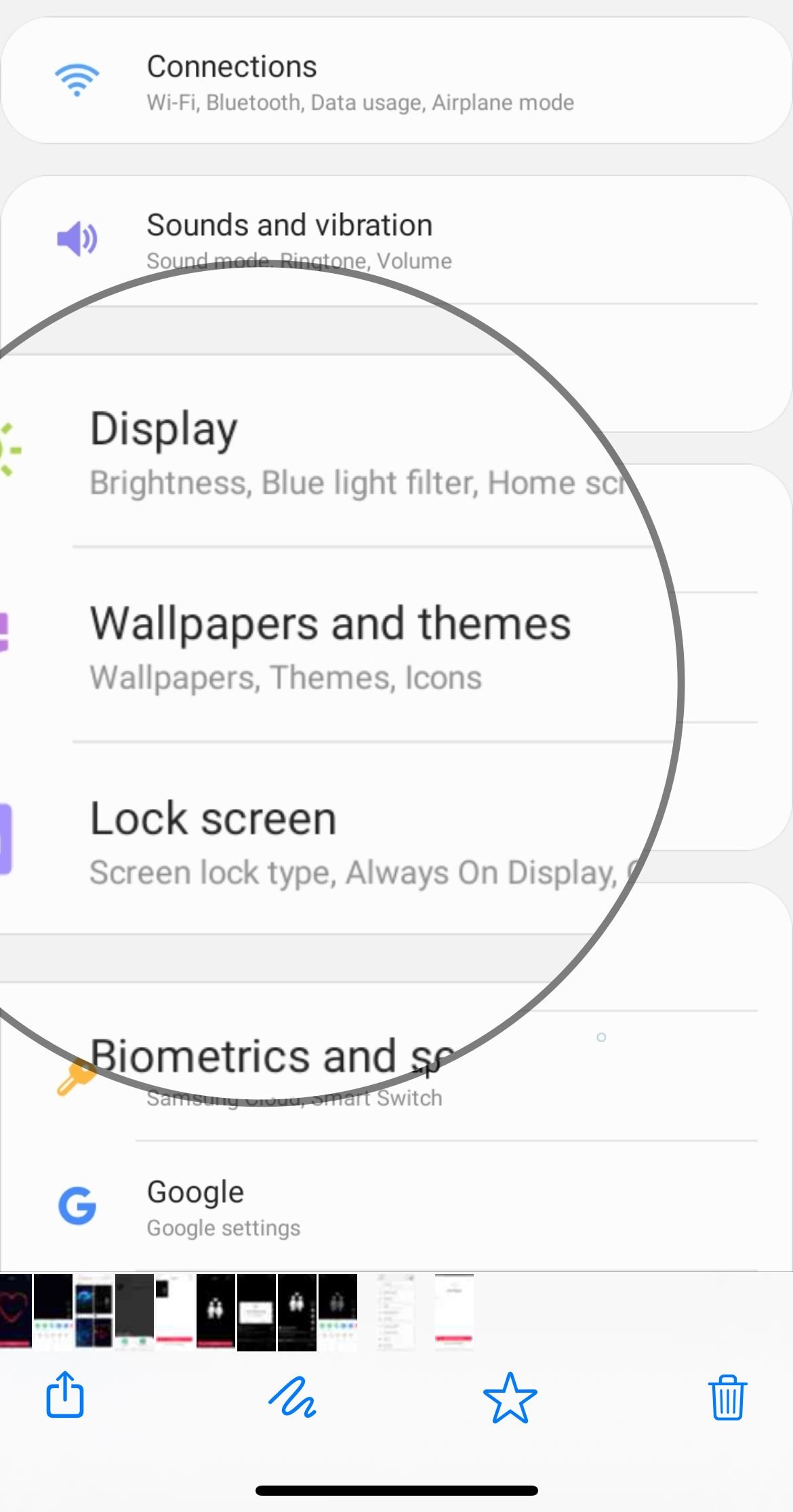
The home screen has its own entry point. Touch and hold an empty area of a home screen, then tap Wallpaper and style at the bottom.
Tap Change wallpapers, then tap Gallery and choose your image or video. Tap Done, then choose whether to apply it to the Lock screen, the Home screen, or both, and tap Next.
Drag to position the wallpaper and pinch to zoom, then tap Done in the top right. Keep in mind that if a video will only apply to the lock screen, the home screen will use a still frame or fall back to a static image.
Home screen > touch and hold > Wallpaper and style > Change wallpapers > Gallery
Add Frames and Effects to Your Wallpaper
On devices running One UI 6.1 or newer, the wallpaper preview includes extra styling tools. Frame places the image inside a shaped border and can highlight a clear subject such as a portrait, while newer builds extend this into a layered depth look.
Effect lets you apply visual filters before you set the wallpaper. Options include a blur that makes the clock and widgets easier to read, plus color filters for added contrast.
You will find Frame and Effect in the same preview where you position the image. Swipe through the choices, pick one, and it applies the moment you tap Done.
Use a Dynamic Lock Screen Pack
If you want variety without setting a single video, the Dynamic Lock screen feature rotates fresh images automatically. Open Settings, tap Wallpaper and style, then tap Change wallpapers.
Under Wallpaper services, tap Dynamic Lock screen and pick a pack such as Plants, Animals, or Desserts, then tap Download. The images apply to your lock screen and change each time the phone wakes.
These packs update on their own, so the look stays fresh over time. You can control whether they download over mobile data or Wi-Fi only, and toggle auto update, by reopening Dynamic Lock screen and scrolling to the bottom of its settings.
Set a TikTok Video as Live Wallpaper
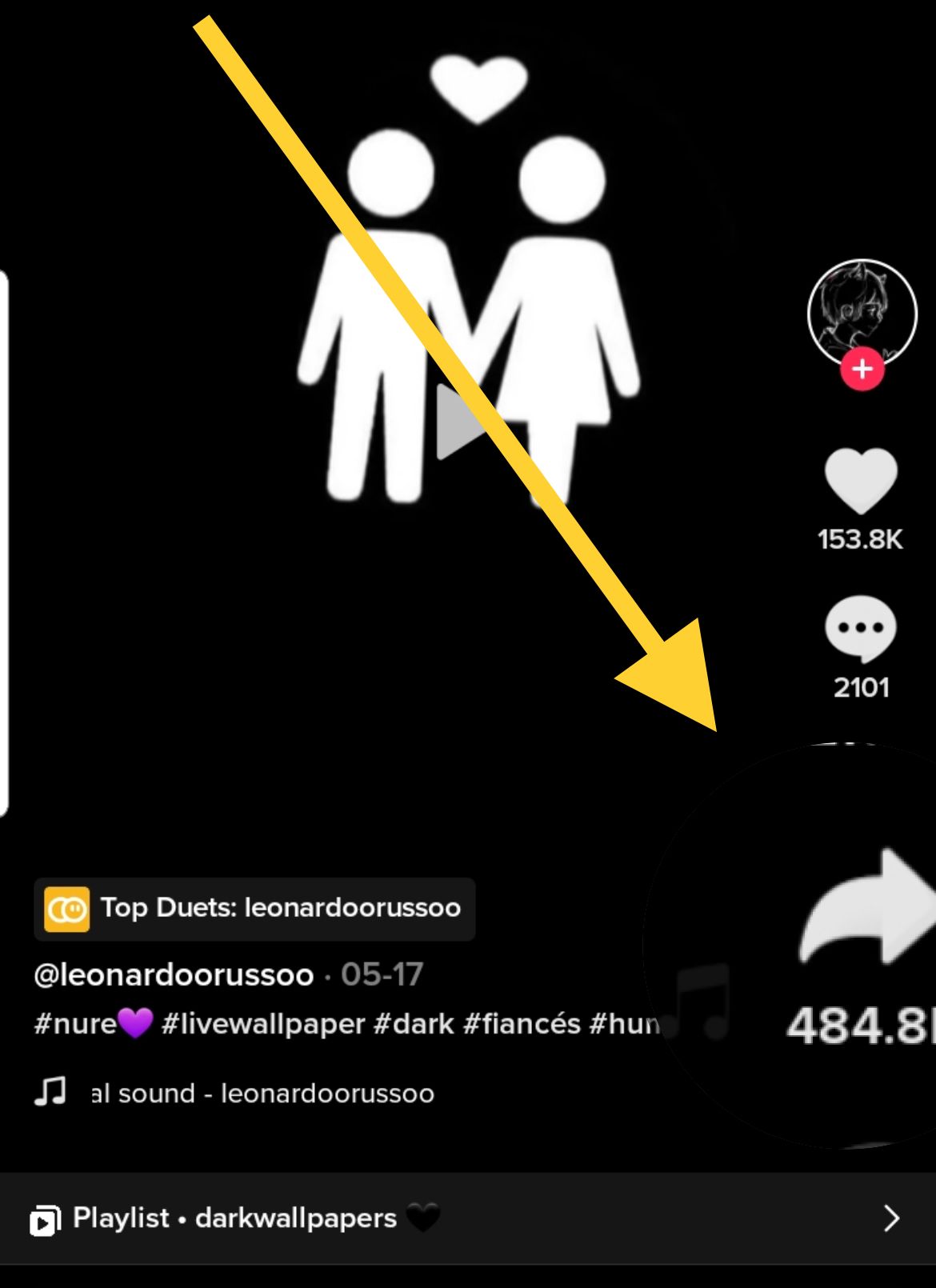
TikTok offers a built-in way to turn a clip into an animated background. Open the TikTok app, find the video you want, and tap the Share button, which looks like a curved arrow.
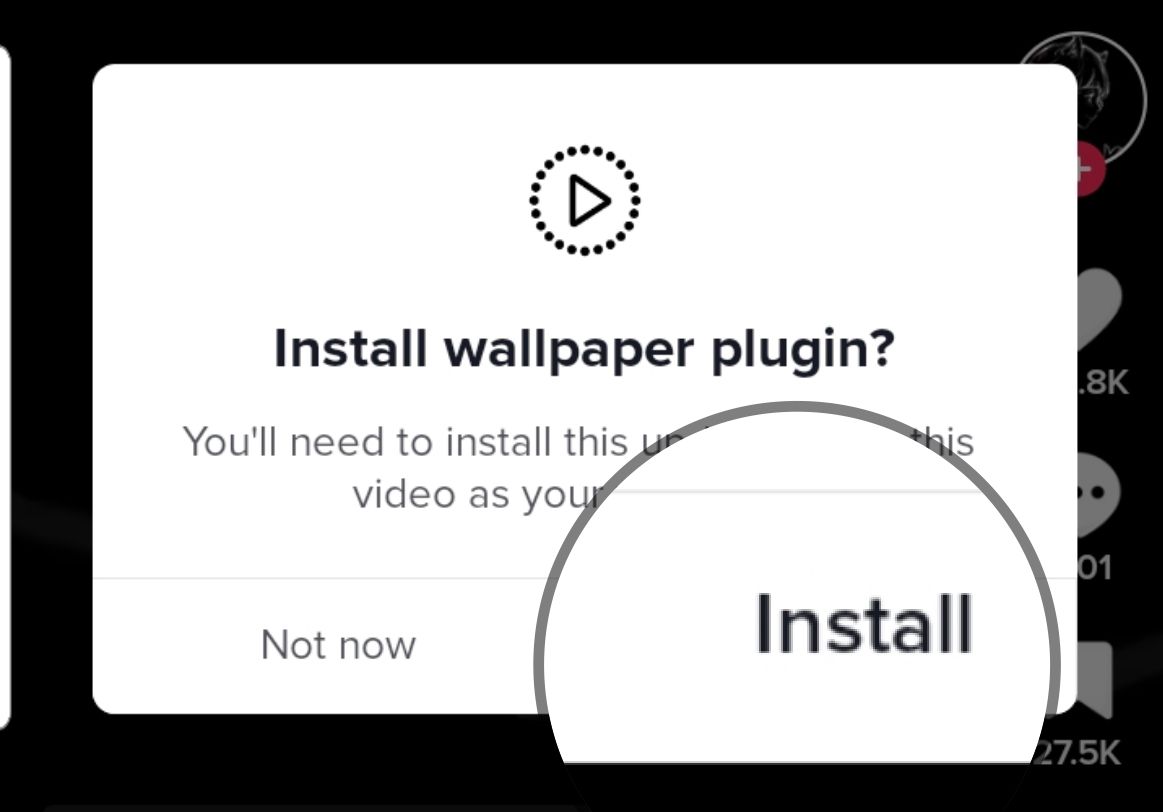
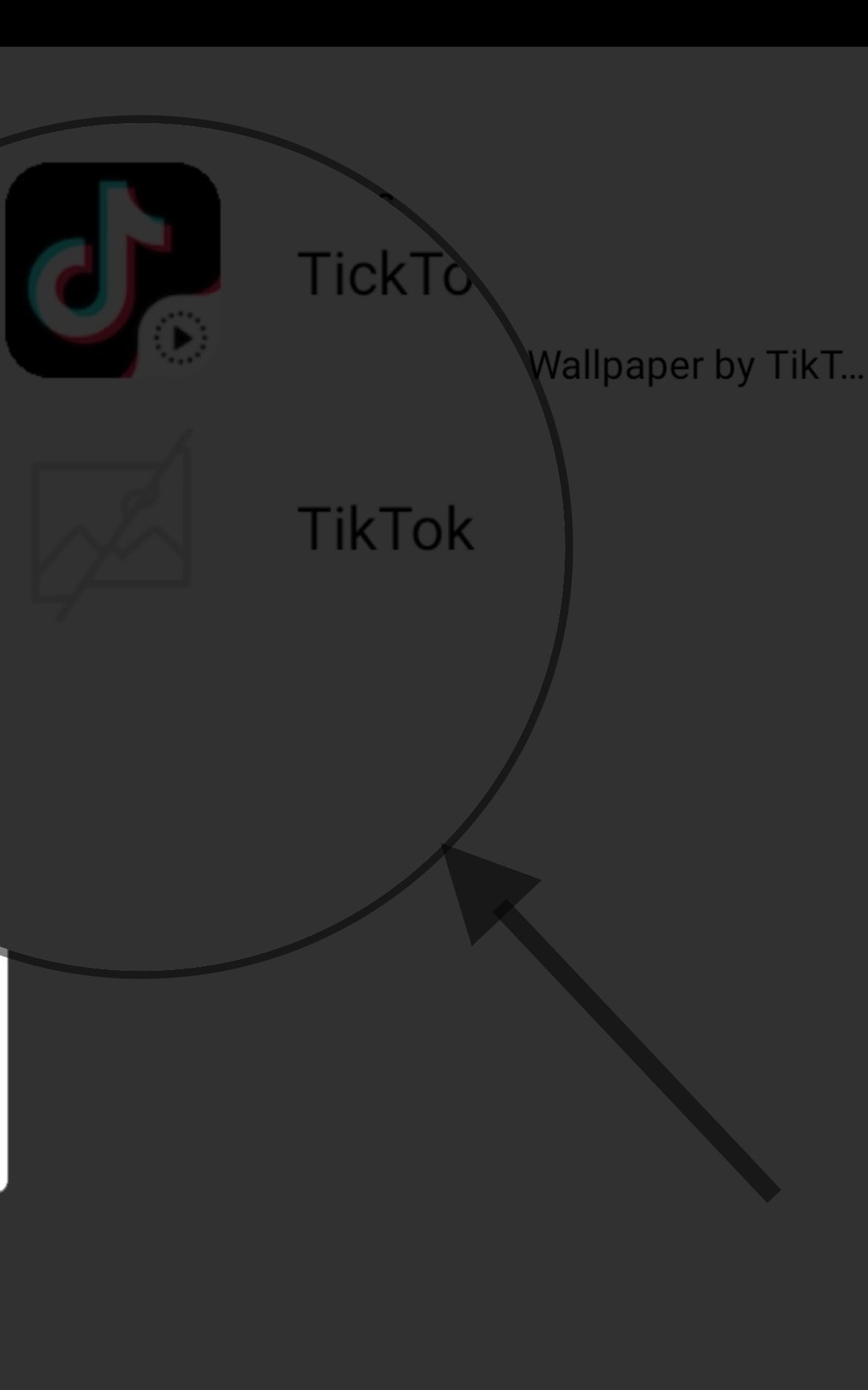
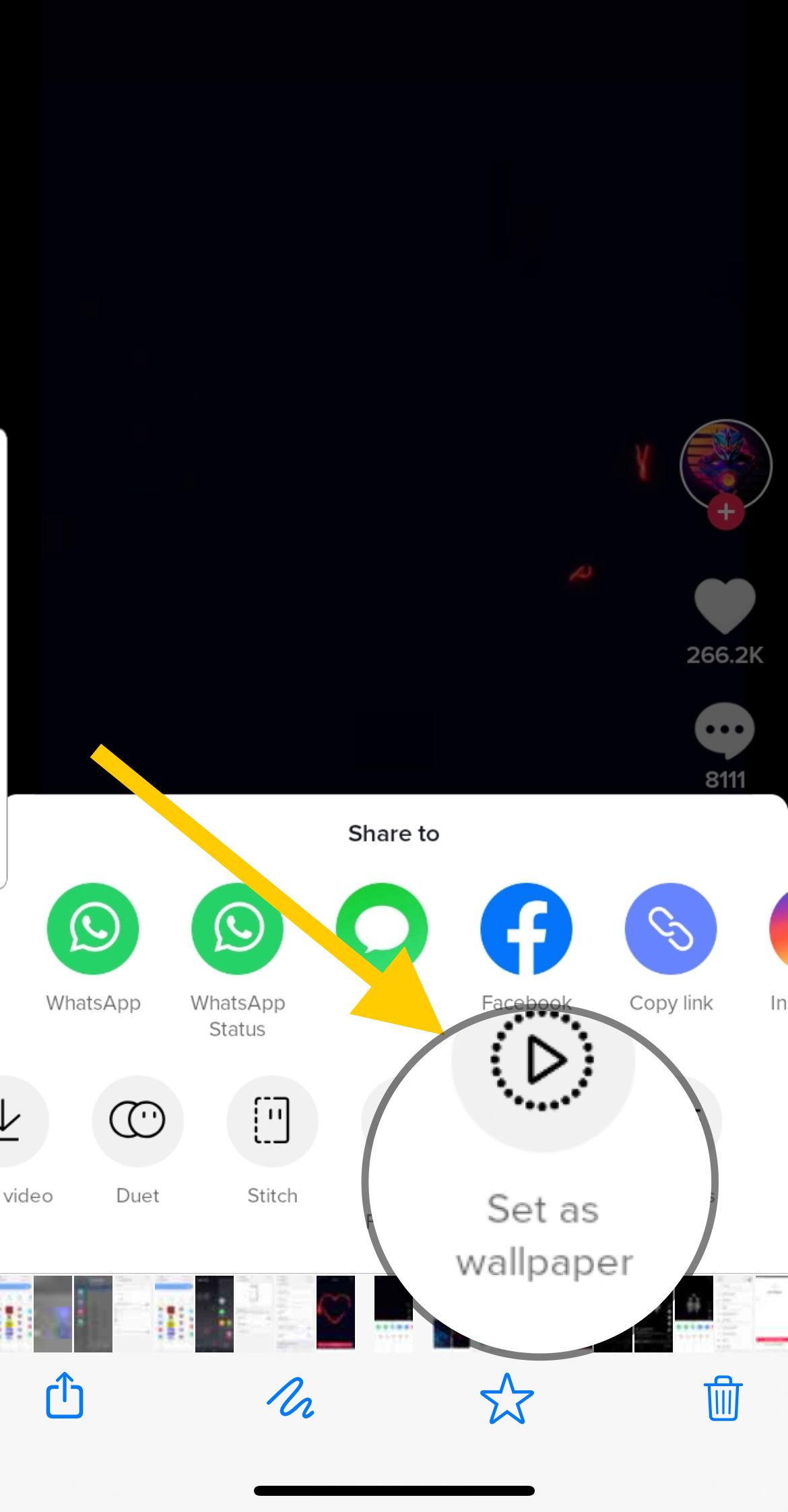
Tap Set as wallpaper in the share menu. If this is your first time, TikTok will ask you to install its wallpaper plugin, so let it download and open.
The plugin plays a full-screen preview. Tap Set as wallpaper, then confirm, and choose whether to apply it to your home screen or both screens.
One catch worth knowing is that not every clip can be used this way. The Set as wallpaper option only appears when the creator has allowed their video to be downloaded.
Create Custom Animated Wallpapers With Good Lock
For deeper customization, install the free Good Lock app from the Galaxy Store. Good Lock is Samsung's official tool for personalizing One UI beyond the standard settings.
Inside Good Lock, the Wonderland module turns a still photo into a moving wallpaper with particle and motion effects, including animations like falling snow or rising bubbles. This is the closest thing to building your own live wallpaper from scratch on a Galaxy.
Availability of individual Good Lock modules can vary by region and One UI version, so check the Galaxy Store listing if a module does not appear for you.
Keep Live Wallpapers From Draining Your Battery
Animated backgrounds use more power than a still image because the screen has to keep redrawing motion. If you notice the battery dropping faster after switching, that is the most likely cause.
One small comfort is that a lock screen video plays without sound, so it will not surprise you with audio. If the drain bothers you, switch back to a static image using the same Wallpapers or Wallpaper and style menus you used to set it.
If a wallpaper fails to apply or the menu behaves oddly, restart the phone and try again. Clearing the cache of the wallpaper service in your app settings can also resolve a stuck preview.
Frequently Asked Questions
Can I set a live wallpaper on both the home and lock screens?
Static images and many dynamic packs apply to both screens. Video wallpapers are built mainly for the lock screen, and some Galaxy models restrict them to the lock screen only, so the home screen may show a still frame instead.
Why is there no Set as wallpaper option on a TikTok video?
That option only appears when the creator has allowed their video to be downloaded. If downloading is turned off for that clip, TikTok will not offer the wallpaper option, so you will need to choose a different video.
Do video wallpapers play sound on the lock screen?
No. Samsung disables audio for clips set as a lock screen wallpaper, so the video plays silently no matter what the original sound was.
How do I switch back to a normal static wallpaper?
Touch and hold the lock screen and tap Wallpapers, or touch and hold the home screen and tap Wallpaper and style, then choose a still image from Gallery or the built-in options and tap Done.
Where do I find Frame and Effect for my wallpaper?
They appear in the wallpaper preview screen on devices running One UI 6.1 or newer. After you pick an image and reach the positioning view, swipe to the Frame or Effect controls, choose one, and tap Done to apply.
What is the Dynamic Lock screen feature?
It is a built-in service that rotates a new image onto your lock screen each time the phone wakes. You pick a themed pack under Wallpaper services, and the pack refreshes automatically over time.
First published October 15, 2025. Last updated June 4, 2026.