Switching between households in The Sims 4 lets you play several families inside one save without ever moving them in together. It is the foundation of rotational play, where you bounce between different homes and watch separate storylines unfold across the same world.
The process takes only a few clicks once you know where to look. The bigger thing to understand is what happens to the family you leave behind, because aging and autonomy settings decide whether your other Sims keep growing older while you are away.
How Switching Households Works
When you switch to a new household, the game treats your previous family as inactive. Inactive Sims will not make major life decisions on their own. They will not quit jobs, start relationships, break up, or get married without you, so the family stays roughly as you left it.
The one exception is aging. If automatic aging is turned on for played Sims, your inactive household can keep aging in the background while you play someone else. That is why rotational players check their aging settings before they start hopping between homes.
The game does not silently save in the background when you switch. When you leave through Manage Worlds, it asks whether you want to save first, so always say yes to keep the progress you just made.
Switch Households From Manage Worlds
The fastest way to change your active family is through Manage Worlds. This is the world map screen where every neighborhood and lot lives, and it is the central hub for choosing which household to control.
- 1.Open the menu by clicking the three dots in the top-right corner of the screen, then choose to save your game when prompted
- 2.Click Manage Worlds, or open it directly from the icon in the top-left corner while in Live Mode
- 3.Select the world where the household you want to play lives
- 4.Click the lot or house that the family occupies
- 5.Press the Play button to load into that household
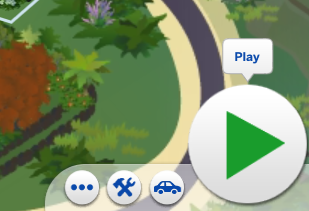
That is all it takes. You can repeat these steps any time you want to control a different family, and the game keeps each household's story intact while you are away.
Move Sims With Manage Households
Switching control is different from moving Sims around. If you actually want to relocate a Sim, split a family apart, or merge two homes, you use Manage Households instead. Open it from the icon in the top-right corner of the Manage Worlds map view.
Inside Manage Households you will see every family you have played, marked with a plumbob icon. The key tools are Edit Household in CAS, move a household into a lot, transfer Sims between households (the icon with two opposing arrows), and delete a household. Selecting a Sim with the plus icon lets you create a brand new household around them.
To split a family, transfer the Sim you want to move out into a separate household. To merge, move everyone from one household into another, and the game will ask whether you want to sell and transfer the original home's furniture along with them.
Control Aging for Inactive Households
If you want your other families frozen in time while you play one, you need the right aging options. These live in the game settings under Gameplay.
Game Options > Gameplay > Auto Age Up Sims
The Auto Age Up Sims setting has three choices. Yes ages every played household, No stops all played Sims from aging, and Only Active Household ages just the family you are currently controlling. For rotational play where you want even progress, many players choose Only Active Household so inactive families stay put until you visit them.
There is a separate Auto Age Up Sims (unplayed Sims) option for townies and premade families you have never entered. A Sim becomes "played" once you load into their lot and save, so anyone you have controlled follows the played-Sims rule, while everyone else follows the unplayed rule.
Tips for Smooth Rotational Play
Try not to switch away from a Sim in the middle of their work or school hours. Leaving mid-shift can affect their job or school performance, so it is cleaner to switch when they are home or off the clock.
If a Sim ages up at a time you did not want, you can correct it. Enable cheats, type cas.fulleditmode, then hold Shift and click the Sim and choose Modify in CAS, where you can set their age stage manually.
Keep your aging choice consistent across the whole save. Mixing rapid aging on one family with frozen aging on another quickly desynchronizes your storylines, which is the most common frustration new rotational players run into.
Frequently Asked Questions
Do my other Sims age when I am not playing them?
Only if aging allows it. With Auto Age Up Sims set to Yes, played households keep aging in the background. Set it to Only Active Household to freeze inactive families until you switch back to them.
Will my inactive family quit their job or get into relationships on their own?
No. Inactive households do not make major autonomous decisions like quitting jobs, marrying, or breaking up. They essentially pause their life choices until you take control again, with aging being the only ongoing change.
Does the game save when I switch households?
Not on its own. When you leave a household through Manage Worlds, The Sims 4 prompts you to save first, so choose to save in order to keep your progress. Saving manually from the menu before a big switch is a good backup habit.
What is the difference between switching households and Manage Households?
Switching households changes which family you control through Manage Worlds. Manage Households is the tool you use to physically move Sims between families, split a household, merge two homes, or create a new one.
How many households can I play in one save?
You can play many households in a single save and switch between them freely. Each family keeps its own home, relationships, and story, which lets you build interconnected narratives across the same world.
First published October 15, 2025. Last updated June 4, 2026.