The "Unable to Connect to World" error stops you cold right when you want to join a friend's game or jump into a shared world. It usually comes down to one of three things, a privacy setting on the Microsoft account, a version or network mismatch between the two players, or a firewall blocking the connection.
This error shows up most often in Minecraft Bedrock, the version you get on Windows, consoles, and phones. The fixes below are ordered from fastest to most involved, so work through them in order and test after each one.
Quick Checks Before Anything Else
A surprising number of these errors clear with a clean restart, so start there. Fully close Minecraft instead of leaving it in the background, then relaunch it and try the world again.
If that does nothing, restart the device itself to flush stale sessions. Confirm you have a stable internet connection by loading any website, and check whether the wider Minecraft services are up before assuming the problem is on your end.
- Close and reopen Minecraft rather than just minimizing it
- Restart your PC, console, or phone to clear temporary glitches
- Test your internet on another app or site to rule out a dead connection
- Check the service status at help.minecraft.net in case the outage is on Mojang's side
Match the Game Version on Both Devices
Both players have to be on the same Minecraft version to connect, and a mismatch is one of the most common causes of this error. If one person updated and the other did not, the join will fail even though everything else is fine.
Have everyone check for updates and install the latest version. On Windows, open the Microsoft Store, select Library, and choose Get updates. On consoles and phones, update Minecraft through the system store the same way you update any other app.
Enable Multiplayer on the Microsoft Account
The account-level privacy setting is the single most common reason for this error, and it lives on the Xbox website rather than inside the game. If multiplayer is blocked here, you simply cannot join other worlds no matter what platform you play on.
Sign in to the Xbox account settings page in a browser to change it.
- 1.Go to account.xbox.com/Settings and sign in
- 2.Click your profile picture, then open the account settings
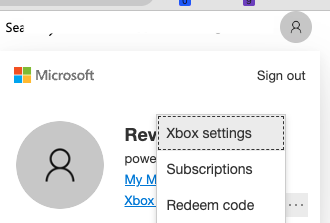
- 1.Open the Xbox Series X|S, Xbox One, and Windows devices Online Safety tab
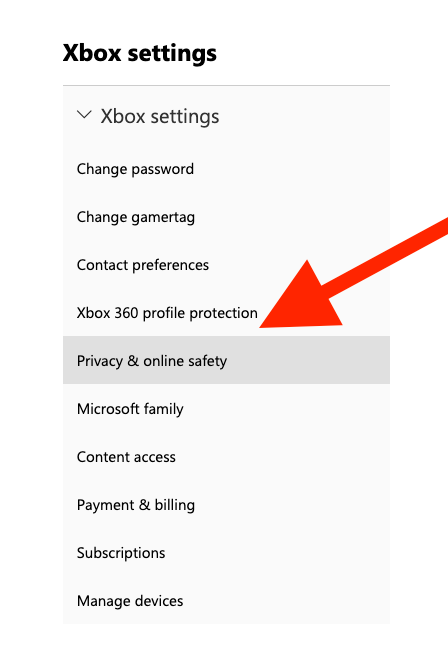
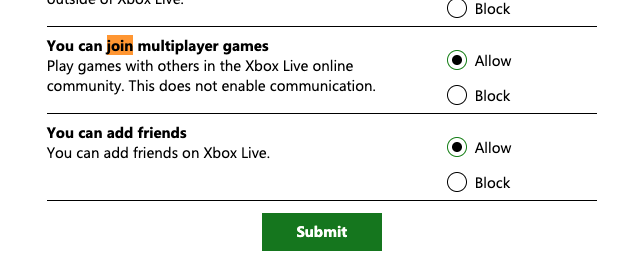
- 1.Find You can join multiplayer games and set it to Allow

- 1.While you are here, also set You can join cross-network play to Allow so you can connect to people on other platforms
- 2.Click Submit to save the changes
If the account belongs to a child in a Microsoft family group, you will not see these options. The family organizer has to sign in to their own account and change them for the child, since children's accounts cannot edit their own privacy settings.
Check Your NAT Type and Router
NAT type controls how easily other players can reach you, and a Strict or Moderate NAT often blocks world joins. On an Xbox you can see it under Profile & system > Settings > General > Network settings, where you want NAT Type to read Open and no "Double NAT detected" warning.
If the NAT type is restrictive, log in to your router and turn on UPnP, which lets Minecraft open the ports it needs automatically. After enabling it, restart the router and the device, then test again.
Router admin page > UPnP > Enable
If UPnP is not available, you can manually forward the Bedrock ports, UDP 19132 and 19133, to the device hosting the world. A "Double NAT" warning usually means two routers are chained together, so put one in bridge mode or connect through a single router to clear it.
Add Minecraft Through Windows Firewall
Windows Firewall can silently block Minecraft's network traffic, which triggers this exact error on PC. Rather than turning the firewall off, add the game to the allowed list so protection stays in place.
- 1.Search for Windows Defender Firewall in the Start menu and open it
- 2.Click Allow an app or feature through Windows Defender Firewall
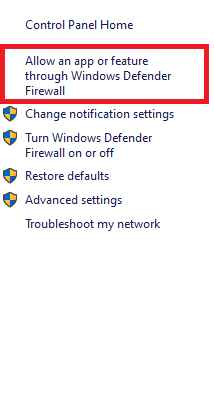
- 1.Click Change settings, then make sure both Private and Public are checked for the Minecraft entries
- 2.For Bedrock on Windows, look for Minecraft.Windows.exe, and for Java, look for javaw.exe
- 3.If an entry is missing, click Allow another app and browse to your Minecraft installation folder to add it
Temporarily Disable Antivirus Software
Third-party antivirus tools sometimes treat Minecraft's connections as suspicious and cut them off. To test this, open your antivirus and use its temporary disable option, usually 15 minutes to an hour.
Try joining the world while protection is off. If it works, the antivirus was the culprit, so re-enable protection and add Minecraft to its exception or allow list instead of leaving it disabled.
Sign Out and Back Into Your Account
A stuck Microsoft account session can also produce this error, and signing out clears it. Open Settings > Profile inside Minecraft and sign out of your Microsoft account.
Restart the game, then sign back in. When prompted, choose Save to Microsoft Account rather than Leave on Device so your progress and friends list stay synced.
Update Windows and Network Drivers
Outdated system software and network drivers can break the connection in ways that are easy to miss. Keep Windows current first, since updates often include networking fixes.
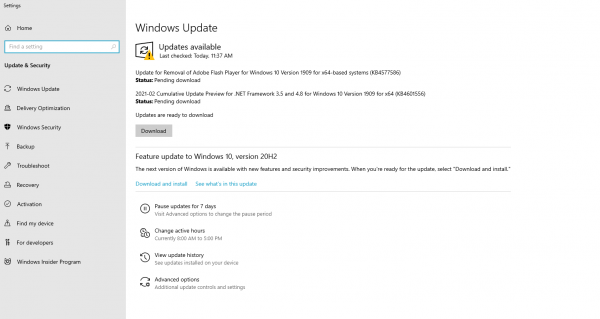
To update Windows, go to Settings > Windows Update and choose Check for updates. For the network adapter, open Device Manager, expand Network adapters, right-click your adapter, and choose Update driver followed by Search automatically for drivers.
Settings > Windows Update > Check for updates
Refresh the Friend Connection
If only one specific friend's world fails while others work, the link between your two accounts may be cached badly. Removing and re-adding that friend forces a fresh connection.
Open your friends list, remove the person, then send a new request and have them accept it. A quick trick that often helps alongside this is to load one of your own worlds, save and quit, and then try joining your friend again.
Try a VPN as a Last Resort
If nothing above works, your ISP or a regional restriction may be interfering with the connection. A reputable VPN can route around that kind of blocking.
Install a trusted VPN, connect to a server near your location, then launch Minecraft and try again. Note that VPNs can sometimes interfere with local same-network play, so turn the VPN off if you are joining a world on the same Wi-Fi.
Frequently Asked Questions
Why does Minecraft say Unable to Connect to World on the same Wi-Fi?
On the same network this is usually a version mismatch or a router setting. Make sure both devices run the exact same Minecraft version, then check that the "You can join multiplayer games" privacy setting is allowed for both accounts. If it still fails, restart your router and turn off any VPN, which can block local connections.
How do I fix a Strict NAT type for Minecraft?
Log in to your router and enable UPnP, then restart the router and your device so it can open the ports Minecraft needs. If UPnP is unavailable, manually forward UDP ports 19132 and 19133 to the host device. A "Double NAT detected" message means two routers are chained, so set one to bridge mode.
Does the error mean I am banned or blocked?
No. The "Unable to Connect to World" error is a connection or settings problem, not an account ban. It almost always traces back to privacy settings, a version difference, NAT type, or a firewall, all of which you can fix yourself.
Why can my friend not join my world even with multiplayer enabled?
Both accounts need multiplayer allowed, not just the host. Confirm each player has "You can join multiplayer games" and "You can join cross-network play" set to Allow, that both are on the same game version, and that the host has an Open NAT type.
Where is the multiplayer privacy setting for a child account?
Children's accounts cannot change it themselves. The family organizer must sign in to their own Microsoft account, open the child's settings, and set "You can join multiplayer games" to Allow under the Online Safety section.
First published October 13, 2025. Last updated June 4, 2026.