A Samsung TV that refuses to power up almost always leaves a clue, and that clue is the small red standby light on the front of the set. Before you assume the worst, the pattern of that light tells you whether you are facing a quick reset, a loose cable, or a hardware fault that needs service.
This guide is organized by symptom so you can jump straight to your situation. Start with the diagnostic table below, then follow the matching fixes. Most power problems are solved in the first few steps without any tools.
Read more - Samsung TV Keeps Turning On and Off by Itself
Diagnose by the Standby Light
The red standby light near the bottom edge of the screen is Samsung's built-in status indicator. Note what it is doing right now, then use this table to find the likely cause and the fix to start with.
| What the light is doing | Likely cause | Where to start |
|---|---|---|
| Solid red, TV won't wake | Remote or input glitch | Test the remote and TV button, power cycle |
| No light at all | No power reaching the TV | Check outlet, cable, and surge protector |
| Blinking or flashing red | Power supply or firmware fault | Extended power reset, then service |
| Light on but black screen with sound | Backlight or panel issue | Backlight test, disconnect devices |
| Clicking and no startup | Power board capacitor strain | Power reset, then inspect the power board |
If you are not sure the screen is truly off, press any button on the TV except power. A faint menu or volume bar means the TV is on with a dark screen, which points you to the backlight section rather than a power fault.
Check the Power Connection First
Most "dead" Samsung TVs are simply not getting clean power. Run through these before anything else, especially when there is no standby light at all.
- Confirm the TV is plugged into a working wall outlet, and test that outlet with another device.
- Reseat the power cord firmly at both ends, the TV and the wall, since these work loose over time.
- If you use a power strip or surge protector, make sure it is switched on and has not tripped.
- Inspect the cord for kinks, cuts, or melted spots near the plug.
On models with a separate One Connect Box, check that the box also has power, because the screen draws everything through it. More on that box further down.
Test the Remote and the TV Button
A solid red standby light usually means the TV has power but is not getting a valid power-on command. Rule out the remote before you touch the set itself.
- 1.Point the remote at the TV and press Power. If nothing happens, fit fresh batteries.
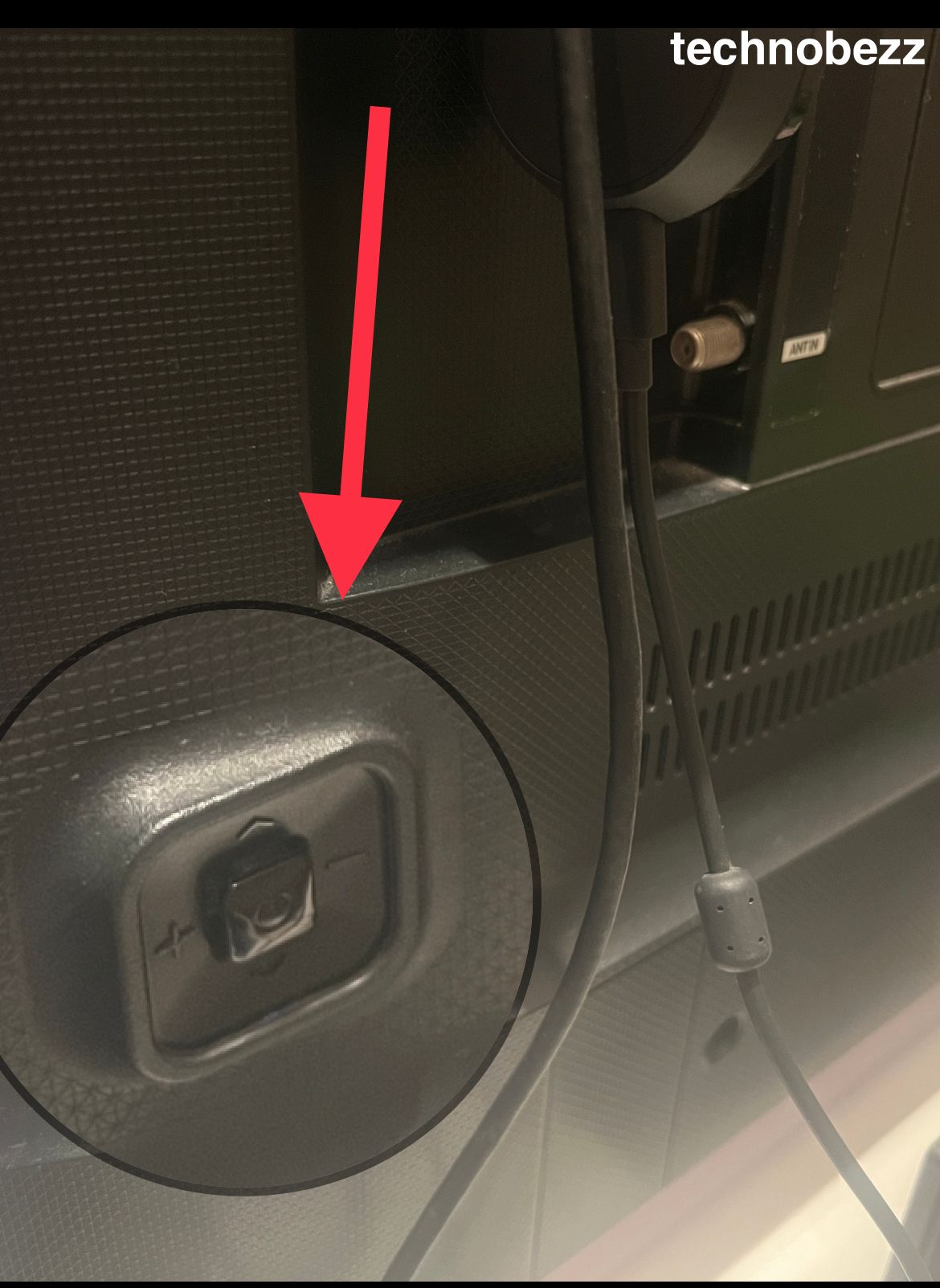
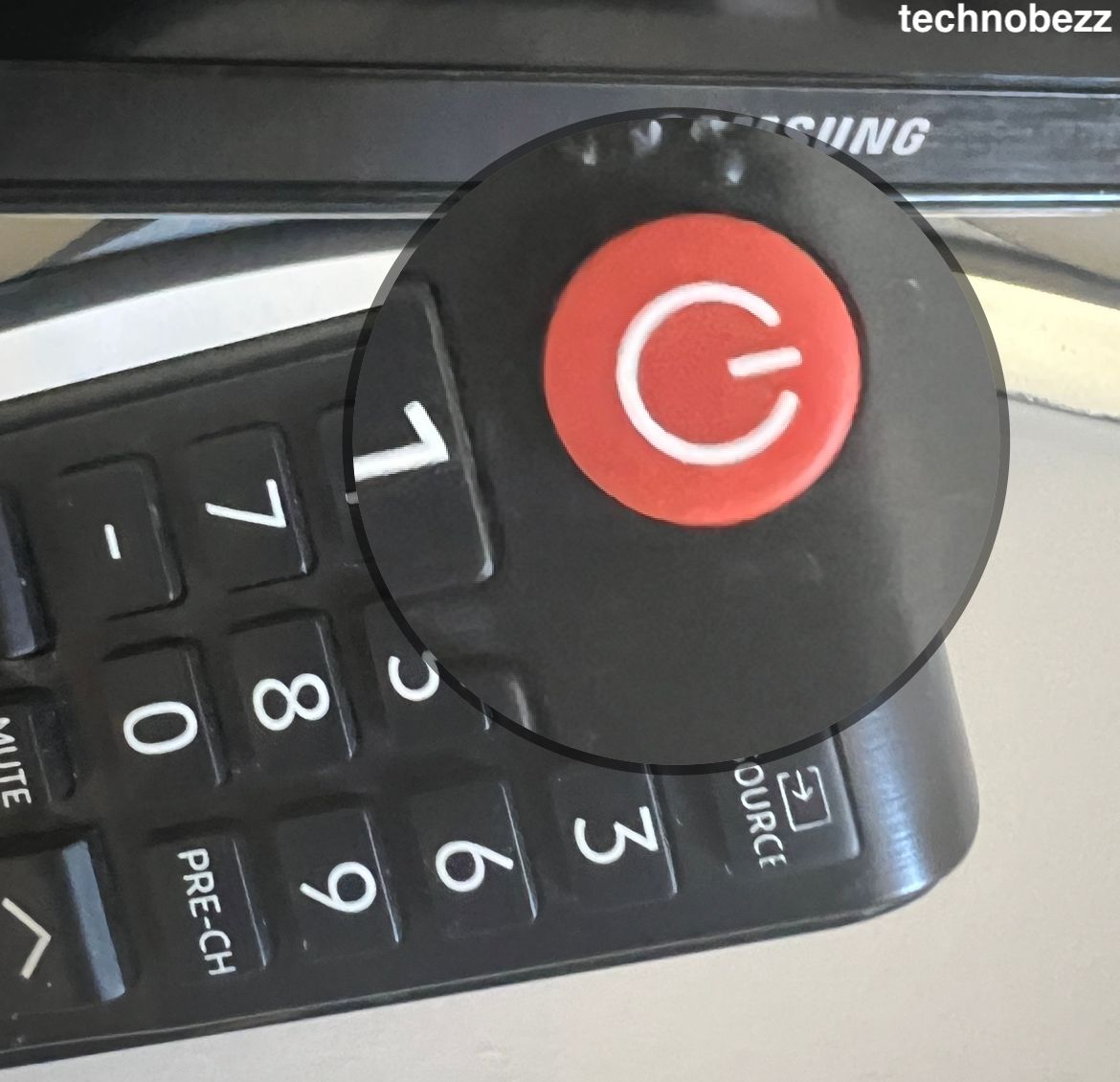
- 2.Press the physical Power button on the TV. Its location varies by model, often underneath the panel, behind the lower-right corner, or as a small jog button on the back.
- 3.If the TV turns on with the button but not the remote, the remote is the problem, not the TV.
To re-pair a Samsung Smart Remote, stand close to the set and hold Return and Play/Pause together for several seconds until a connection message appears. For battery remotes that still misbehave, remove the batteries, hold Power for about eight seconds, then reinsert them.
Power Cycle the TV
A power cycle, also called a soft reset, clears temporary glitches in the TV's memory. It is the single most effective fix for a TV that has power but won't start.
- 1.Unplug the TV from the wall outlet.
- 2.Press and hold the Power button on the TV itself for about 30 to 60 seconds to drain residual charge.
- 3.Plug the TV back into a known working outlet.
- 4.Wait a moment, then press Power once.
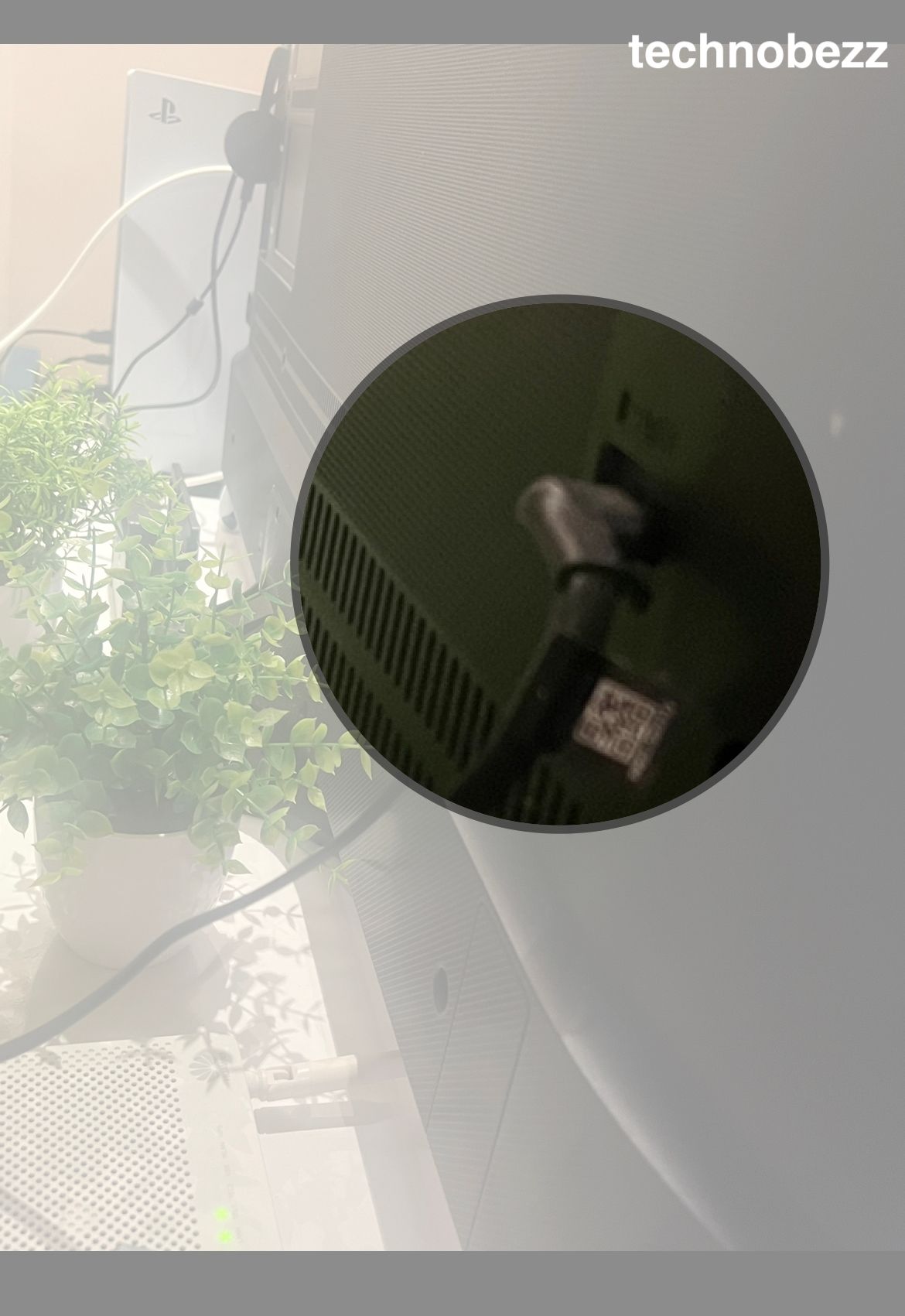
Give it a full minute after plugging back in before deciding it failed, since some sets take time to repost. If it still does nothing, move on to reading the standby light below.
Read more - Samsung TV Black Screen of Death - How to Fix It
Read the Standby Light Status
Once you know what the light is doing, you can match it to the right next move instead of guessing. The three states below cover almost every power-on failure.
- Solid red: The TV is in normal standby and receiving power. Focus on the remote, the input, and a power cycle.
- No light: The TV is not getting power, or it is already on with a black screen. Recheck the outlet, cord, and surge protector.
- Blinking red: This points to a power supply or firmware fault that often needs the deeper steps below.
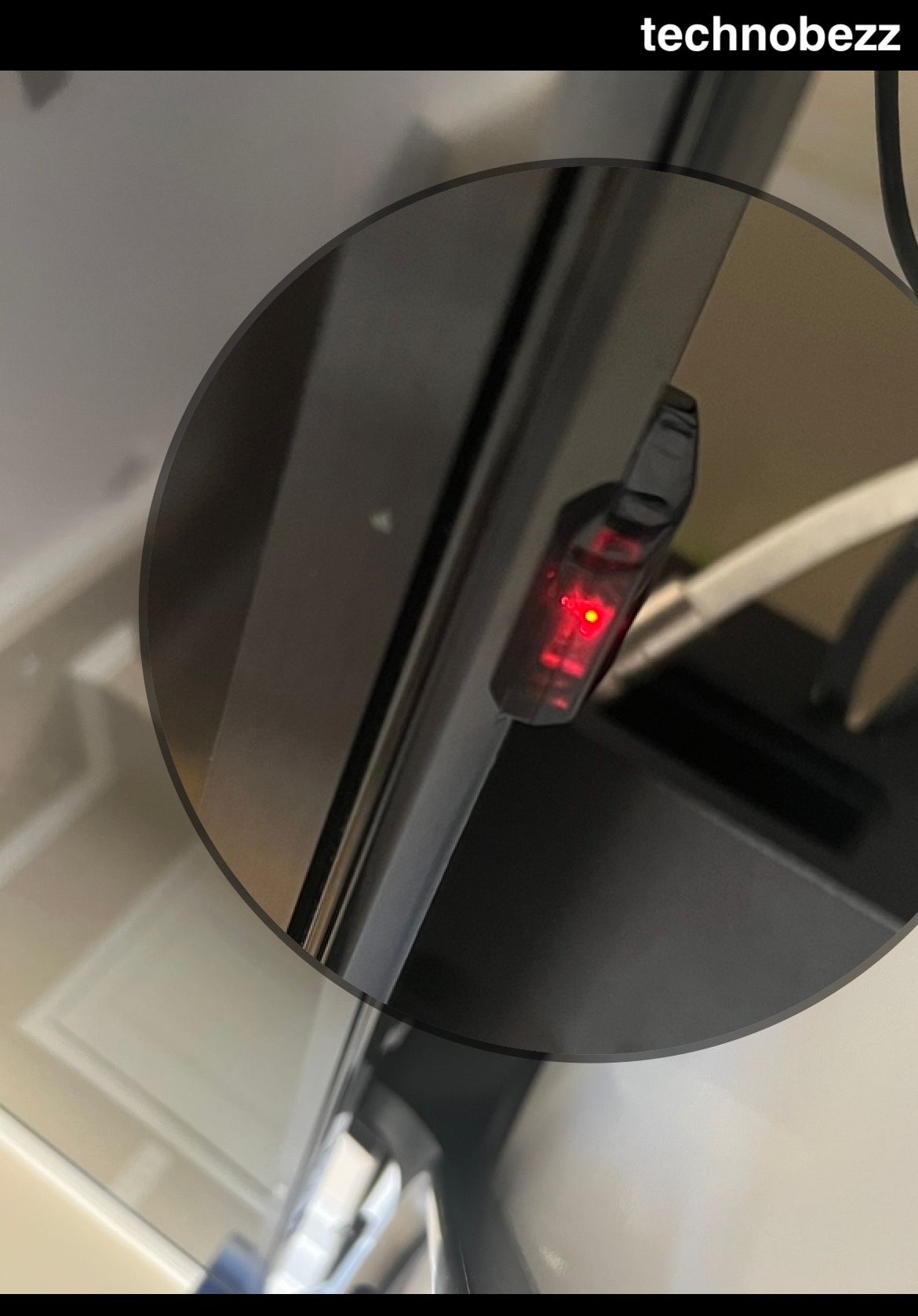
Samsung does not publish official meanings for the number of blinks, so treat any "blink code" charts you find online as rough guidance, not a diagnosis. Use the symptom sections below to confirm what is actually wrong.
When the Red Light Blinks but the TV Stays Off
A flashing or blinking red light usually signals that the power board is not delivering steady voltage, frequently after a surge or as components age. Start with an extended reset before assuming a repair.
- 1.Unplug the TV completely and leave it off for at least 30 seconds, ideally a few minutes.
- 2.Plug it directly into a wall outlet you know works, bypassing any surge protector.
- 3.Press Power and watch the light.
If the light stops blinking and the TV starts, your outlet or surge protector was the culprit. If it keeps blinking after this reset, the power supply board likely needs professional attention, covered in the last section.
When There Is No Standby Light at All
No light means the TV is seeing no usable power. This is good news, because the cause is usually outside the set.
- Plug the TV straight into a different wall outlet, skipping strips and extension cords.
- Test that the outlet works with a lamp or phone charger.
- Confirm the surge protector's reset or overload button has not tripped.
- For One Connect models, make sure the box itself is powered and connected.
If a known-good outlet still produces no light, the internal power supply has likely failed. At that point the TV needs service rather than another home fix.
Listen for a Clicking Sound
A repeated click with no startup is a classic sign of a power board working too hard, often because a capacitor is failing or the backlight circuit is shorted. The board tries to start, fails its safety check, and clicks as it retries.
First, do a full power cycle as described above, since a single bad startup can cause this. If the clicking returns every time you try to power on, the issue is internal and the power board should be inspected by someone comfortable opening the set.
Do not keep forcing it on repeatedly, as a struggling power board under fault can stress other components. One careful attempt is enough to confirm the symptom before you stop.
Black Screen but You Can Hear Sound
If the standby light behaves normally and you hear audio, navigation sounds, or the startup chime but see nothing, the TV is turning on. The fault is in the display, usually the backlight, not the power system.
Shine a flashlight at an angle very close to the screen while the TV is on. If you can faintly see a menu or picture in the beam, the panel and processing work and the backlight has failed, which is a repair.
If there is no image even under the flashlight, disconnect external devices and try again, since a stuck source can hold the screen black. The next section walks through stripping the TV down to nothing.
Disconnect External Devices
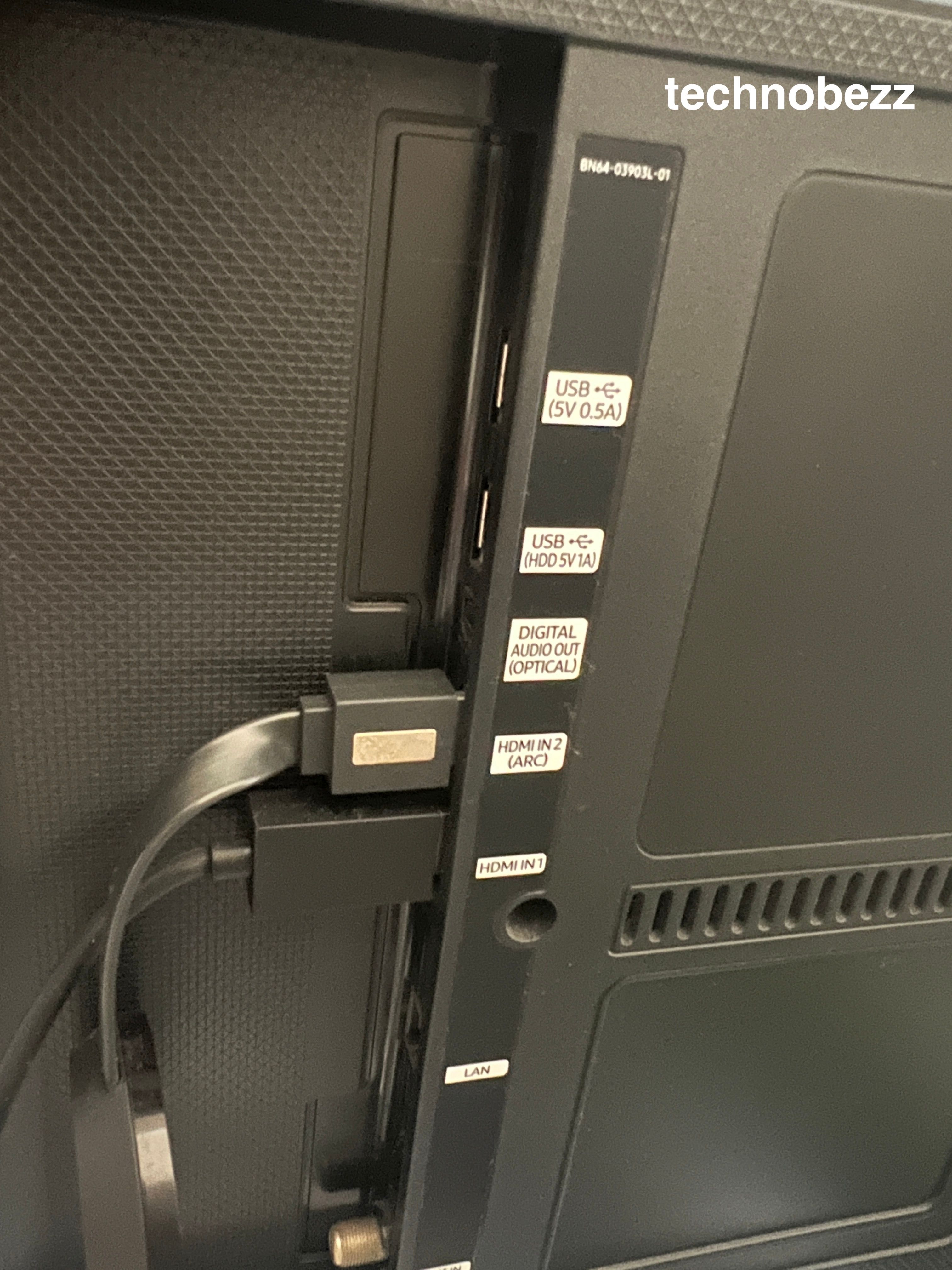
A faulty HDMI device, USB drive, or accessory can lock up the TV during boot and make it look dead. Stripping the TV down to nothing isolates this fast.
- 1.Power off and unplug the TV.
- 2.
 Click to expand
 - 3.Remove every HDMI cable, USB device, soundbar, and accessory.
- 4.Plug the TV back in and try to turn it on with nothing connected.
If it powers on clean, reconnect devices one at a time, testing after each. The accessory that brings the problem back is the one to leave unplugged or replace.
Bypass the Surge Protector and Test the Outlet
Power strips and surge protectors wear out and can silently stop passing power while still looking fine. They are a common hidden cause of a TV that suddenly won't turn on.
- Plug the TV directly into the wall, removing the strip from the equation entirely.
- Try a couple of different outlets to confirm steady power delivery.
- Check whether the surge protector's breaker or reset button has tripped.
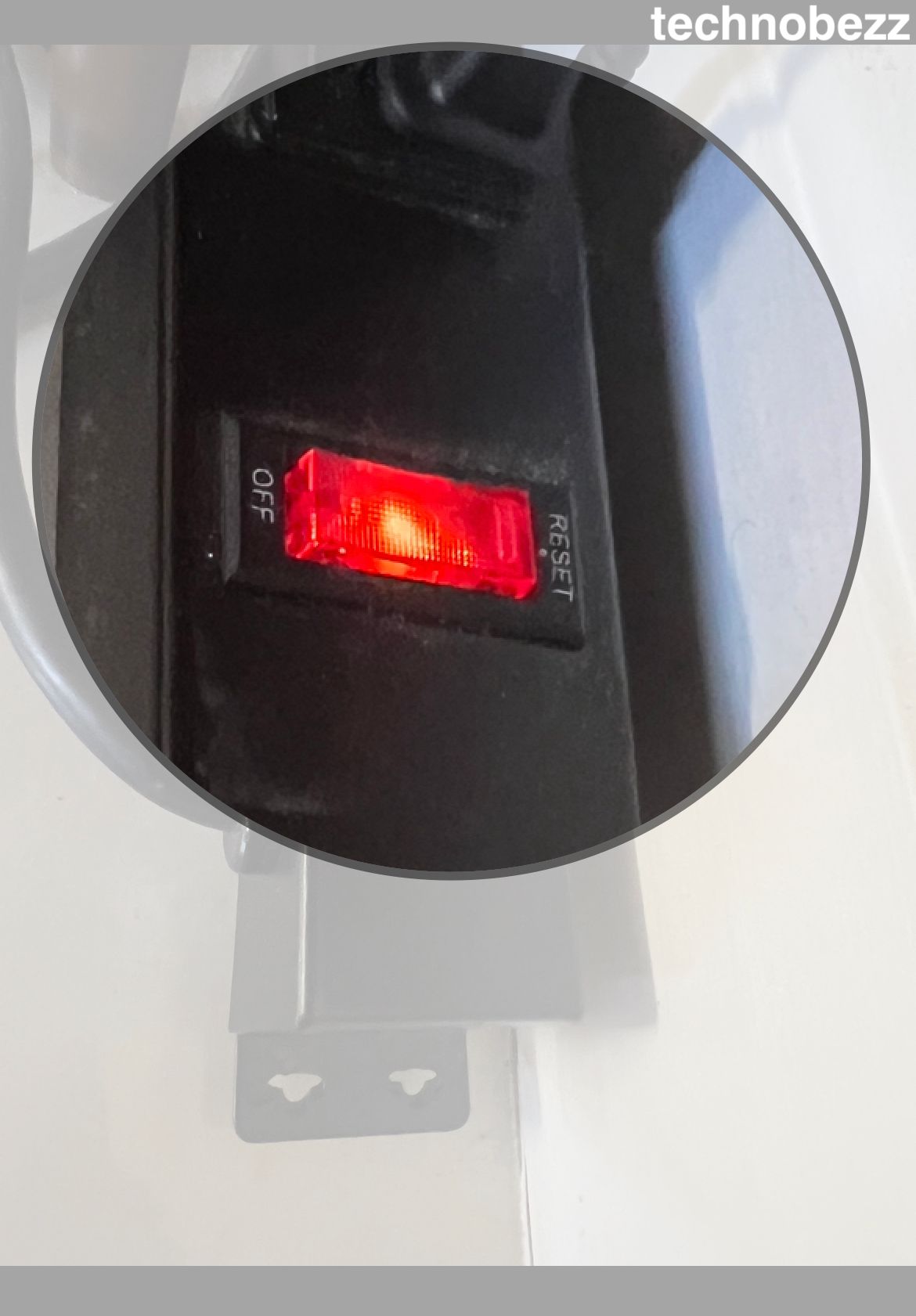
If the TV wakes up on a direct wall connection, replace the strip rather than trusting it again. A worn protector that fails once tends to fail again.
Reseat the One Connect Box and Cable
Many Neo QLED, QLED, and The Frame models route power and video through a separate One Connect Box using a single Invisible Connection cable. If that cable is loose or damaged, the screen stays dark even though the box has power.
- 1.Power off and unplug both the TV and the One Connect Box for 30 seconds.
- 2.Disconnect the One Connect cable at both ends and inspect the connectors for bent pins or damage.
- 3.Firmly reconnect it until it clicks into place at the TV and the box.
- 4.Plug everything back in and try to power on.
A cable that is kinked, pinched under furniture, or frayed should be replaced, since damage here causes exactly this no-picture symptom. Samsung sells the Invisible Connection cable as a separate part if yours is damaged.
Reset the TV to Clear a Boot Loop
If the Samsung logo appears and disappears, or the TV restarts in a loop, a corrupted firmware state may be to blame. A longer power reset gives it a clean restart.
- 1.Unplug the TV for at least one full minute, or up to five for a stubborn loop.
- 2.While unplugged, hold the TV's Power button for about 30 seconds.
- 3.Plug it back in and let it boot fully without pressing other buttons.
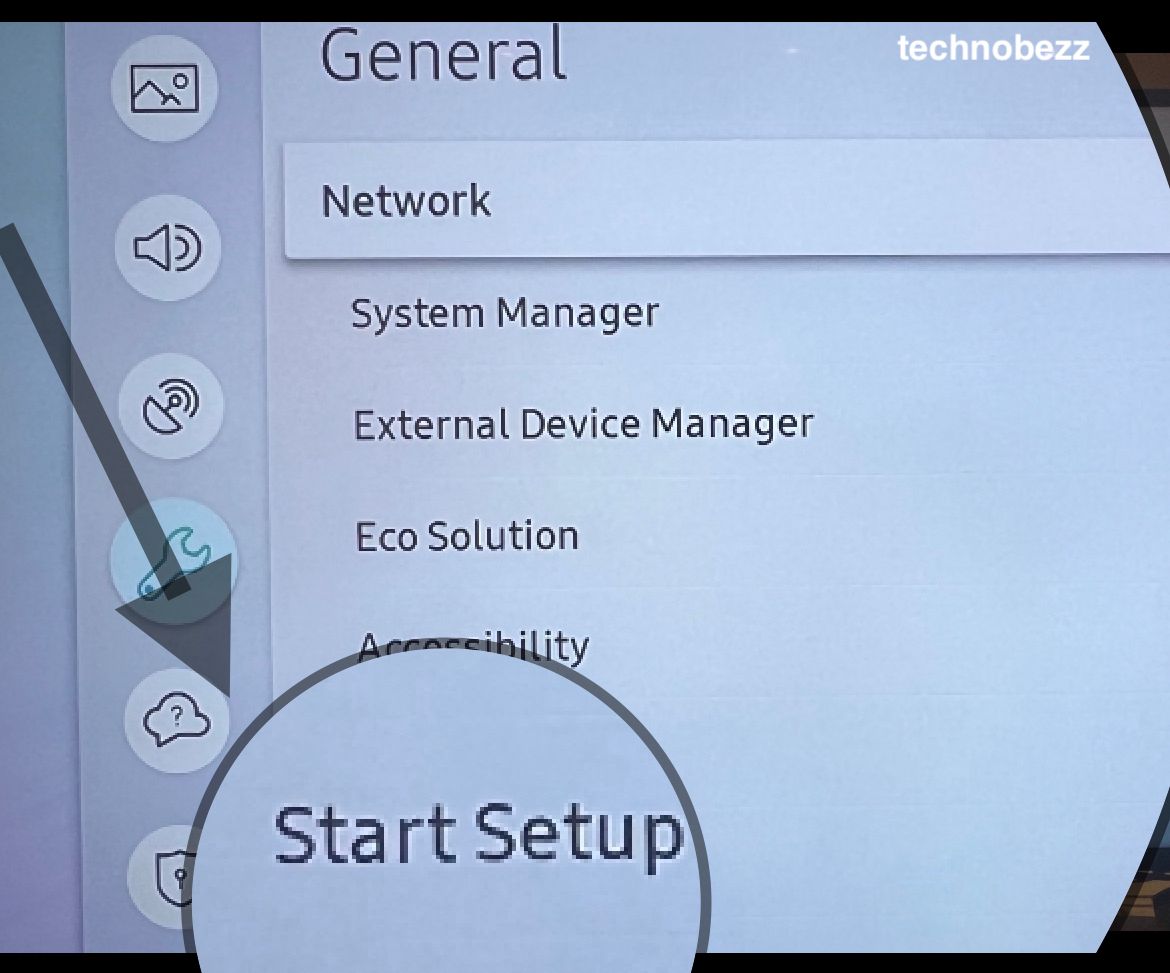
If it boots normally, check for a software update once you regain the menu, since the update may fix the underlying bug. On most current models the path is Settings > Support > Software Update.
Factory Reset as a Last Software Step
When the TV powers on enough to reach menus but remains unstable, a factory reset wipes corrupted settings and returns it to its original state. This erases your apps, accounts, and preferences, so use it only after the steps above.
On newer models, go to Settings > General & Privacy > Reset, while older sets may read Settings > General > Reset or hide it under Settings > Support > Self Diagnosis > Reset. Enter your PIN if asked, which is 0000 by default, then confirm and the TV walks you through setup again.
If you cannot reach the menus at all, a factory reset is not possible. That points to a hardware fault, which the next section covers.
When It Is the Power Supply Board or Capacitors
If you have worked through every step and the TV still will not turn on, the fault is almost certainly internal. The usual suspects are the power supply board, failed electrolytic capacitors, or the main board.
- Power supply board failure is common as TVs age or after a surge, and often shows as a blinking light, clicking, or no response.
- Bulging or leaking capacitors on the power or main board are a frequent, sometimes repairable cause.
- Main board faults require component-level repair and proper diagnosis.
Contact Samsung support or a qualified repair technician. Many power supply issues are fixable for far less than a new TV, so weigh the repair quote against the set's age and original price before replacing it. For a cross-check on persistent power loops, see our related guides linked above.
Frequently Asked Questions
Why does my Samsung TV have a red light but won't turn on?
A solid red light means the TV has power but is not receiving a valid power-on command, so test the remote and the TV's own Power button, then do a power cycle. A blinking red light instead points to a power supply or firmware fault that usually needs an extended reset and, if it persists, service.
How do I force restart a Samsung TV?
Unplug the TV from the wall, then press and hold the Power button on the TV itself for about 30 to 60 seconds to drain residual power. Plug it back into a known working outlet and press Power once. This soft reset clears most temporary startup glitches.
What does it mean when my Samsung TV clicks but won't turn on?
Repeated clicking with no startup usually means the power board keeps trying to start and failing its safety check, often due to a failing capacitor or backlight circuit. Try one full power cycle, and if the clicking returns every time, have the power board inspected rather than forcing it on repeatedly.
Why can I hear sound but see no picture on my Samsung TV?
If the TV makes sound but the screen stays black, it is turning on and the problem is the display, usually a failed backlight. Shine a flashlight close to the screen at an angle, and if you can faintly see the picture, the backlight needs repair.
How long does a Samsung TV last?
With heavy daily use a Samsung TV typically lasts around seven years, while lighter use and good ventilation can stretch its life to roughly ten years or more. Surges, heat, and constant maximum brightness shorten that span.
Is it worth fixing a Samsung TV that won't turn on?
It often is when the set is fairly new or high end and the repair, such as a power board or capacitors, costs well under the price of a replacement. If the TV is near the end of its expected life or the quote approaches half the cost of a new comparable model, replacement usually makes more sense.
First published October 16, 2025. Last updated June 4, 2026.