Direct messages are how most one-on-one conversations happen on Discord, but they do not always work the way you expect. You may find the message box greyed out, see a notice that your message could not be delivered, or simply never hear back because your note landed in a folder the other person never checks.
Most of the time this is a settings issue on one side or the other, not a bug. Below are the fixes for when DMs will not send, followed by the clean steps to enable direct messages and adjust your privacy. The menu names match Discord's current Content & Social layout as of 2026.
Why You Can't DM Someone on Discord
Discord blocks a DM for a handful of specific reasons, and the fix depends on which one applies. You can only message someone if you are friends with them, or if you share a server and both of you allow DMs from server members.
A direct message will fail when you do not share a server with the person and are not friends, when you have turned off DMs from members of your shared server, or when the recipient only accepts messages from friends. It can also fail when you have not finished a server's membership screening or rules gate, or when one of you has blocked the other. Work through the fixes below in order and you will land on the one that applies to you.
Add the Person as a Friend
If you do not share any server with someone, a friend request is the only way to open a DM with them. Click their username or avatar to open their profile, then choose Send Friend Request, or go to the Friends tab and add them by their username.
You will not be able to message them until they accept the request. Once they do, a direct message channel opens automatically and you can chat without sharing a server at all.

Turn On DMs From Server Members
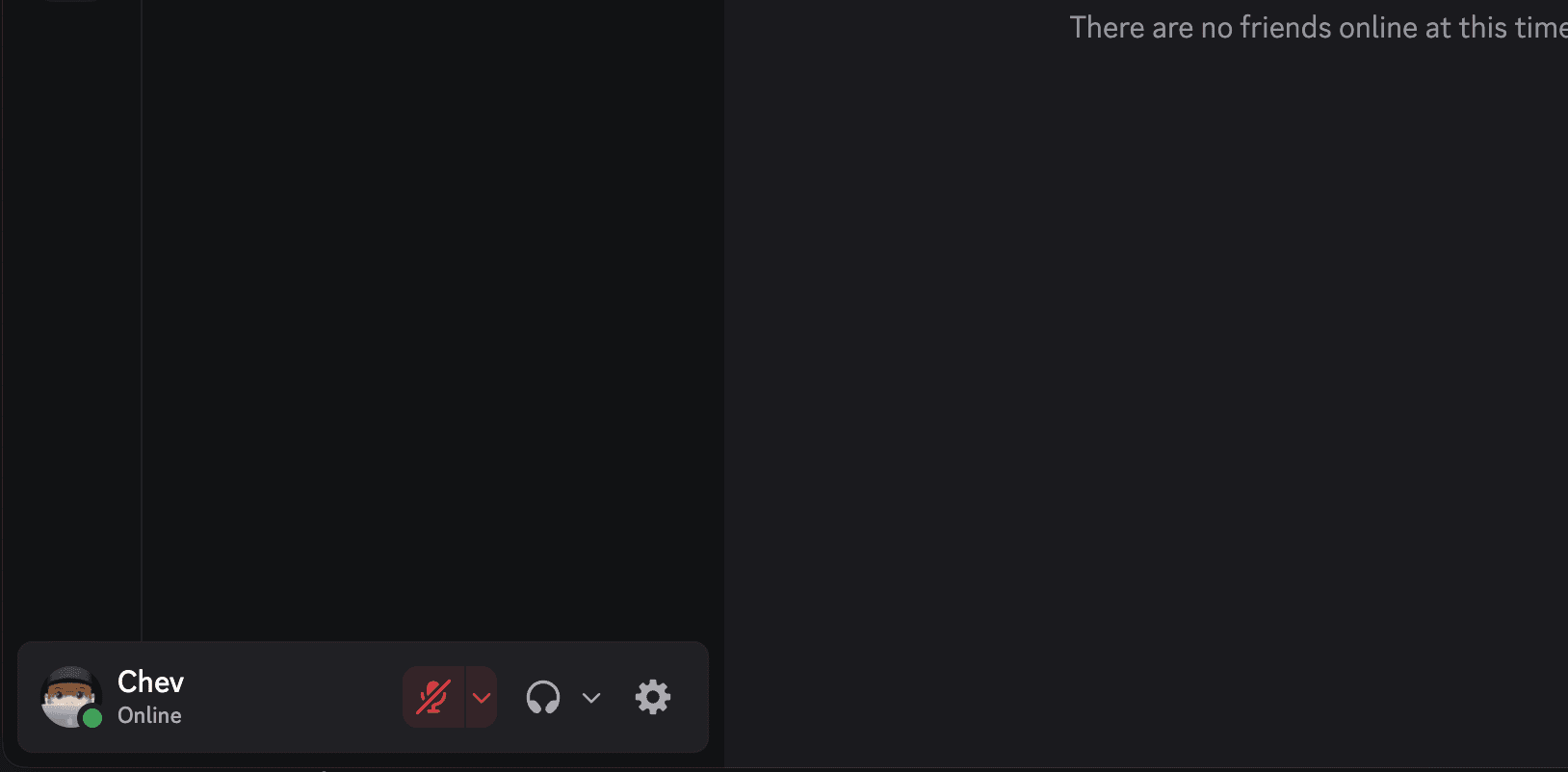
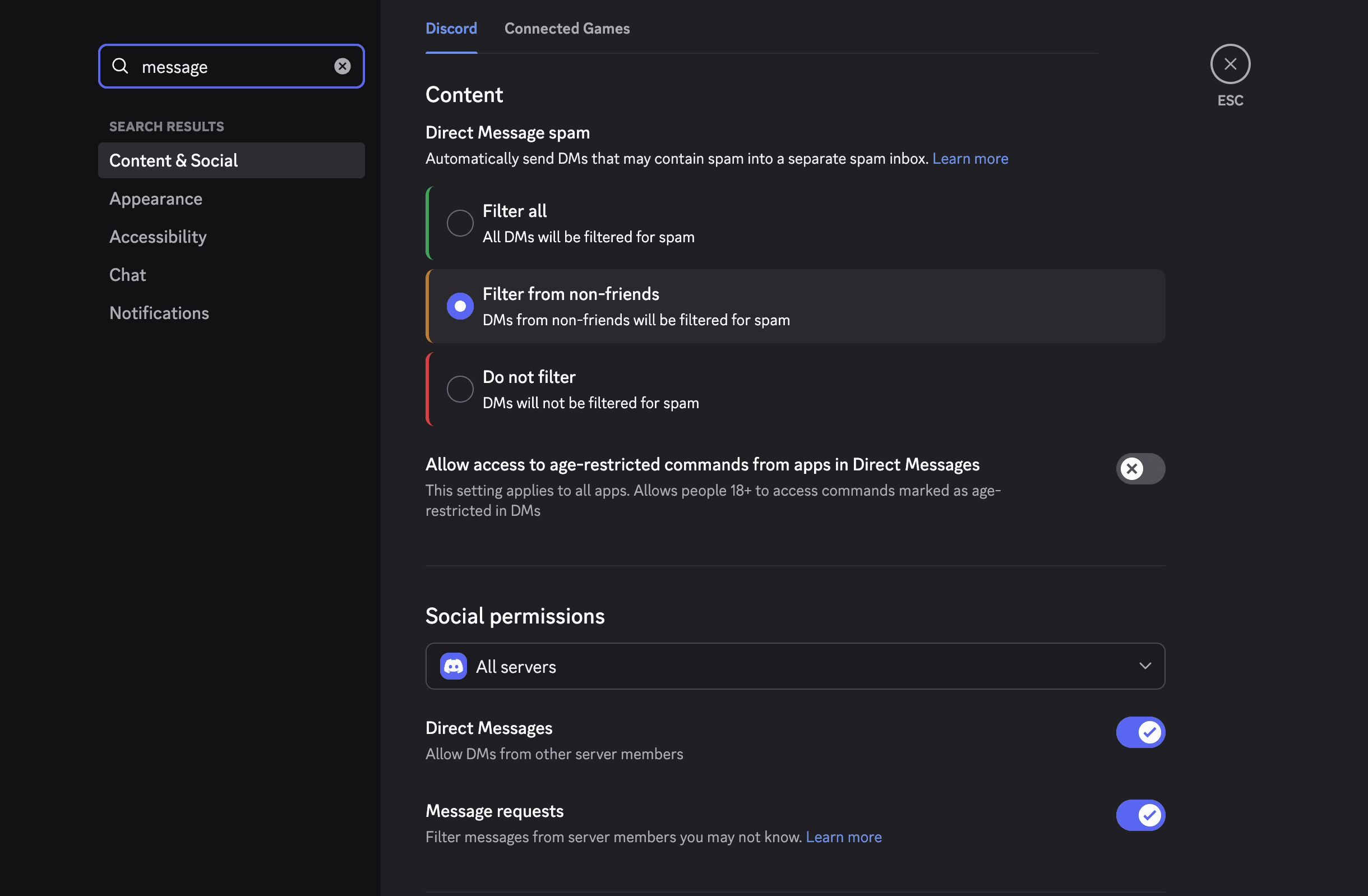
If you share a server but cannot message someone in it, your own server DM setting may be switched off. Open User Settings with the gear icon next to your name, go to Content & Social, and turn on Allow direct messages from server members.
When you change this, Discord asks whether to apply it to all of your existing servers. If you choose No, the setting only changes going forward and you will need to enable it per server for communities you already joined.
To enable DMs for one specific server on desktop, right-click the server icon in the left sidebar and choose Privacy Settings, then turn on Allow direct messages from server members. On mobile, tap the server icon, tap the three-dot menu near the top right, and toggle the same setting there.
Check Your Message Requests Inbox
Discord routes DMs from people who are not your friends into a separate Message Requests inbox so they do not clutter your main list. If a message seems to have vanished, it may simply be waiting there for you to approve it.
On desktop and web, open the Home tab to find the Message Requests folder, where you can view the sender's profile and shared servers, then accept or ignore the request. On mobile you get the same accept or decline options after tapping into the request.
You can adjust this globally under User Settings then Content & Social, and you can turn it off for a single server under that server's dropdown menu then Privacy Settings. Until you accept a request, the other person's note stays out of your main DM list.
The Other Person May Have DMs Off or Blocked You
Sometimes the block is on the recipient's side, not yours. They may accept DMs from friends only, may have turned off DMs from members of your shared server, or may have blocked you, and any of these will stop your message.
You cannot change another person's privacy settings. If you suspect they limit DMs to friends, send a friend request and wait for them to accept. If you think you were blocked, there is no setting to undo that on your end, because the other person controls it.
Finish Membership Screening and Rules Gates
Many servers require new members to agree to rules or pass a verification gate before they can interact. Until you complete that step, the server may restrict what you can do, and that can extend to messaging members.
Look for a rules screening prompt or a verification channel when you first join, and complete it. Some servers also use a verification level that requires a verified email or phone number, or a waiting period for brand-new accounts, before you can send messages.
Verify Your Account if Messaging Is Blocked
Discord may ask you to verify your email or phone number, and an unverified or flagged account can be limited from sending DMs. If your access has been limited, you will usually see a banner at the top of the app saying something looks off with your account, along with an option to regain access.
Go to User Settings then My Account to confirm your email and phone are verified, and check the Standing section there for any active violations. If your account has a warning or a violation, Discord sends a system message explaining what happened and links to a webform where you can request a review.
How to Enable Direct Messages on Discord
Once you have ruled out the blockers above, enabling and opening up your DMs is quick. These steps cover the global setting that controls who can message you across all your servers.
- 1.Open Discord and click the gear icon for User Settings in the bottom-left corner next to your username
- 2.Select Content & Social in the left sidebar
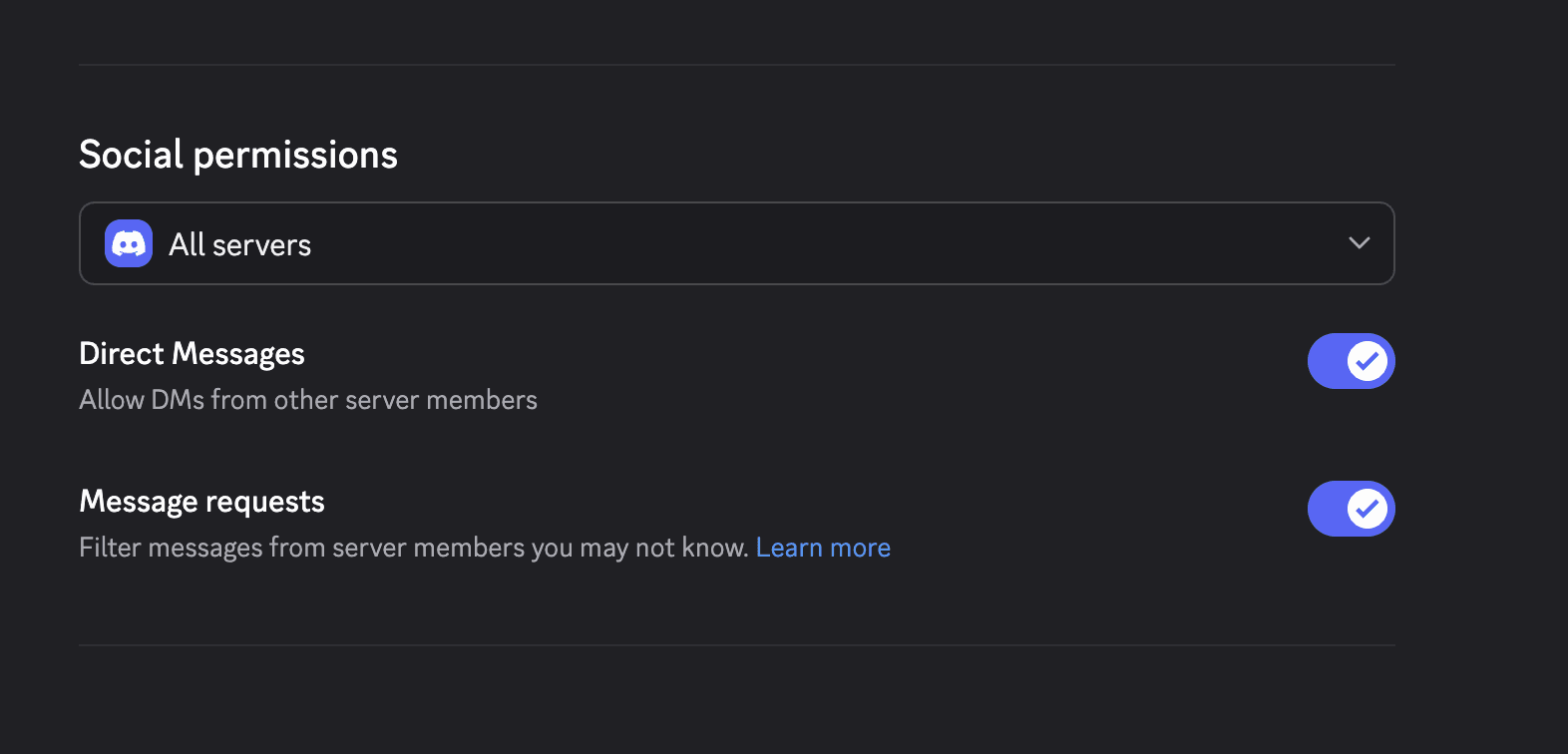
- 3.Find the social permission and direct message settings
- 4.Turn on Allow direct messages from server members to let server members reach you
- 5.When prompted, choose whether to apply the change to all existing servers
If you want messages from more people, you can also widen who is allowed to send you friend requests in the same Content & Social area, which makes it easier for new contacts to add you and start a DM.
How to Send a Direct Message
With your settings in place, sending a DM takes only a few clicks. You can start one from your friends list or directly from a person's profile in a shared server.
- 1.Click the Discord home icon in the top-left corner
- 2.Open the Friends tab
- 3.Click a user to open a direct message channel, or use the search bar to find them
- 4.Type your message in the text box at the bottom
- 5.Press Enter or click the send icon
You can also DM someone by clicking their username or avatar anywhere in a server and choosing Message from their profile card. This works for anyone you are allowed to message under the rules above.
Per-Server vs Global and Desktop vs Mobile DM Settings
It helps to know which control you are actually changing, because Discord has both an account-wide setting and a separate toggle for each server. The table below maps where each one lives.
| Setting | What it controls | Where to find it |
|---|---|---|
| Global server DMs | Whether server members can DM you across all servers | User Settings then Content & Social |
| Per-server DMs (desktop) | DMs from members of one specific server | Right-click the server icon then Privacy Settings |
| Per-server DMs (mobile) | DMs from members of one specific server | Tap the server icon then the three-dot menu |
| Message Requests | Routes non-friend DMs to a separate inbox | Content & Social, or per server under Privacy Settings |
| Friend requests | Who can add you as a friend | User Settings then Content & Social |
The settings live in the same places on desktop, mobile, and web, but the path to per-server controls differs. Desktop users right-click a server icon, while mobile users tap the icon and open the three-dot menu to reach the same toggle.
Teen Accounts and Family Center Limits
If a younger user cannot receive DMs the way an adult can, teen safety defaults are usually the reason. Discord routes DMs from people a teen may not know into the Message Requests inbox by default, and changing that setting is limited to age-assured adult users.
Parents and guardians can adjust friend request and server DM settings through Family Center. In some regions, changing a teen's message settings requires completing age verification first. Discord began verifying age for UK users in 2025, with a global rollout planned for the second half of 2026.
Frequently Asked Questions
Why can't I DM someone on Discord
The most common reasons are that you do not share a server and are not friends, the other person accepts DMs from friends only, one of you turned off server DMs, you have not finished a server's rules or verification gate, or one of you blocked the other. Sending a friend request resolves most cases.
Are Discord DMs private
Direct messages are visible only to the people in the conversation and are not posted to any server. Keep in mind that the other person can still screenshot or forward what you send, and Discord may review messages reported for policy violations.
How do I turn off DMs on Discord
Open User Settings then Content & Social and turn off Allow direct messages from server members. To stop DMs from one specific server, right-click that server's icon on desktop and choose Privacy Settings, or tap the icon and use the three-dot menu on mobile.
Why are my Discord DMs greyed out or disabled
A greyed-out message box usually means you are not allowed to message that person, often because you do not share a server, are not friends, have not passed the server's verification gate, or one of you has DMs restricted. Add the person as a friend or complete the server's rules screening to open the channel.
Where do non-friend messages go on Discord
DMs from people who are not your friends are filtered into the Message Requests inbox, found on the Home tab. Open it to review the sender, then accept the request to move the chat into your main DM list or ignore it to keep them out.
Can I message someone on Discord if we don't share a server
Yes, but only if you become friends first. Send them a friend request, and once they accept, a direct message channel opens automatically even though you have no server in common.
First published October 17, 2025. Last updated June 4, 2026.